
The Result Page lets you show custom content, product recommendations, and redirect links after users complete a quiz.
1. Add HTML Content
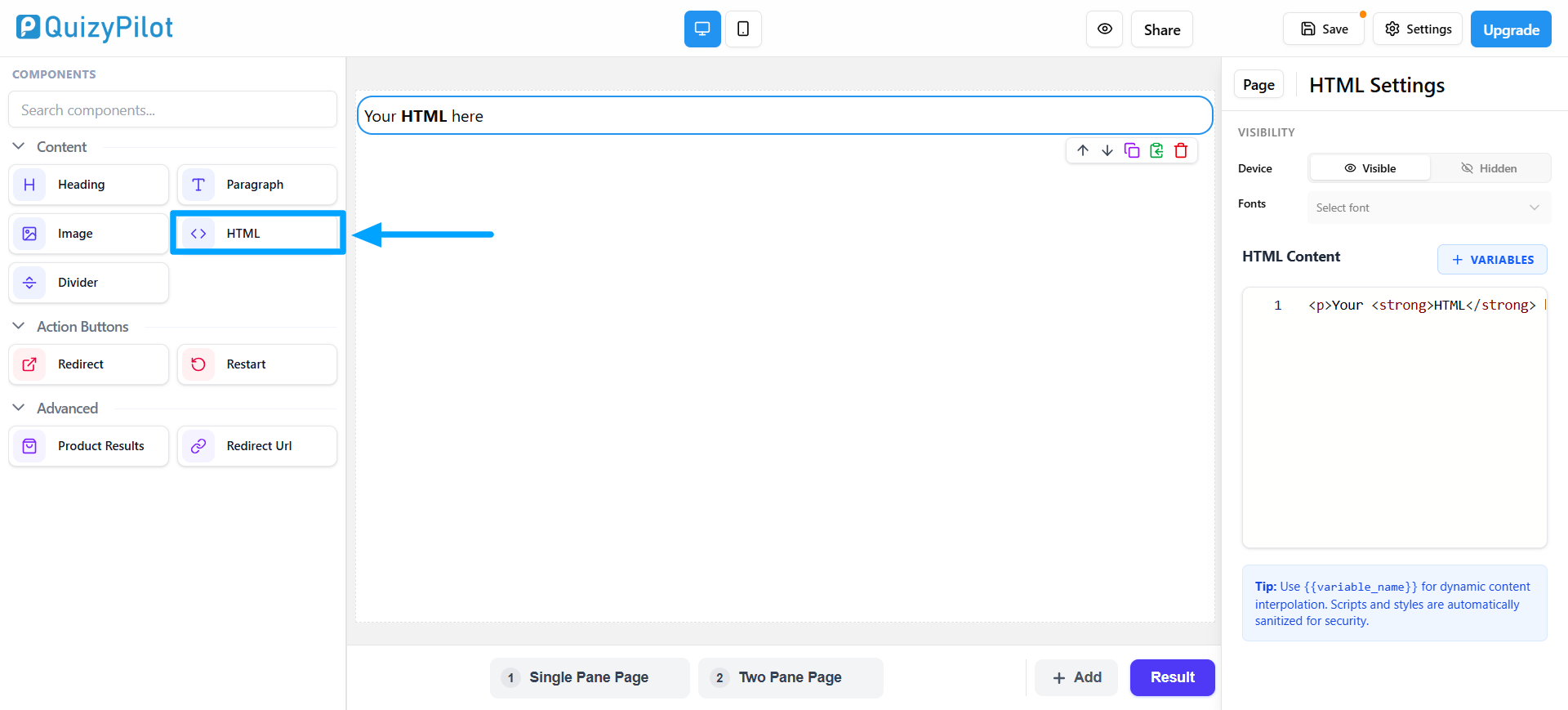
Use the HTML component to add custom text or styled content to your result page.
Steps
- Drag the HTML block from the left panel
- Add your content from the settings panel on the right
Great for:
- Custom messages
- Headings
- Descriptions
- Styled sections
2. Add a Redirect Button
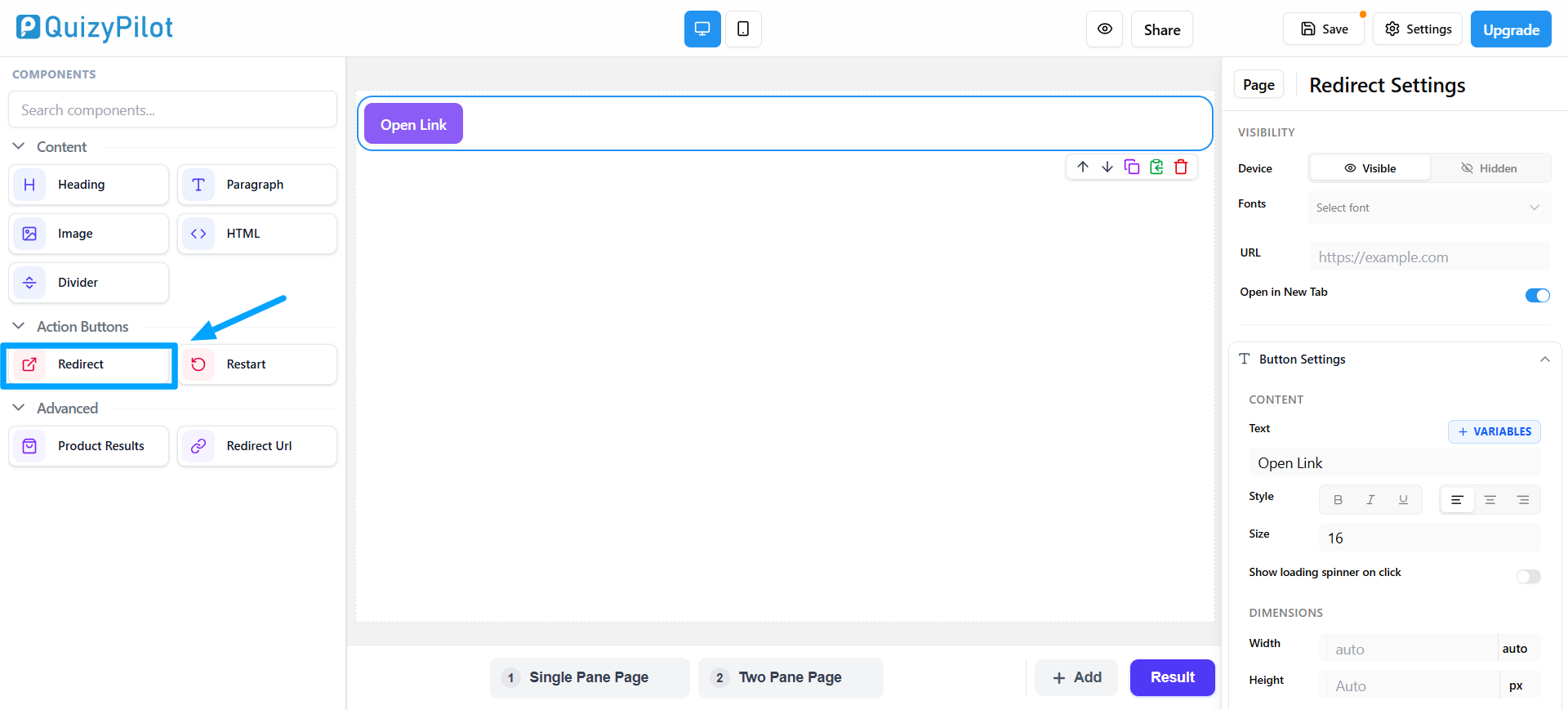
Use the Redirect component to create a clickable button.
Steps
- Drag the Redirect block onto the page
- Add your website or product URL
- Customize the button text and style
Users will open the link when they click the button.
3. Show Product Recommendations
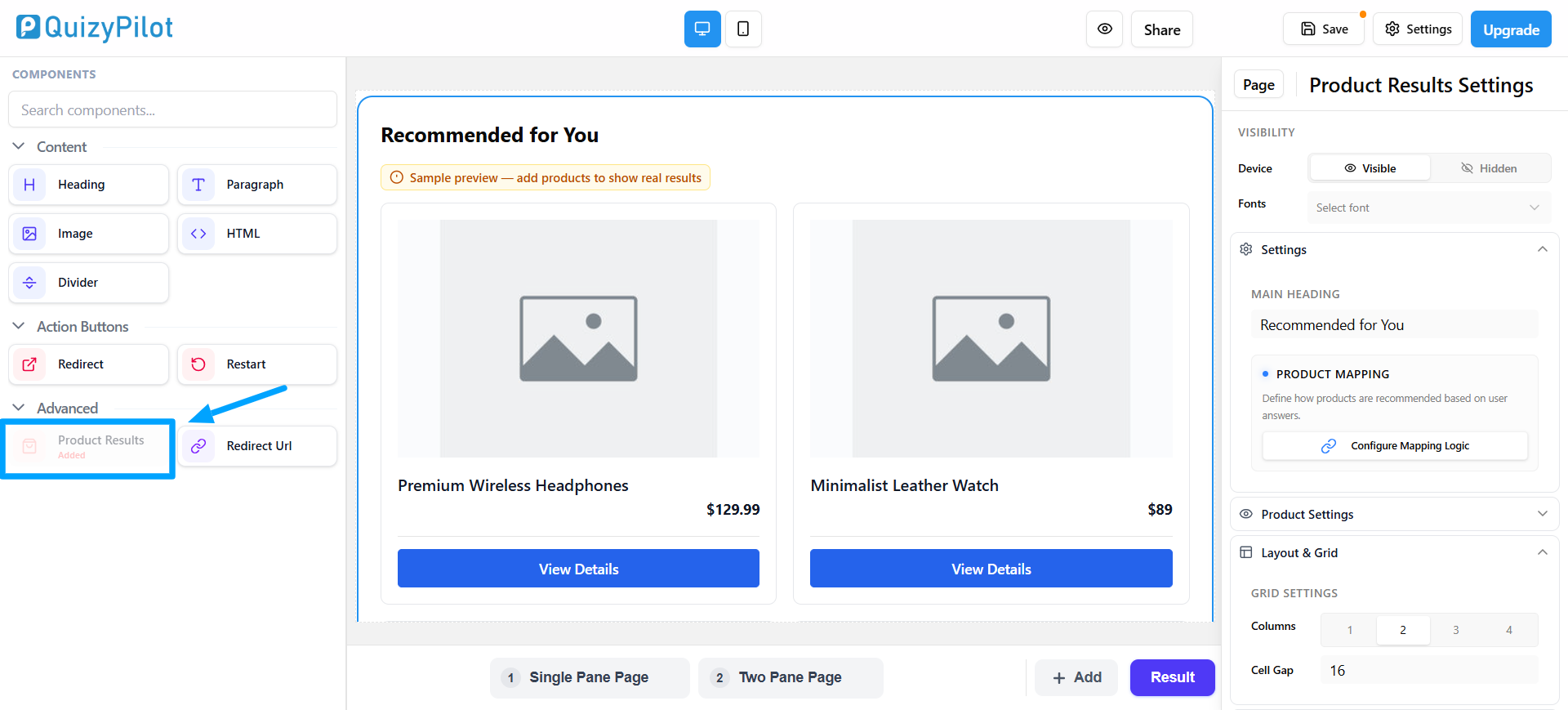
Use the Product Results component to display matched products.
Steps
- Drag the Product Results block onto the page
- Configure product mapping logic
- Customize layout and product display settings
This helps users see products based on their quiz answers.
4. Add a Redirect URL Section
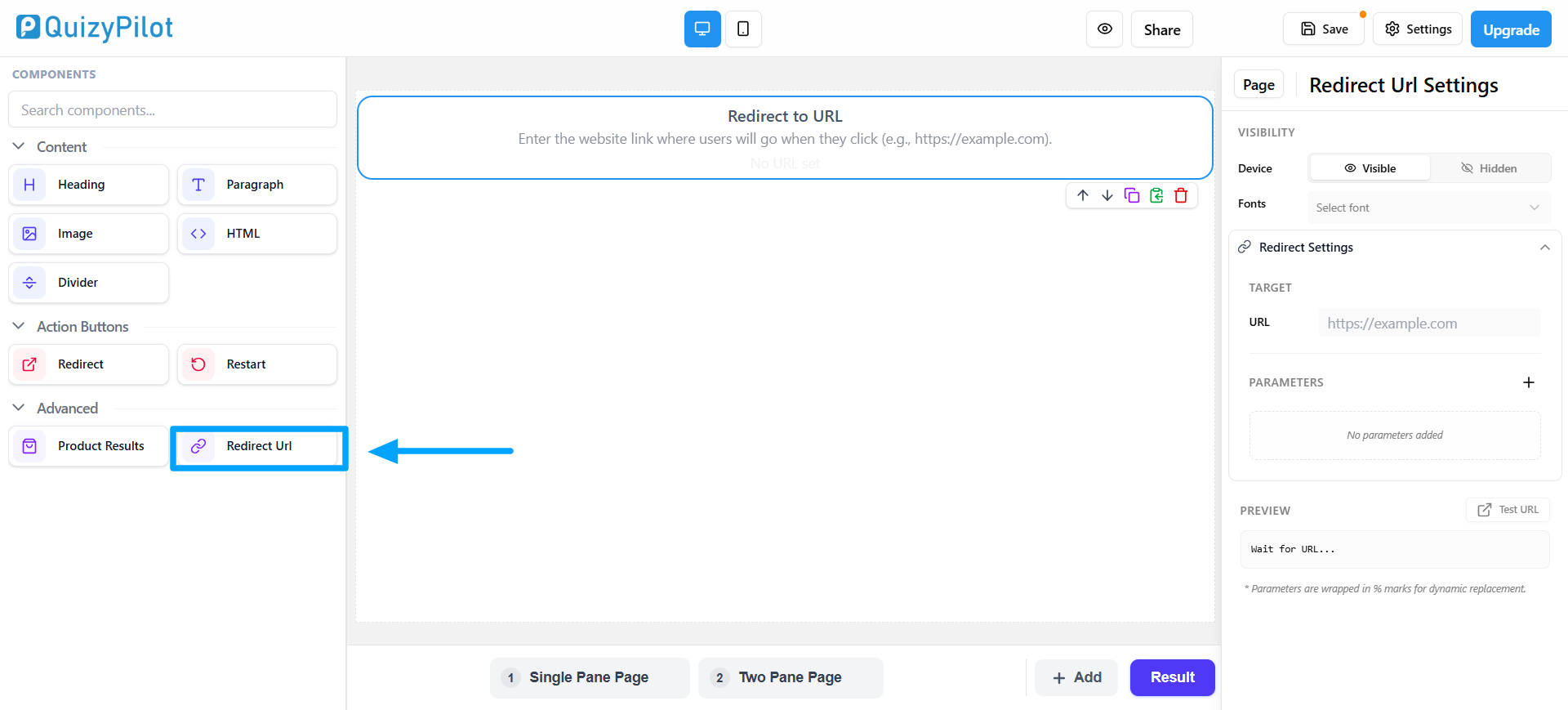
Use the Redirect URL component to send users to another page.
Steps
- Drag the Redirect URL block onto the result page
- Add the destination URL from the settings panel
Users can continue directly to that page after viewing results.