
How to Use Jump Logic in QuizyPilot
Jump Logic lets you control the flow and behavior of your quiz based on a customer's answers. You can use it to show relevant questions, hide pages, redirect customers, or send them to a specific part of your quiz.
What is Jump Logic?
Jump Logic allows you to create rules that perform an action when a specific condition is met.
For example, if your quiz asks:
What type of product are you looking for?
- Skincare
- Haircare
- Makeup
You can create rules based on the customer's answer.
For example:
- If Skincare is selected → Jump to Skincare Preferences
- If Haircare is selected → Jump to Hair Type
- If Makeup is selected → Jump to Makeup Preferences
This allows you to create personalized quiz experiences where different answers can trigger different actions.
How to Add Jump Logic
1. Open Your Quiz
Open the quiz where you want to add Jump Logic from your QuizyPilot dashboard.
Screenshot:
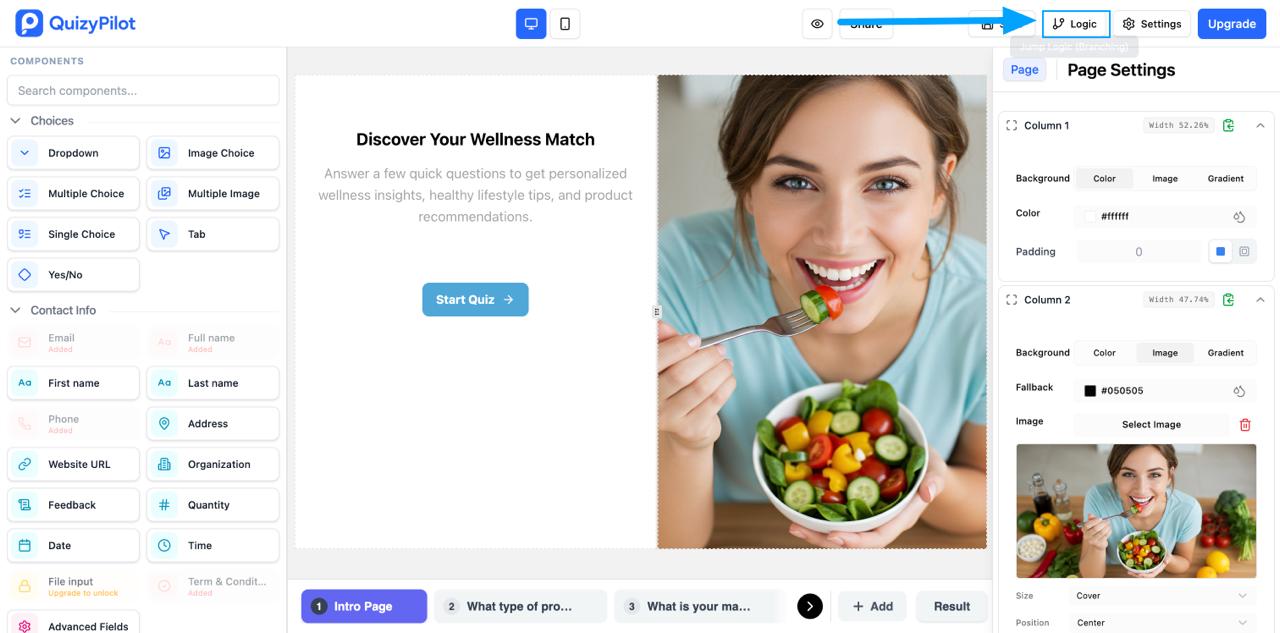
Open the quiz editor and select the question where you want to create a rule.
2. Add a Jump Logic Rule
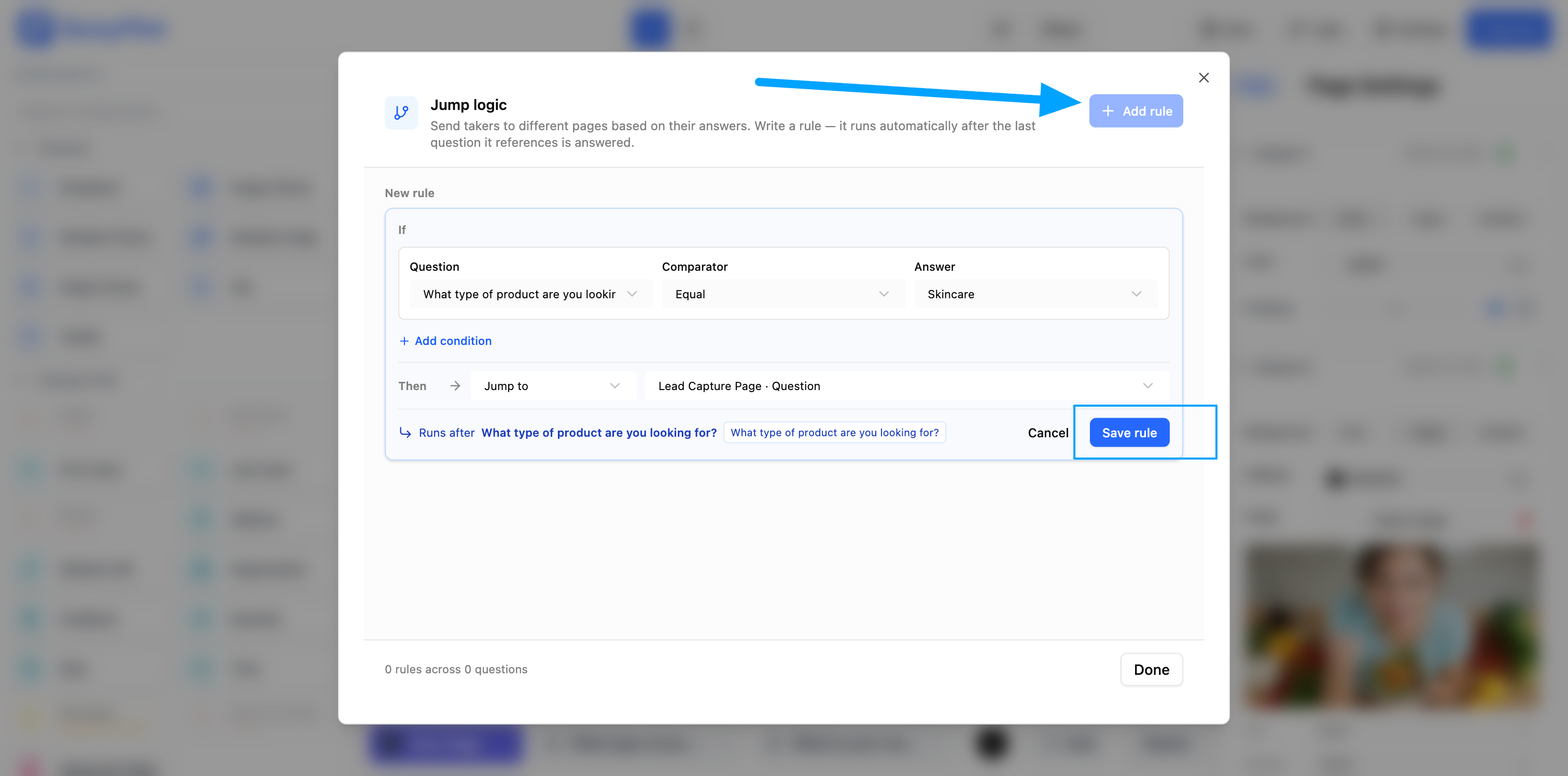
In the quiz editor, find the question where you want to add a rule and click Add Rule.
Screenshot:
Show the Add Rule button.
A rule allows you to define what should happen when a specific condition is met.
3. Choose a Source Question
Select the question that should be used as the basis for your rule.
The source is the question whose answer QuizyPilot will check before performing the selected action.
For example:
Source: What type of product are you looking for?
QuizyPilot will use the customer's answer to this question to determine what action should be performed.
Screenshot:
4. Set the Condition
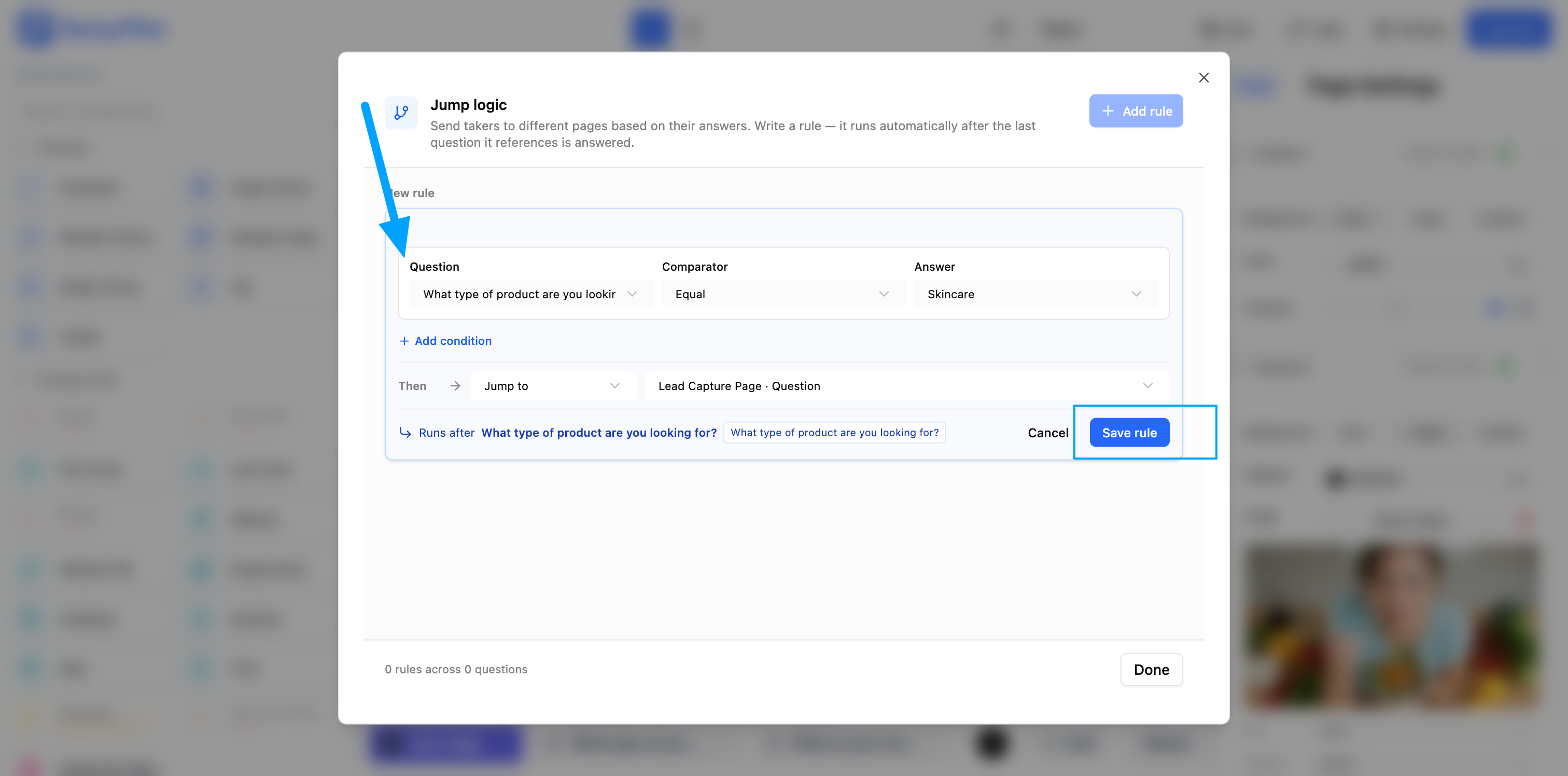
Choose the condition that should trigger the rule.
For example:
If Answer → equals → Skincare
This means the rule will run when the customer selects Skincare as their answer.
Screenshot:
5. Choose an Action
After setting the condition, choose what QuizyPilot should do when the condition is met.
QuizyPilot provides the following actions:
- Jump To — Send the customer to a specific question or page in the quiz.
- Hide Page — Hide a specific page from the customer.
- Show Only Pages — Display only the selected pages to the customer.
- Redirect (Same Tab) — Redirect the customer to another URL in the current browser tab.
- Redirect (New Tab) — Open another URL in a new browser tab.
For example:
If Answer = Skincare → Jump To → Skincare Preferences
Screenshot:
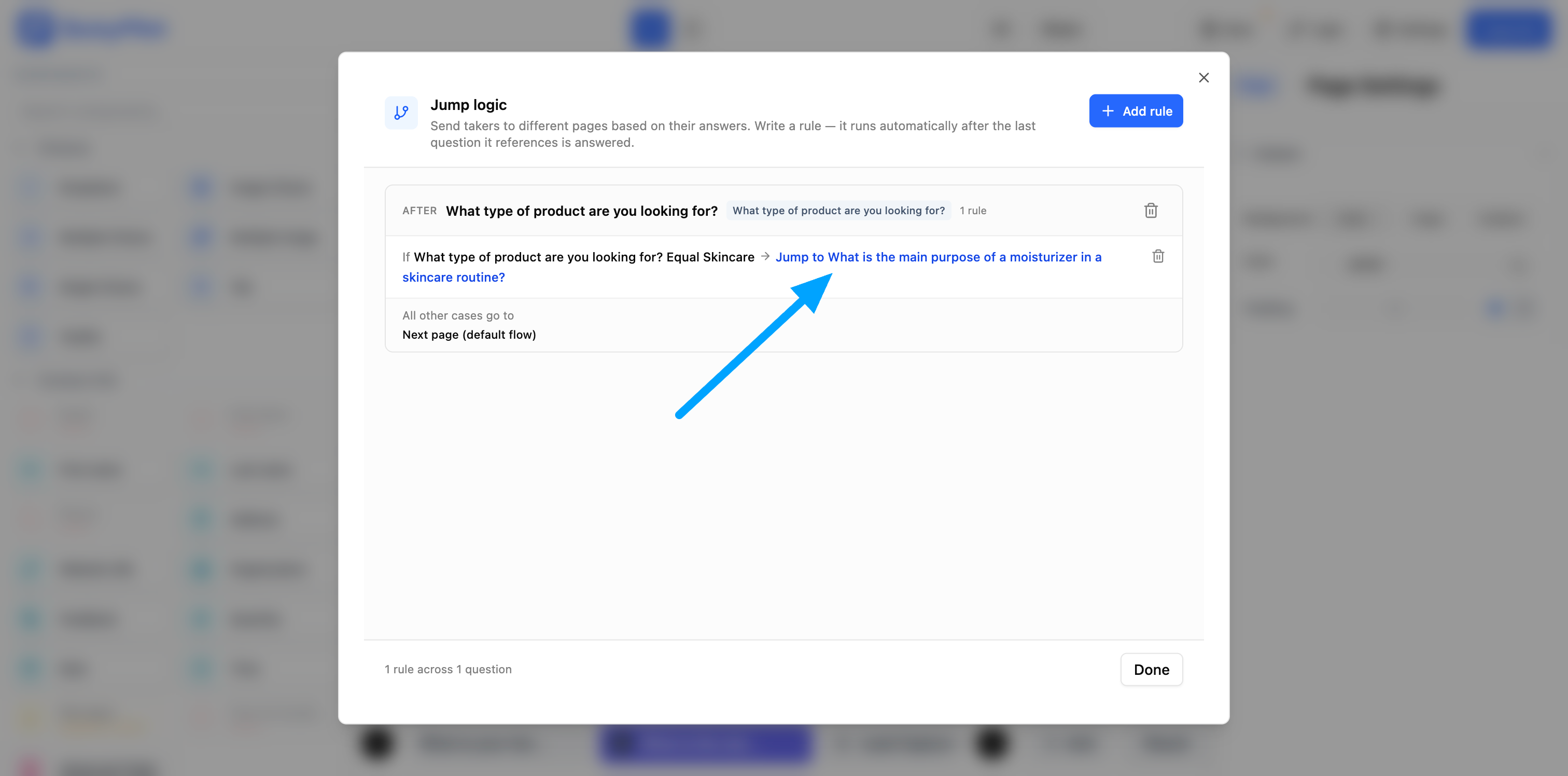
Select the appropriate action and configure its destination or settings.
6. Save and Test Your Rule
Save your Jump Logic rule and use the quiz preview to test the behavior.
Test the different answers that can trigger your rule and make sure the expected action happens correctly.
Example of Jump Logic
Let's say your quiz asks:
What type of product are you looking for?
| Answer | Action | Result | |---|---|---| | Skincare | Jump To | Skincare Preferences | | Haircare | Jump To | Hair Type | | Makeup | Jump To | Makeup Preferences |
For example:
If Answer = Skincare → Jump To → Skincare Preferences
When a customer selects Skincare, QuizyPilot automatically takes them to the selected question or page.
You can also use other actions depending on what you want to achieve:
| Condition | Action | Result | |---|---|---| | Answer = Skincare | Hide Page | Hide the selected page | | Answer = Haircare | Show Only Pages | Show only the selected pages | | Answer = Yes | Redirect (Same Tab) | Open the URL in the current tab | | Answer = No | Redirect (New Tab) | Open the URL in a new tab |
Available Actions
Jump To
Use Jump To when you want customers to skip questions and continue at a specific question or page.
Example:
If Skin Type = Sensitive → Jump To → Sensitive Skin Concerns
Hide Page
Use Hide Page when you don't want a particular page to be shown based on a customer's answer.
Example:
If Customer = No → Hide Page → Additional Preferences
Show Only Pages
Use Show Only Pages when you want to display only specific pages based on the customer's answer.
This is useful when different customers should see completely different sections of your quiz.
Redirect (Same Tab)
Use Redirect (Same Tab) when you want to send the customer to another URL while replacing the current quiz page.
Example:
If Answer = Contact Us → Redirect (Same Tab) → Your Contact Page
Redirect (New Tab)
Use Redirect (New Tab) when you want to open another URL in a separate browser tab while keeping the quiz open.
Example:
If Answer = Learn More → Redirect (New Tab) → Product Information Page
Why Use Jump Logic?
Jump Logic can help you:
- Create personalized quiz experiences
- Show customers only relevant questions and pages
- Skip unnecessary questions
- Create different quiz paths
- Control which pages customers see
- Redirect customers to relevant pages or websites
- Create more flexible and interactive quizzes
Tips for Using Jump Logic
Keep Your Rules Simple
Avoid creating too many complicated rules. Simple rules are easier to understand, manage, and test.
Test Every Path
After adding Jump Logic, preview your quiz and test each possible answer to make sure the correct action is triggered.
Use Relevant Conditions
Make sure your condition is directly related to the source question and the action you want to perform.
Check Your Redirect URLs
If you use a redirect action, make sure the URL is correct and leads customers to the intended destination.
Frequently Asked Questions
Can I create multiple Jump Logic rules?
Yes. You can create multiple rules to control different parts of your quiz.
What can I use as a source?
You can select a question from your quiz as the source. QuizyPilot uses the customer's answer to that question when evaluating the rule.
What actions can I use with Jump Logic?
You can use:
- Jump To
- Hide Page
- Show Only Pages
- Redirect (Same Tab)
- Redirect (New Tab)
What happens if no rule matches?
If no Jump Logic rule matches the customer's answer, the quiz continues according to its normal flow.
Can I change a Jump Logic rule later?
Yes. You can edit or remove your existing rules from the quiz editor at any time.
In Summary
Jump Logic gives you control over what happens in your quiz based on customer answers.
Choose a Source Question → Set a Condition → Choose an Action → Configure the Action → Test Your Quiz
With QuizyPilot Jump Logic, you can create personalized paths, control page visibility, and redirect customers when needed.