
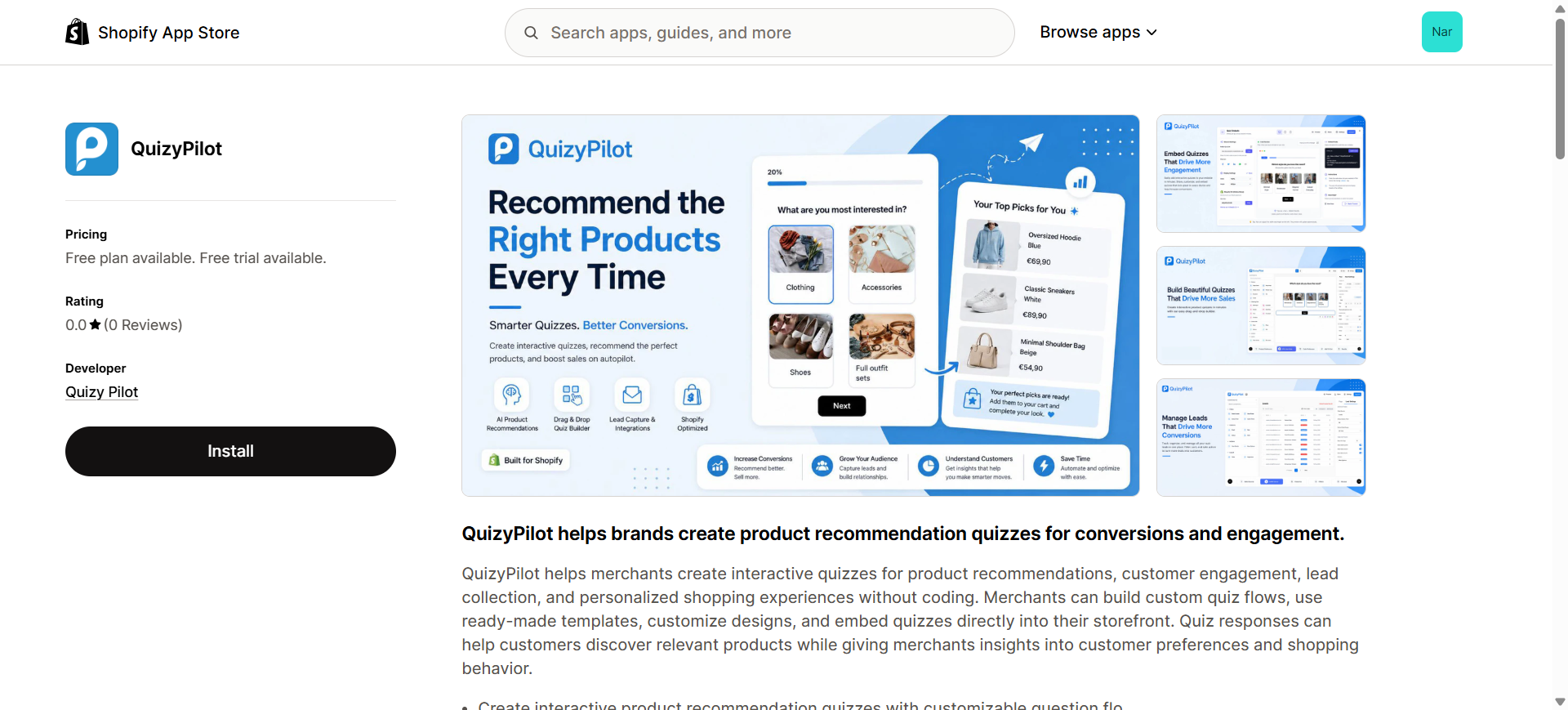
Step 1: Install QuizyPilot
Open the QuizyPilot Shopify App Store page:
👉 https://apps.shopify.com/quizy-pilot-quiz-builder
Click Install.
Step 2: Sign In
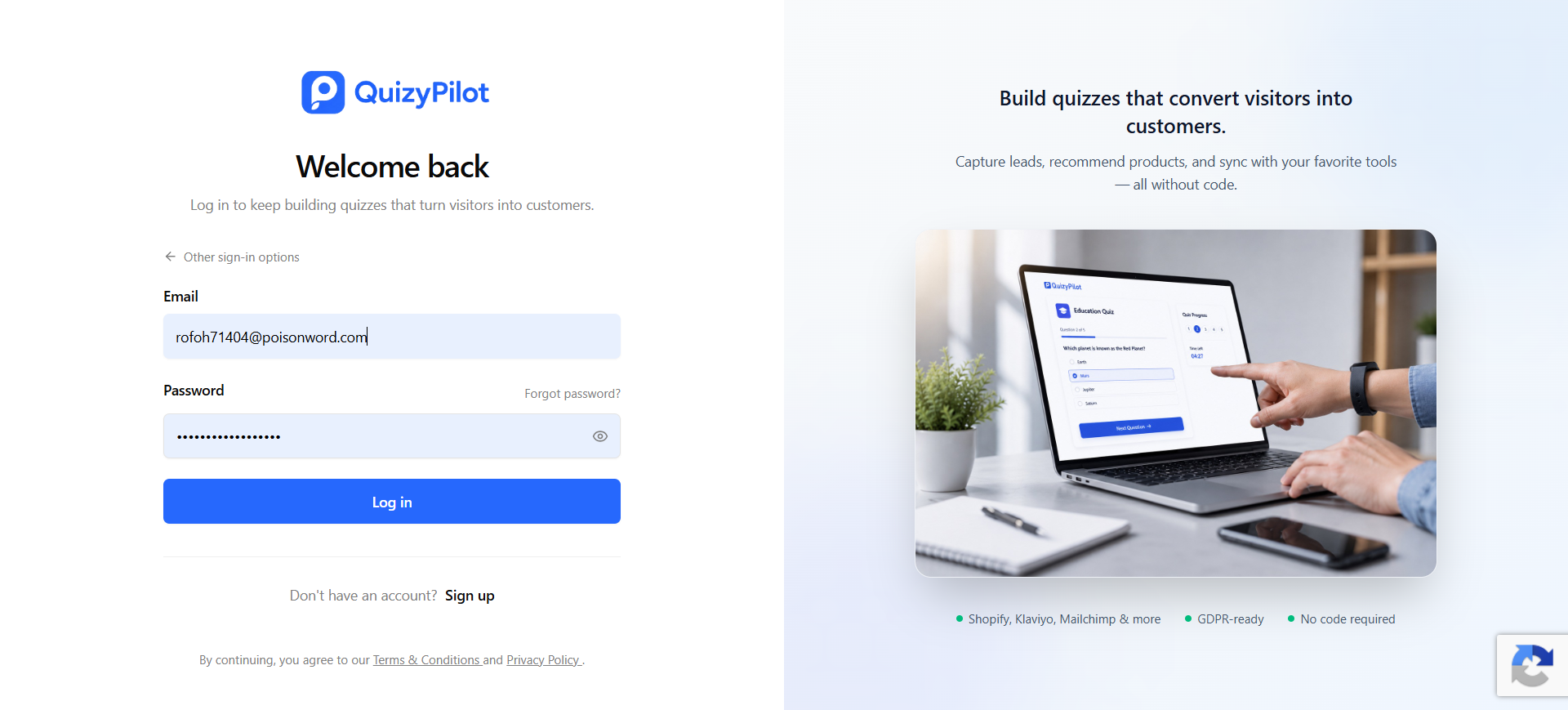
After installation, you'll be redirected to the QuizyPilot login page.
- Existing user? Enter your email and password.
- New user? Click Sign up to create an account.
Click Log in.
Step 4: Open Your Dashboard
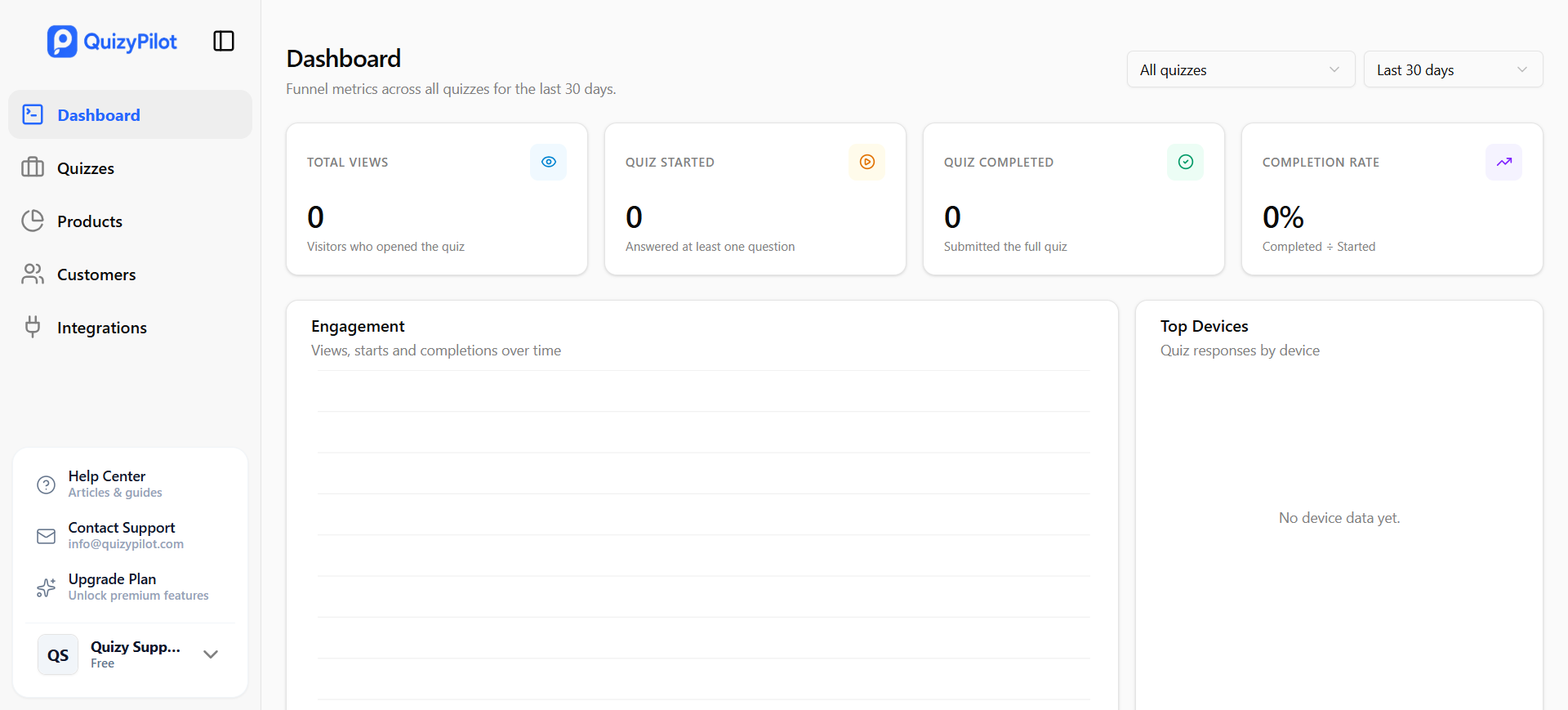
After signing in, you'll see your QuizyPilot dashboard.
From here, you can:
- Create quizzes
- Manage products
- View customers
- Connect integrations
- Track quiz performance
That's It! 🎉
QuizyPilot is now connected to your Shopify store.
Continue with the next guide to create your first quiz.
➡️ Next: Create Your First Quiz
Next Steps
Now that you've installed QuizyPilot and accessed your dashboard, it's time to publish your quiz on your website.
📖 Next Guide: [How to Embed Your Quiz on Any Website] https://help.quizypilot.com/articles/embed-your-quiz-on-any-website Learn how to embed your quiz on:
- Shopify
- WordPress
- Wix
- Webflow
- Squarespace
- Any website using the QuizyPilot embed code.
Need Help?
📧 info@quizypilot.com
#Shopify#Product Recommendations#QuizyPilot