
← Back to all posts
Getting StartedMay 19, 20263 min read
How to use Quizypilot's product match feature
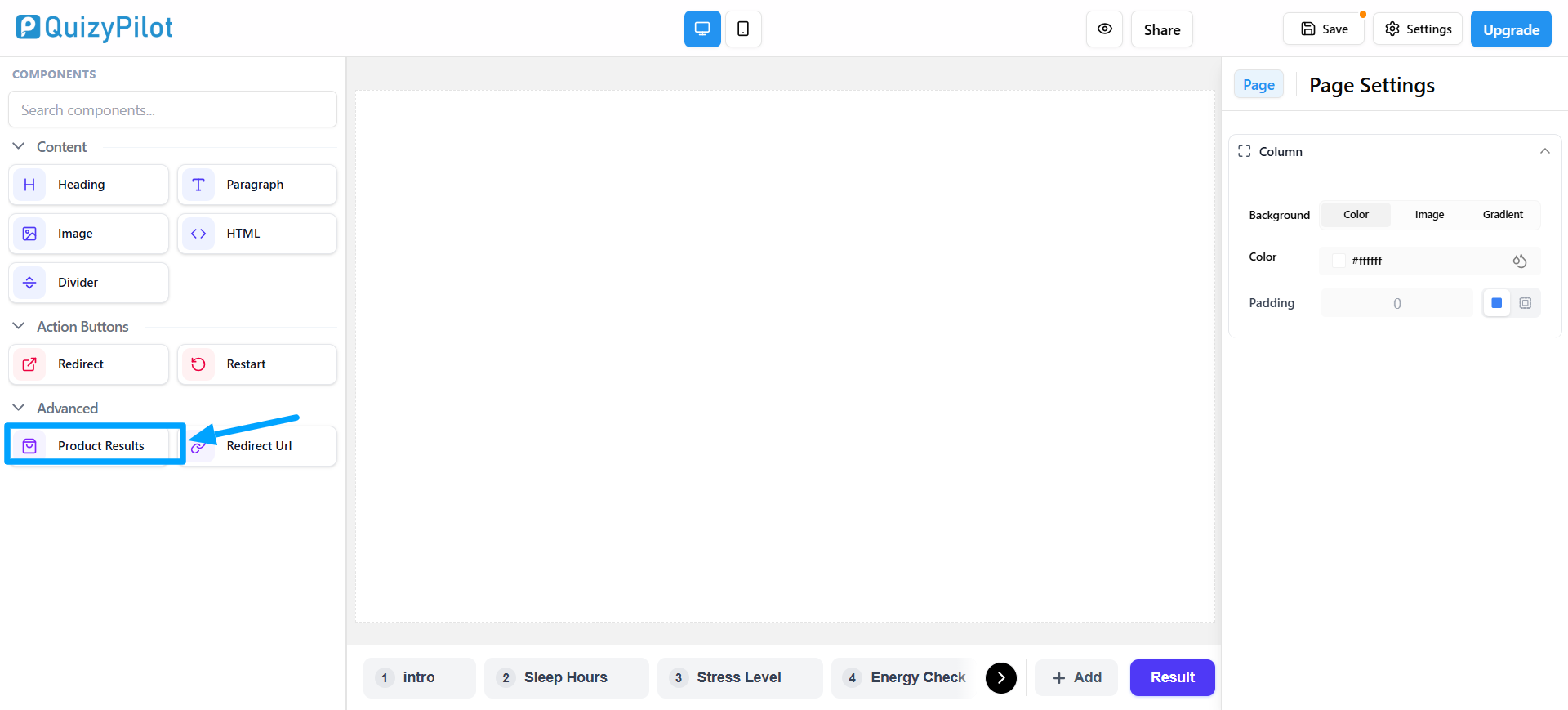
Step 1: Add the Product Results Component
Go to the Result Page and click the Product Results component from the left sidebar.
This component is used to display recommended products after users complete the quiz.
Step 2: Product Results Section Added
After adding the component, the Product Results section will appear on the page.
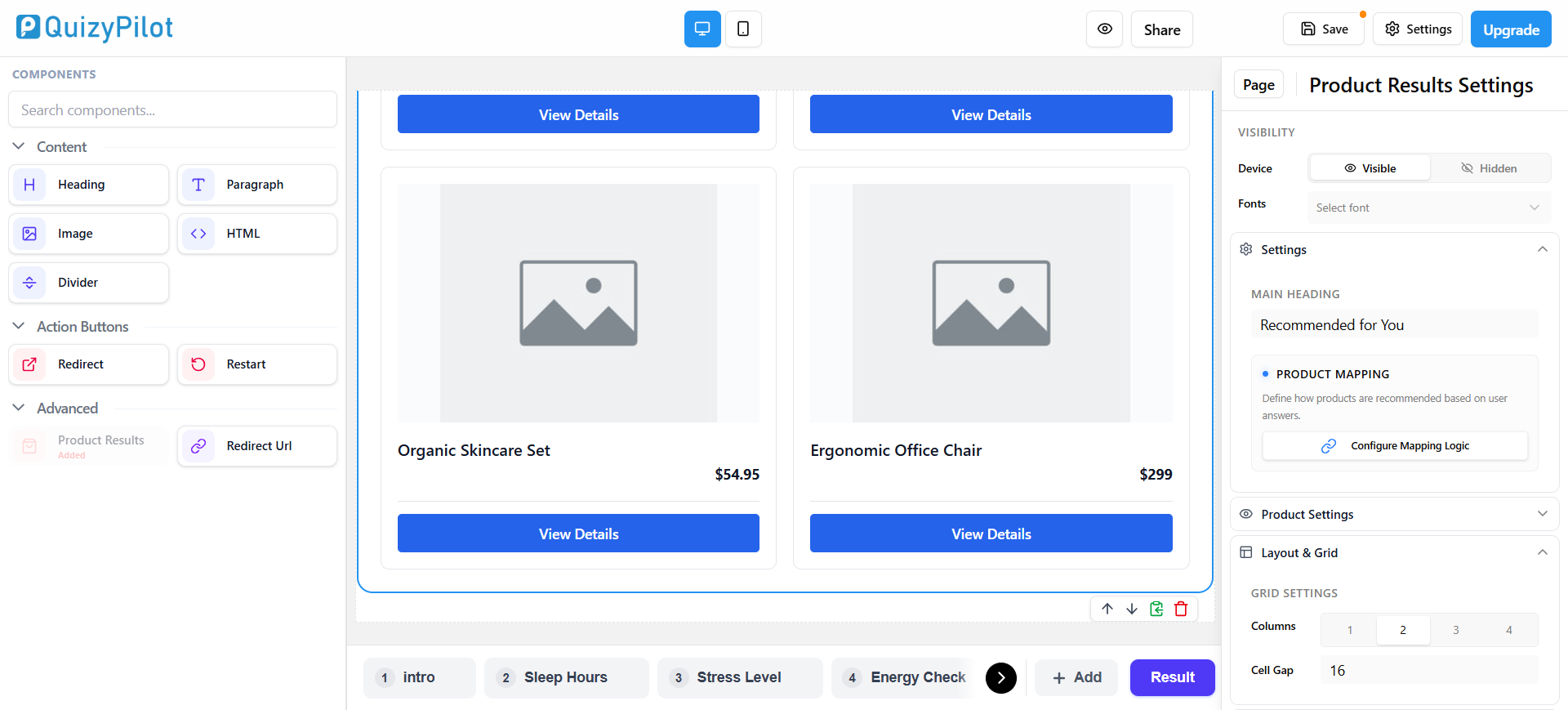
Here you can:
- Change the heading
- Adjust product layout
- Control how products appear on the result page
Step 3: Open Product Mapping Logic
In the right-side settings panel:
- Find the Product Mapping section
- Click Configure Mapping Logic
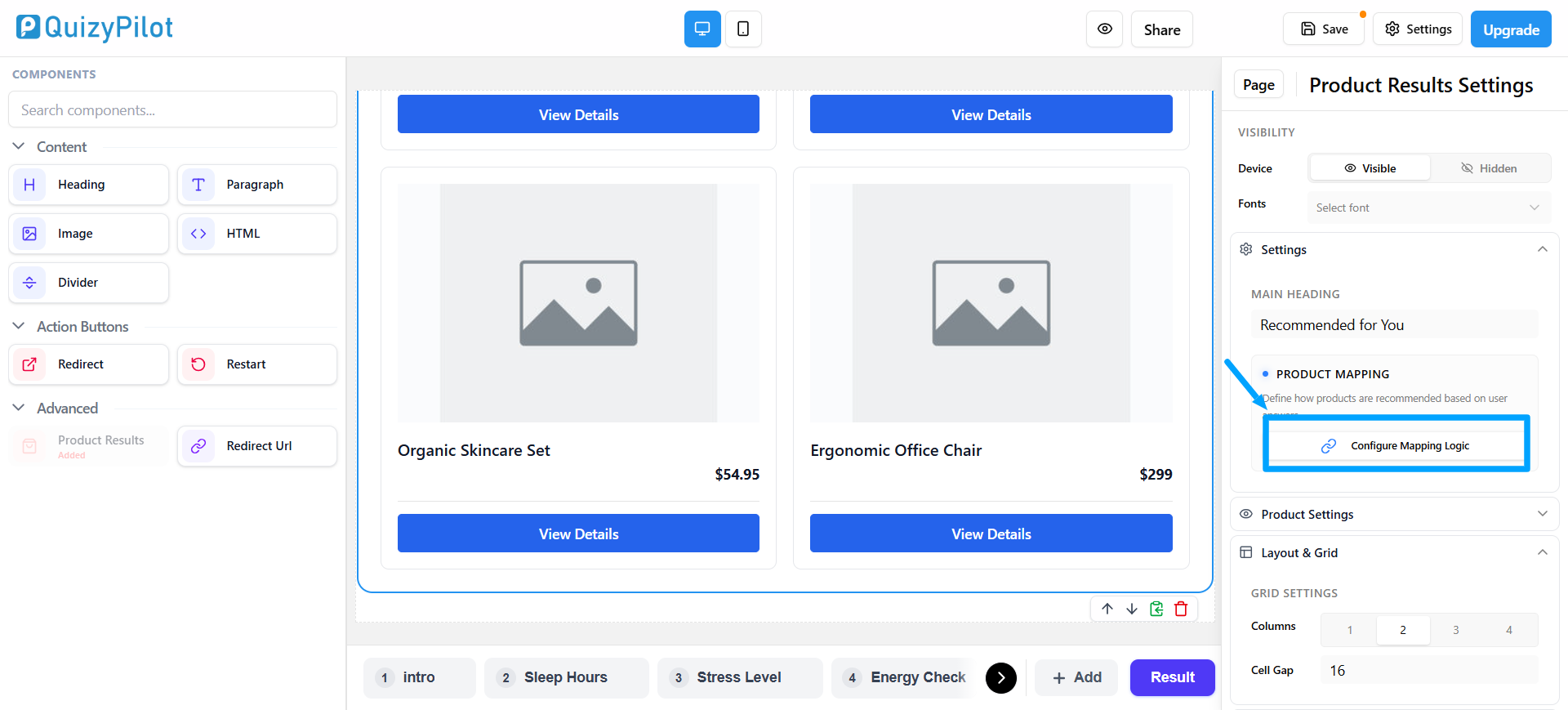
This will open the product mapping popup.
Step 4: Select Answers and Match Products
Inside the popup:
- Select a quiz answer from the left side
- Choose the product you want to recommend on the right side
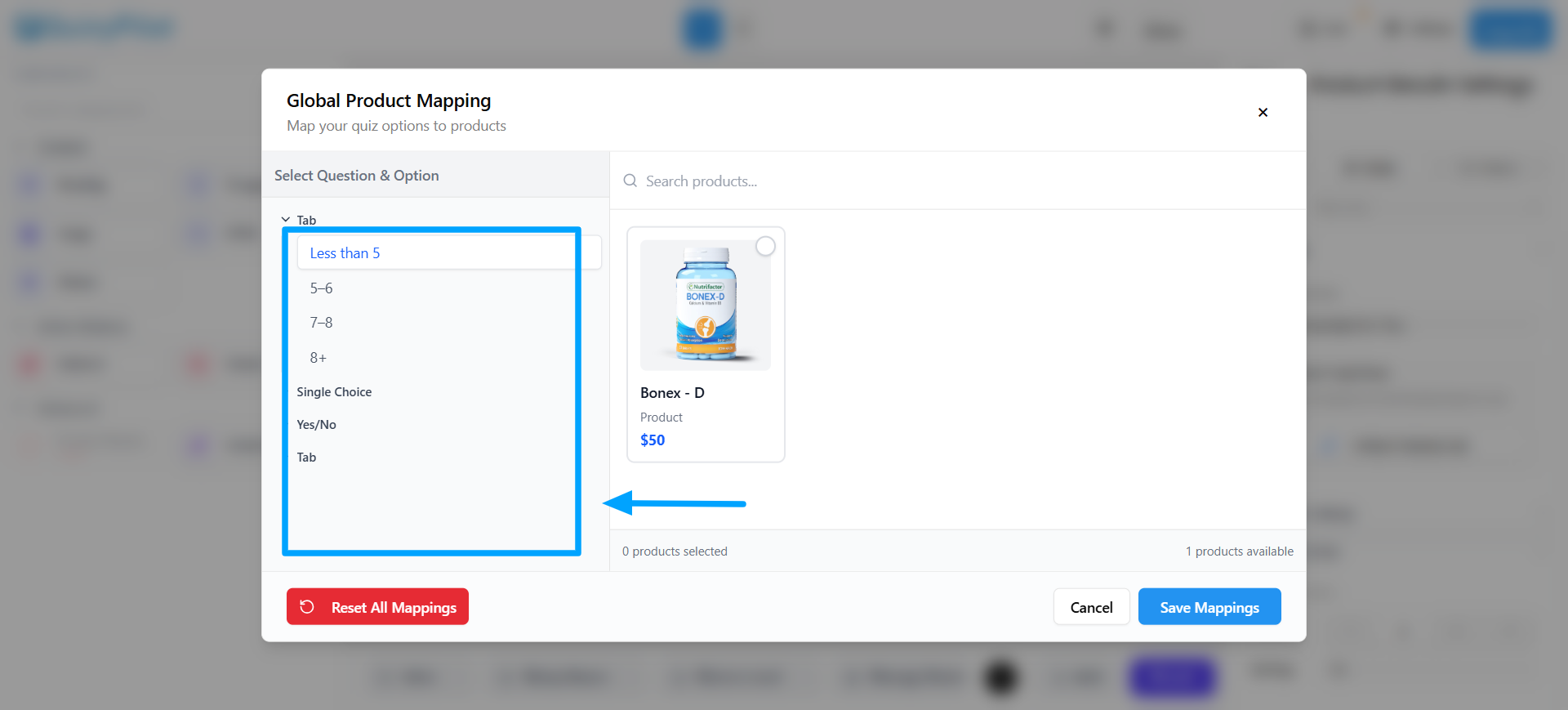
This connects quiz answers with specific products.
Example
Less than 5→Bonex-D
Step 5: Save Your Product Mapping
After selecting products for the answers:
- Click Save Mappings
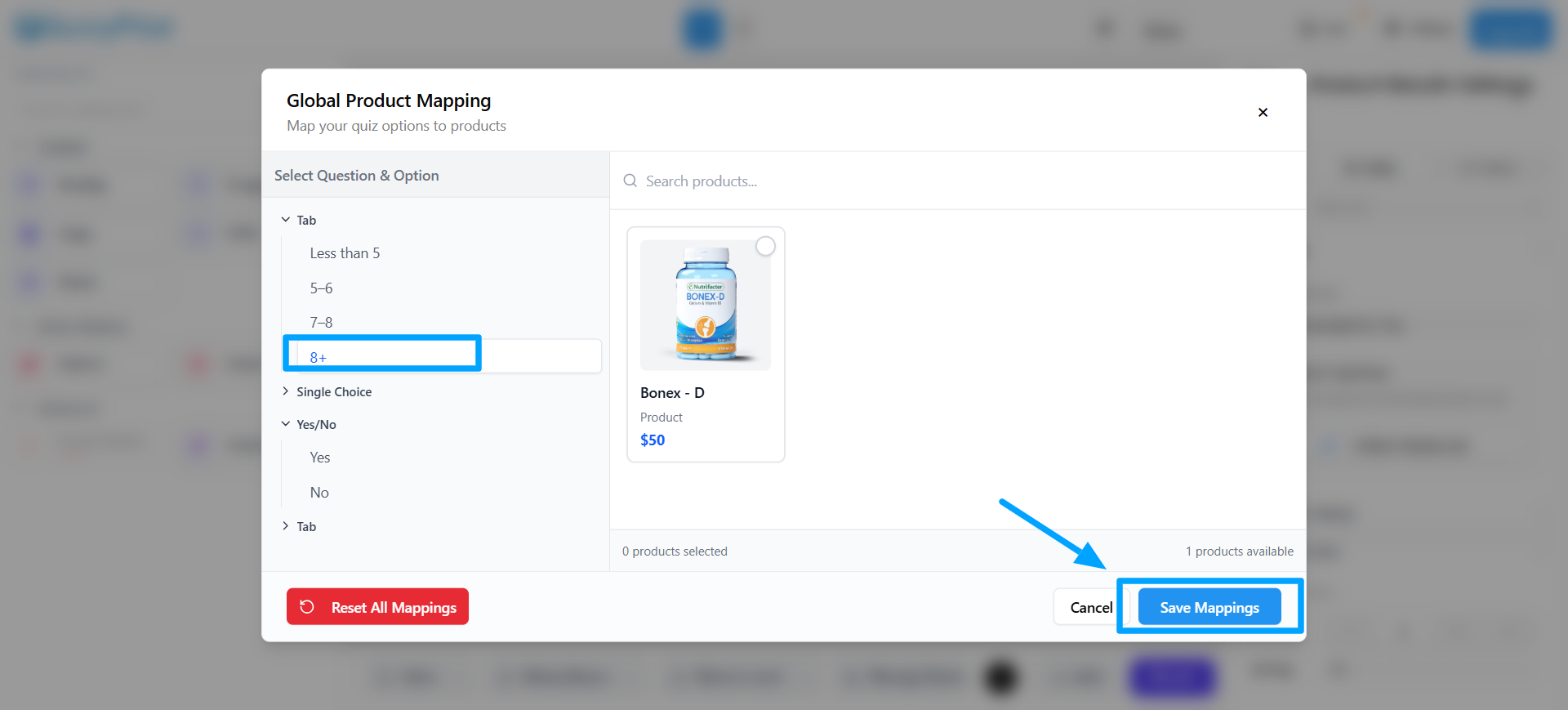
Your quiz will now automatically show matched products based on user answers.