
How to Embed a Quiz on Wix
Add your QuizyPilot quiz to a Wix website using the HTML Embed element.
Step 1: Open the Wix Editor
Open your Wix website in the Wix Editor.
Click + Add at the top-left of the editor.
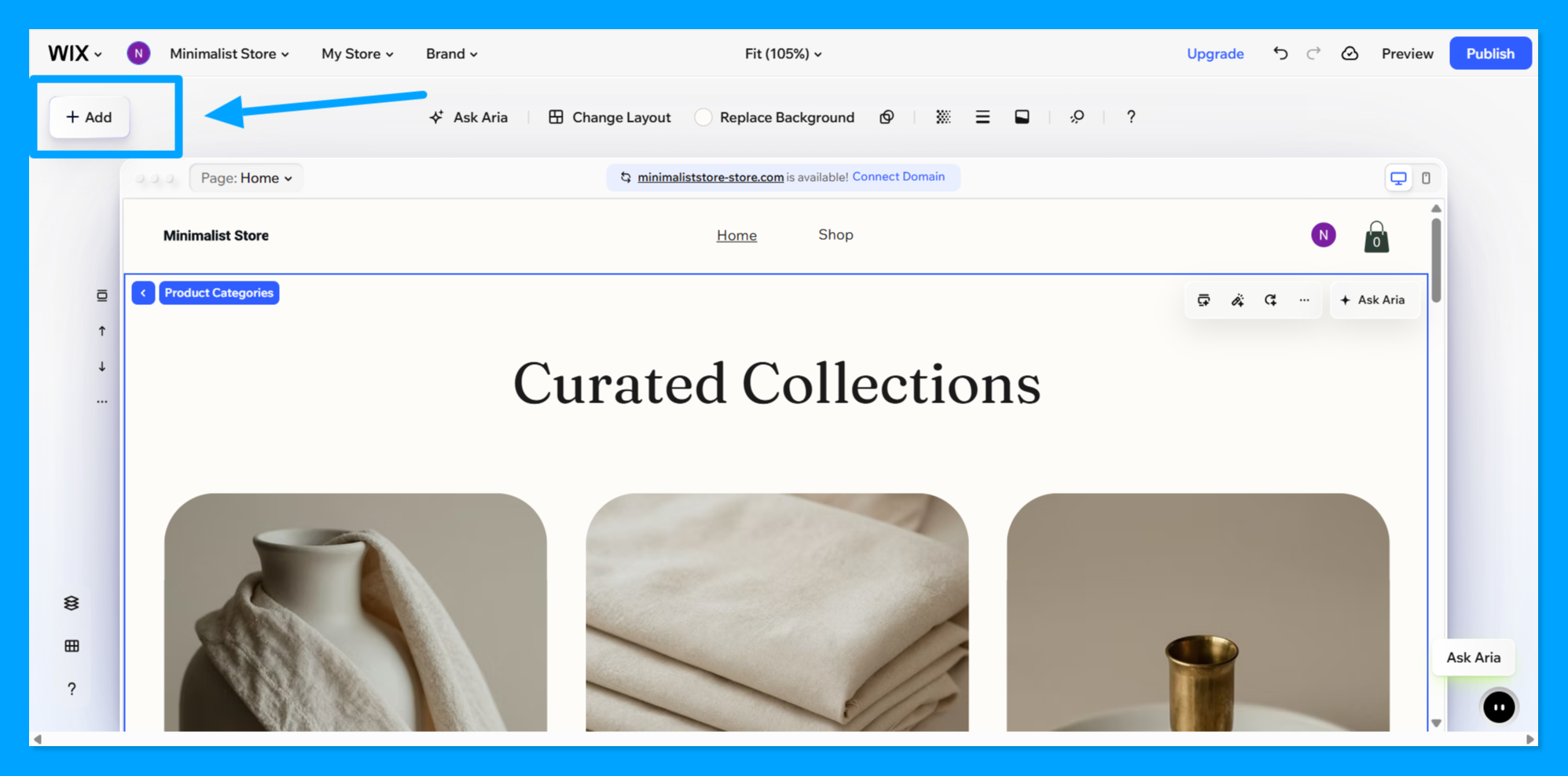 Wix Editor showing the + Add button.
Step 2: Open Elements
After clicking + Add, select Elements.
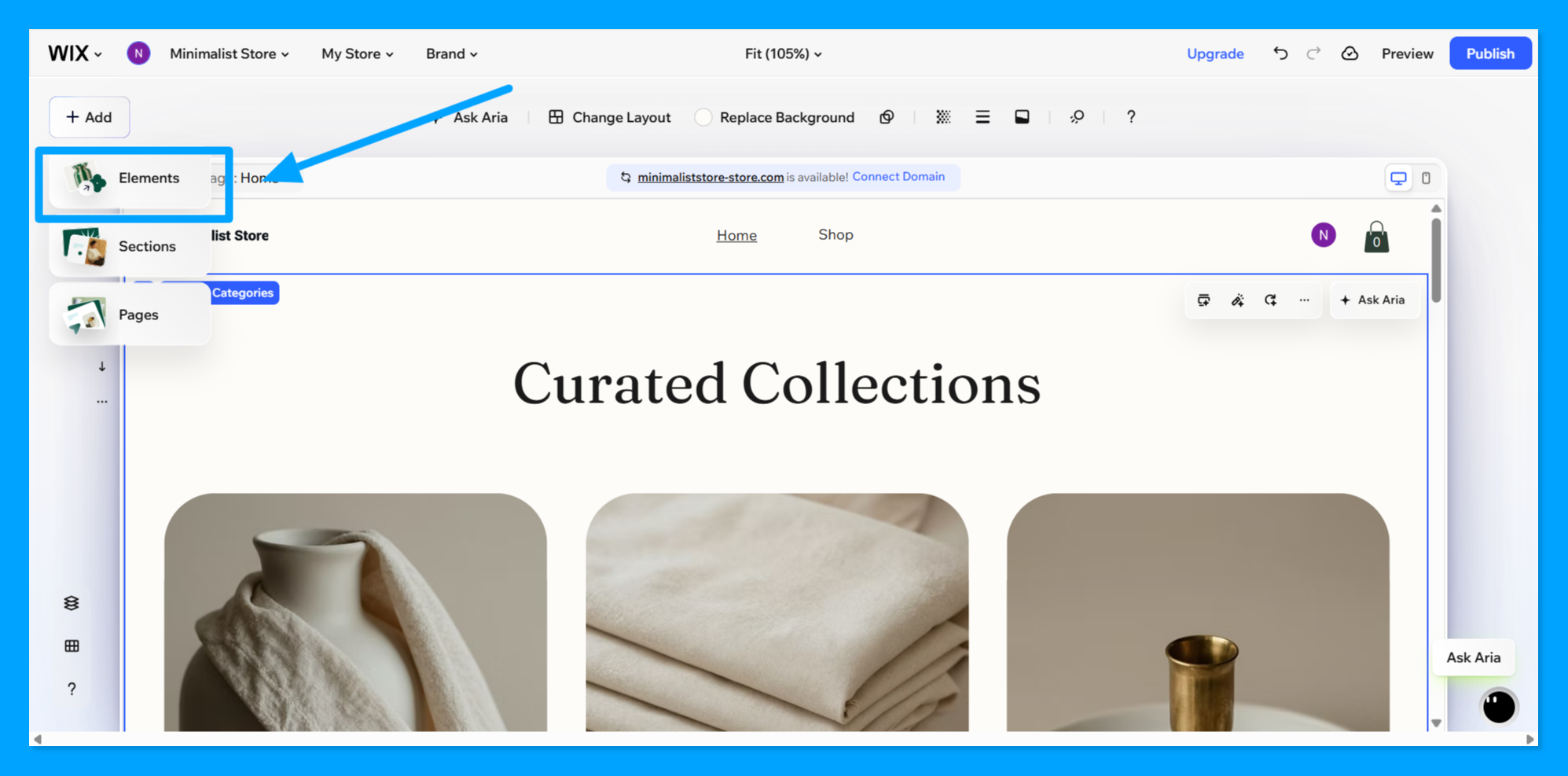 Wix Add menu showing the Elements option.
Step 3: Select Embed
In the Add Elements panel, find and click Embed.
Then select the Embed HTML element.
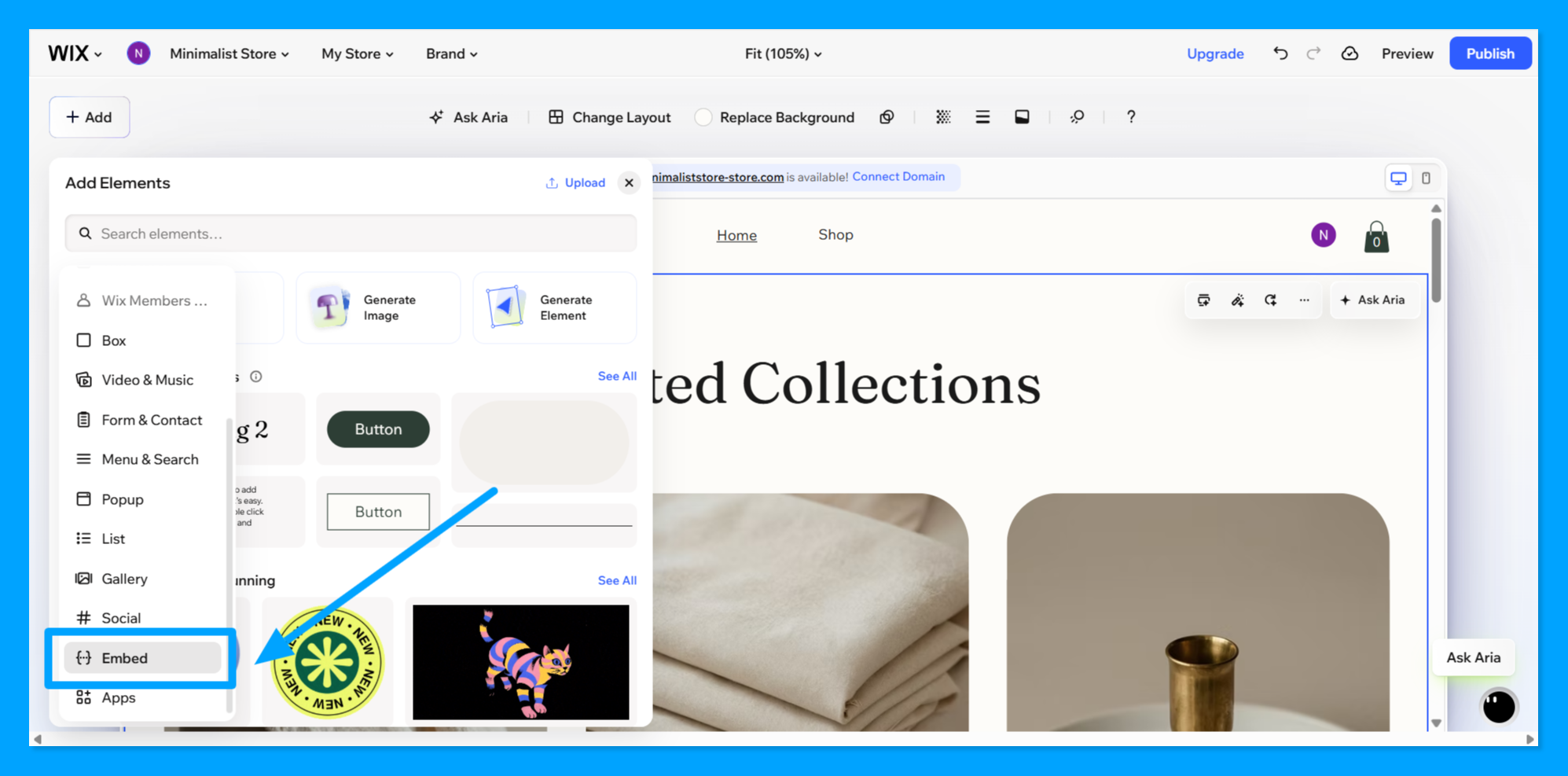 Wix Add Elements panel showing the Embed option.
Step 4: Get Your QuizyPilot Embed Code
Open your quiz in QuizyPilot.
Go to the quiz's Embed section and copy the HTML/JS embed code.
Click Copy to copy the code.
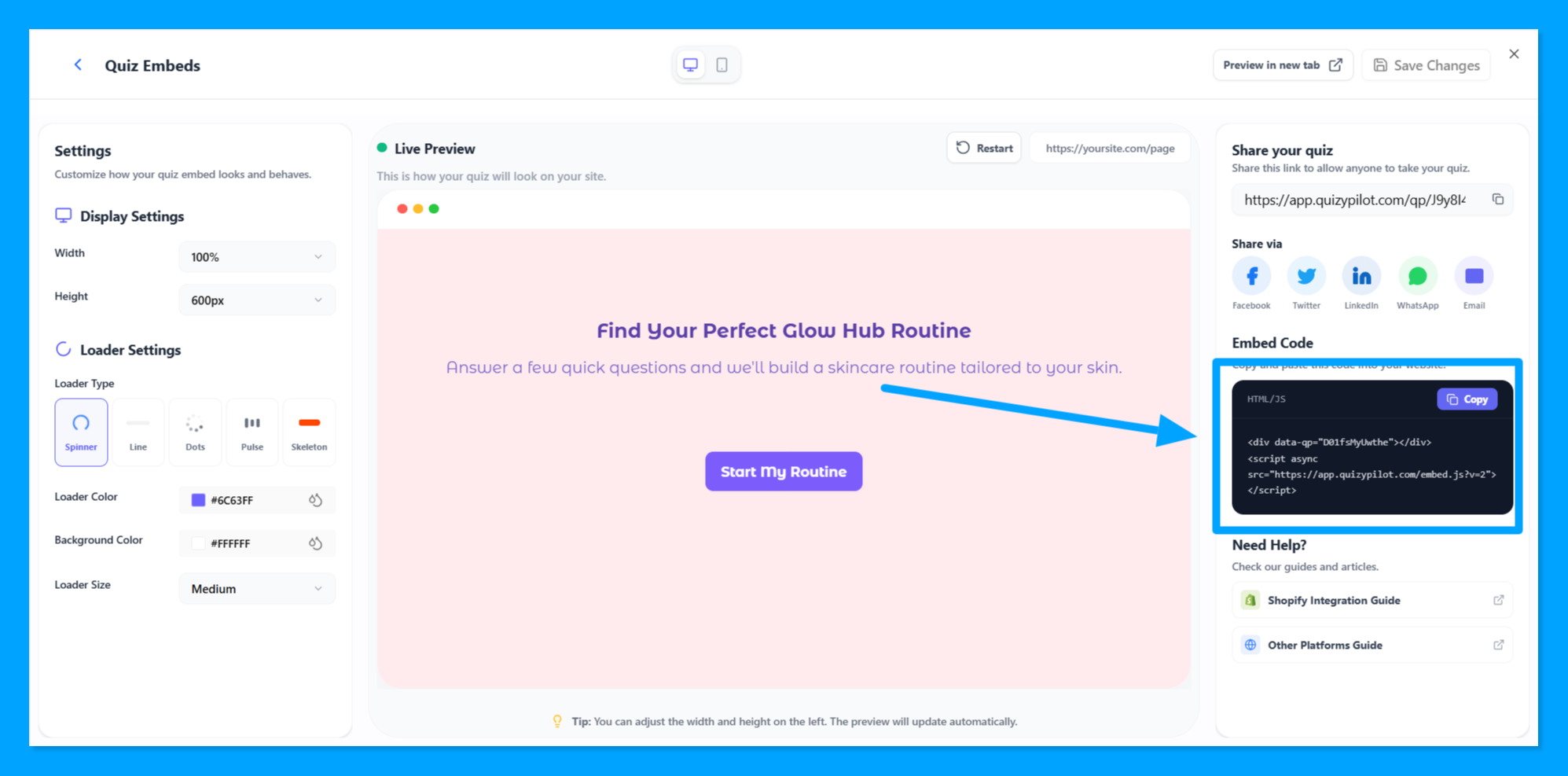 QuizyPilot Embed page showing the HTML/JS embed code and Copy button.
Step 5: Add the HTML Element to Your Wix Page
After adding the Embed HTML element, place it where you want the quiz to appear on your page.
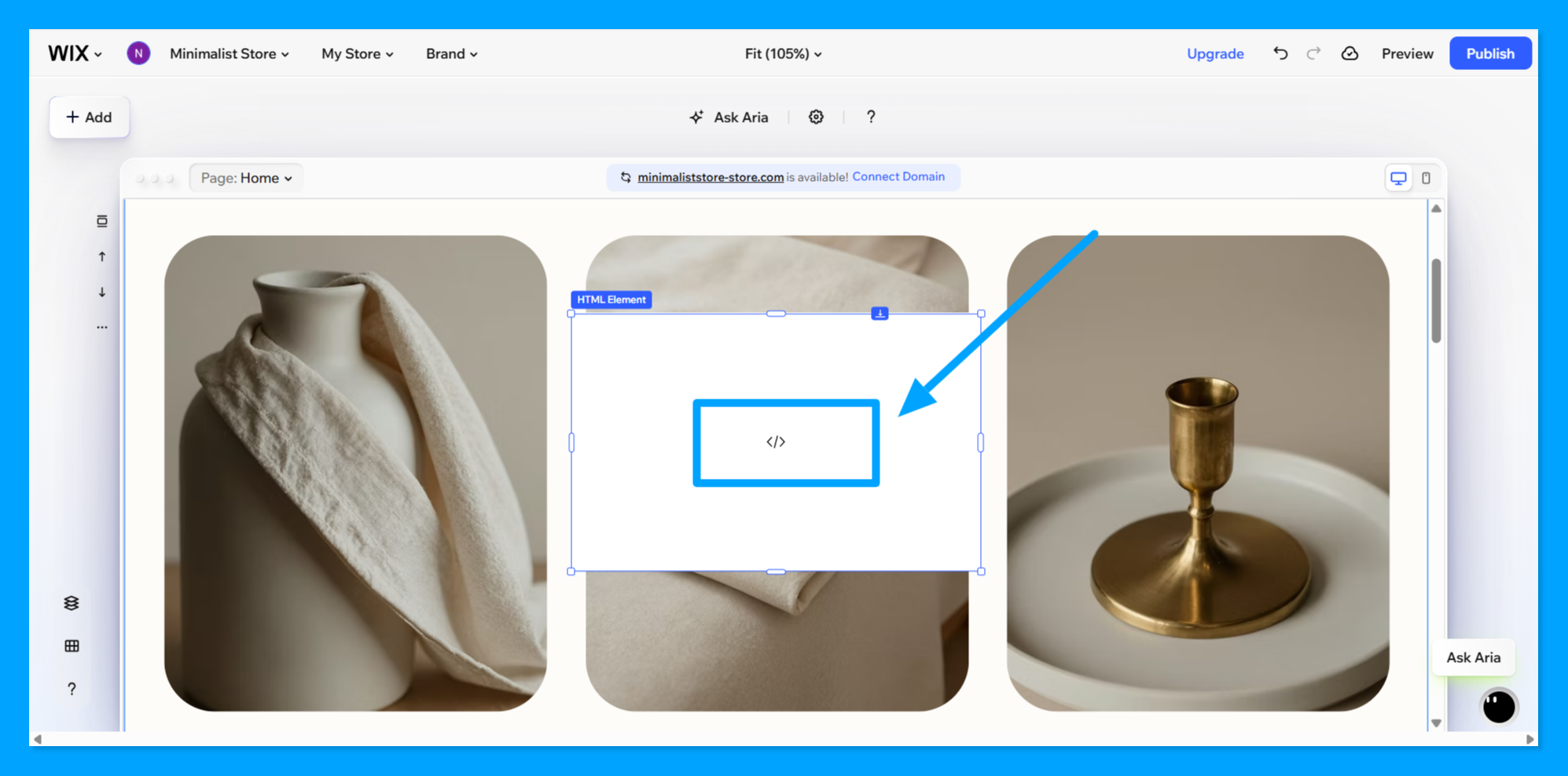 Wix page showing the HTML Element placed on the page.
Step 6: Paste the QuizyPilot Code
Select the HTML element and open its Settings.
Make sure Choose what to embed is set to Code.
Paste your QuizyPilot embed code into the Enter HTML embed code field.
Then click Apply.
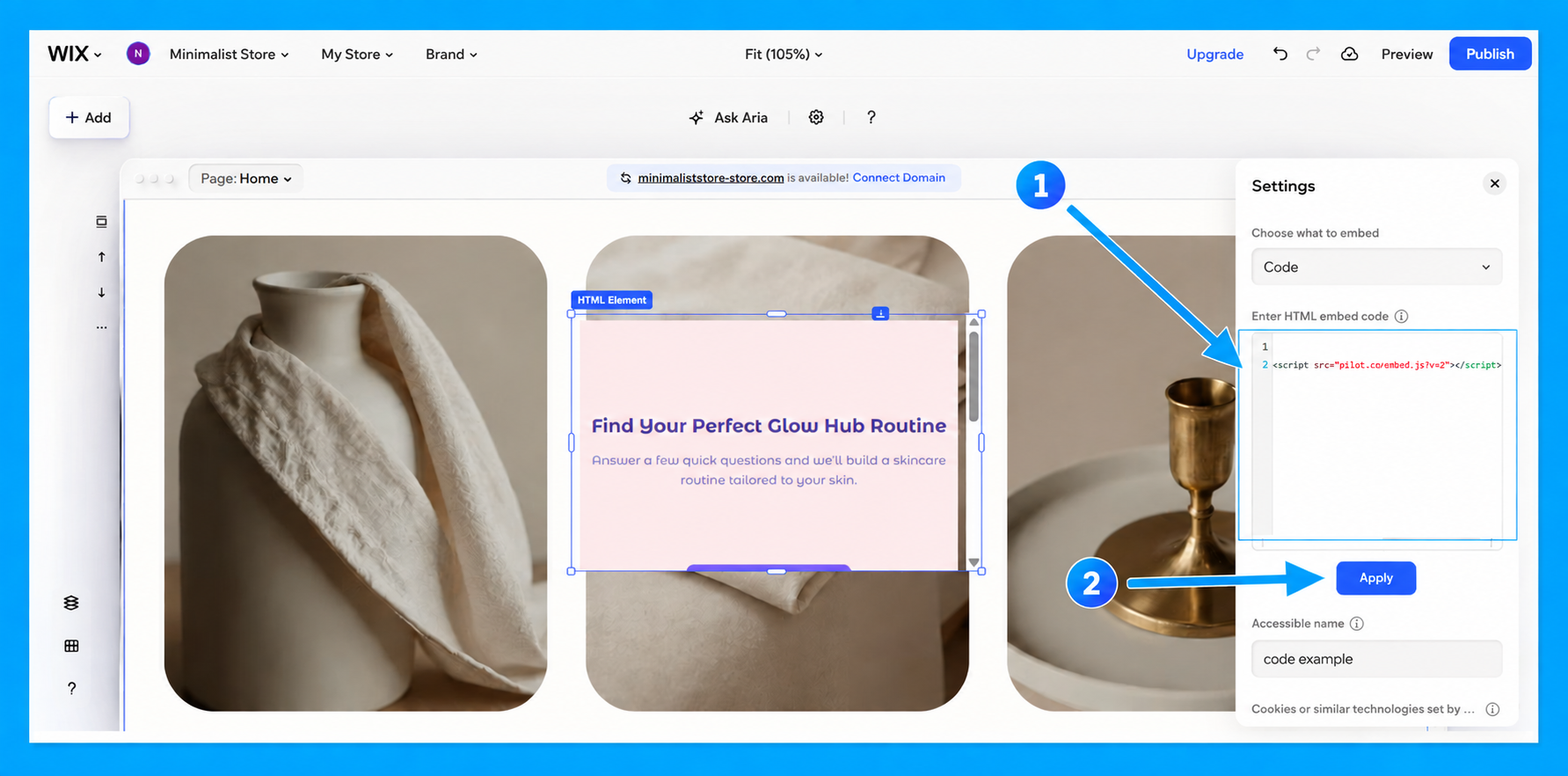 Wix HTML settings showing the QuizyPilot code and Apply button.
Step 7: Preview Your Quiz
After clicking Apply, the QuizyPilot quiz will appear inside the HTML element.
Click Preview at the top-right of the Wix Editor to check how the quiz works on your website.
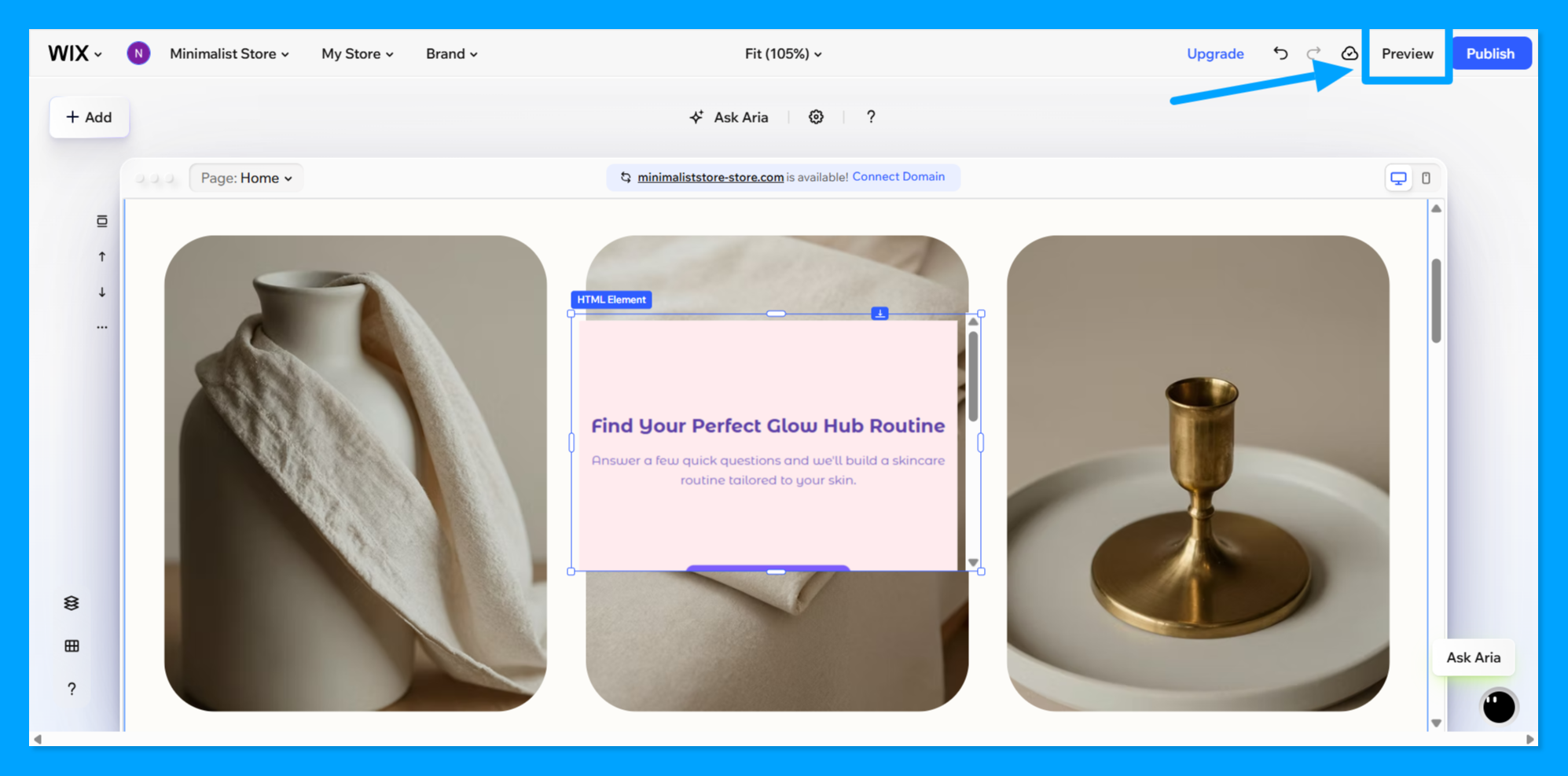 Wix Editor showing the embedded QuizyPilot quiz and the Preview button.
Done
Your QuizyPilot quiz is now embedded on your Wix website.
Tip: Adjust the size of the HTML element in Wix so the quiz has enough space to display correctly.