
How to Connect QuizyPilot to Google Sheets | Step-by-Step Guide
How to Connect Your Quiz to Google Sheets
Connect Google Sheets with QuizyPilot to automatically save every quiz submission into a spreadsheet. Follow the steps below to start syncing your leads in just a few minutes.
Before You Begin
Make sure you have:
- A QuizyPilot account
- A Google account
- At least one published quiz
Step 1: Configure the Google Sheets Integration
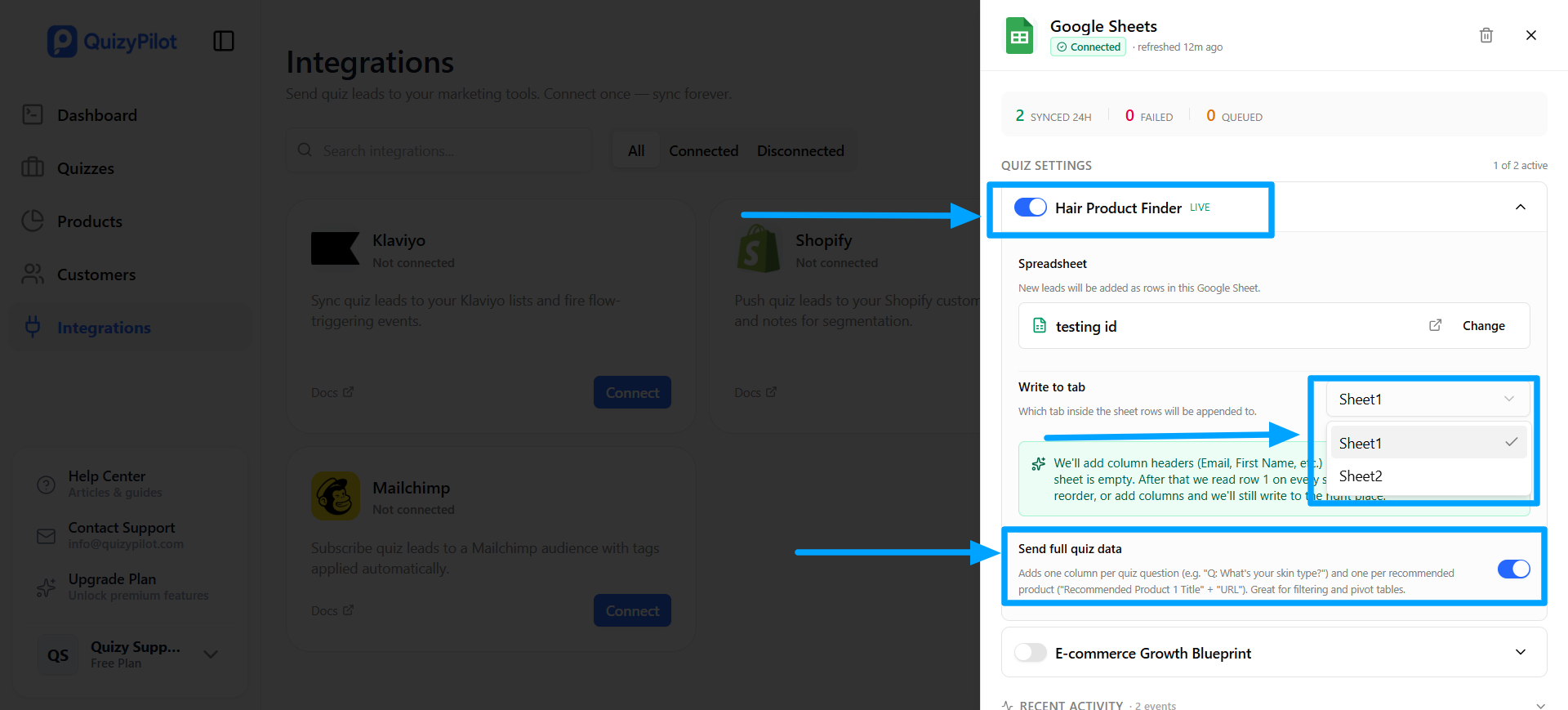
Open Integrations from the QuizyPilot dashboard and connect your Google account if you haven't already.
Expand the quiz you want to connect, then:
- Enable the quiz
- Select the worksheet (Write to Tab)
- Enable Send Full Quiz Data if you want every quiz question and answer to be stored in separate columns.
Step 2: Choose Your Spreadsheet
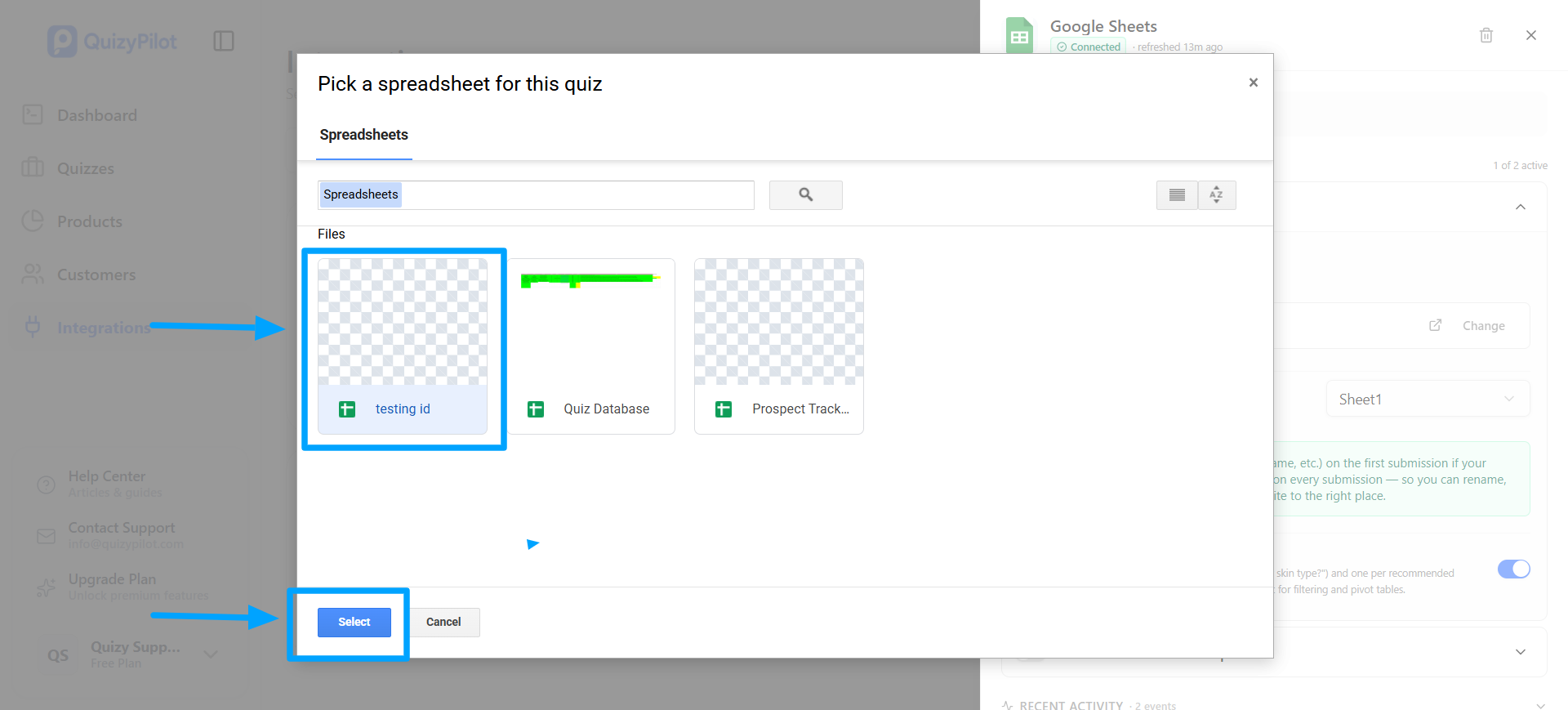
Click Change next to the Spreadsheet field.
Select the Google Spreadsheet where you want quiz submissions to be saved, then click Select.
Step 3: Publish Your Quiz
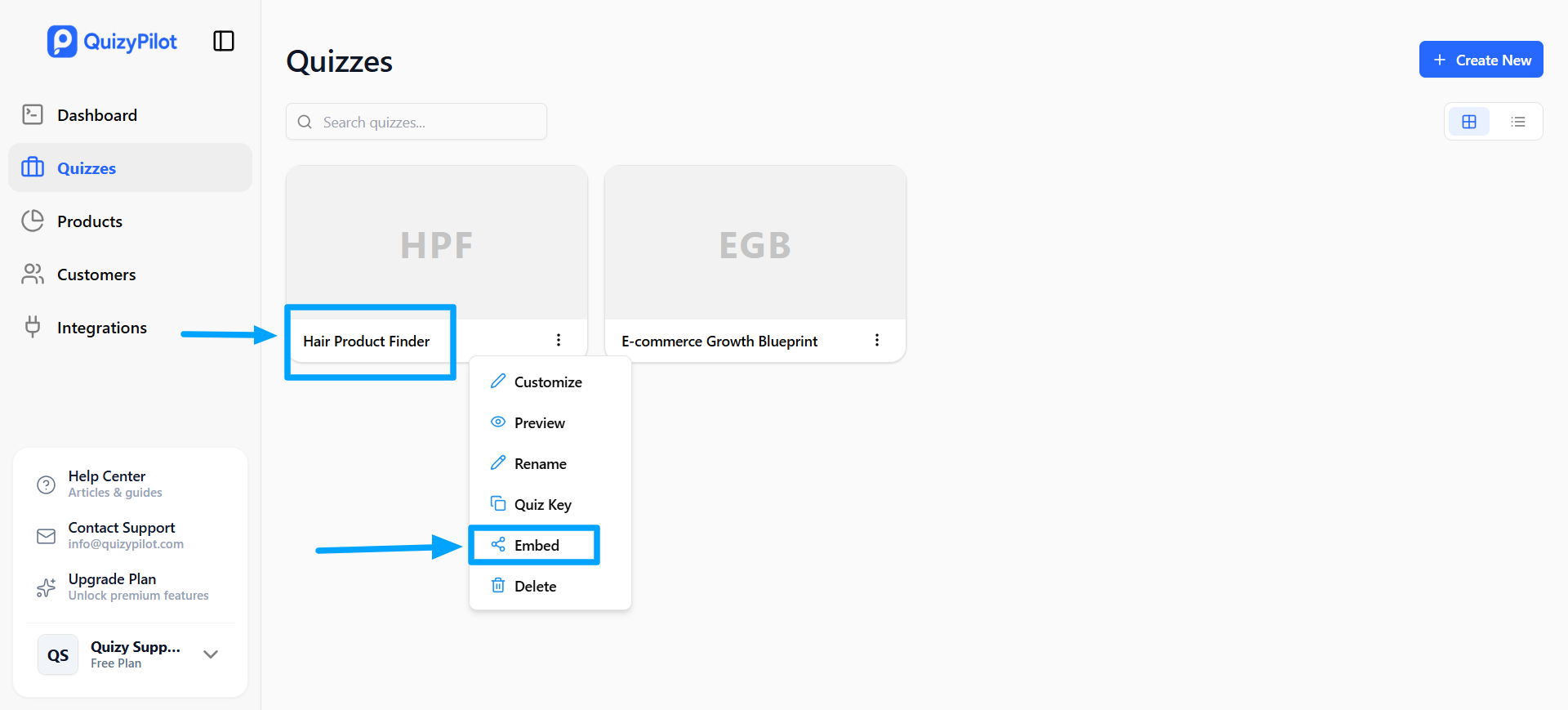
Once everything is configured, publish your quiz and embed it on your website.
Every completed quiz submission will now be sent automatically to your connected Google Sheet.
Step 4: Verify the Spreadsheet
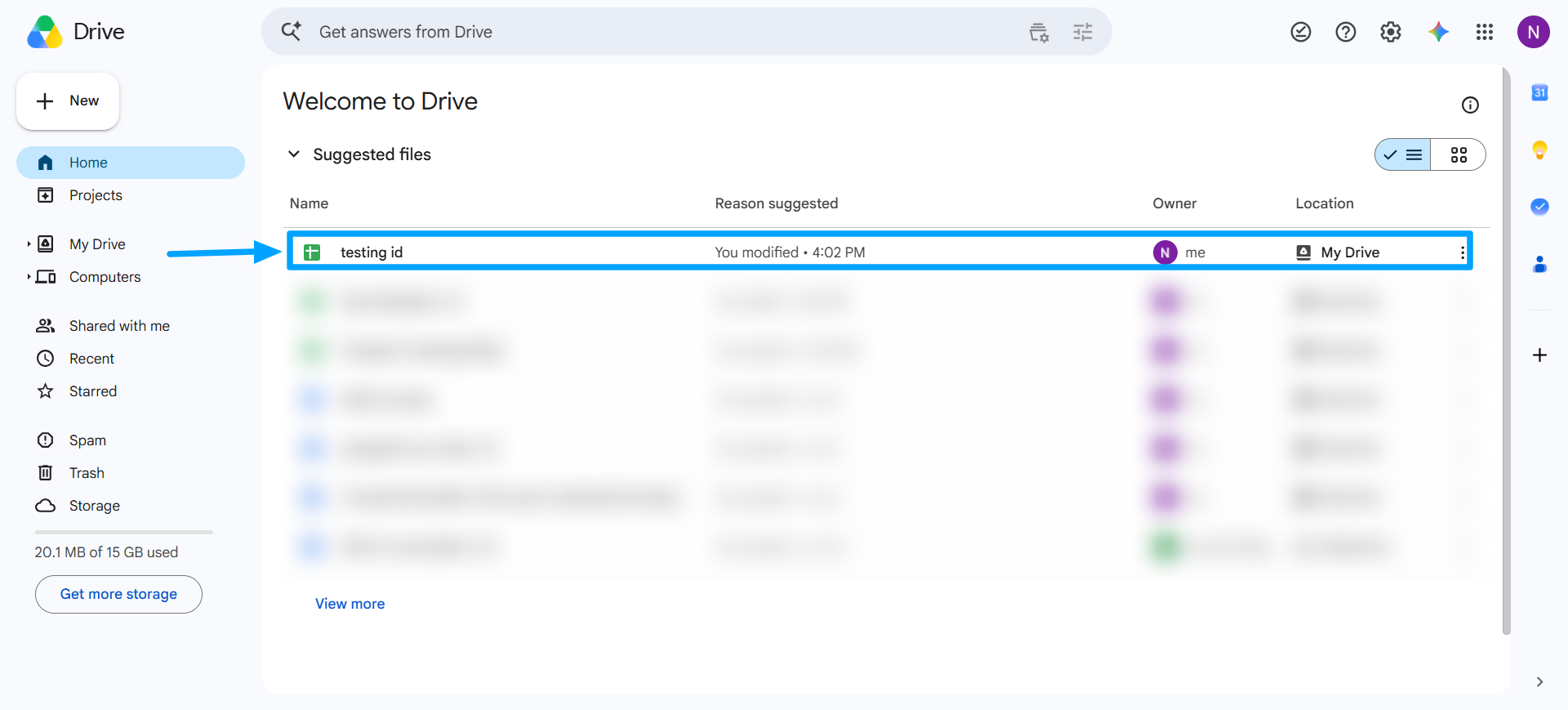
Open Google Drive and locate the spreadsheet you connected in the previous step.
This is the file where QuizyPilot will automatically save all future quiz responses.
Step 5: View Your Quiz Responses
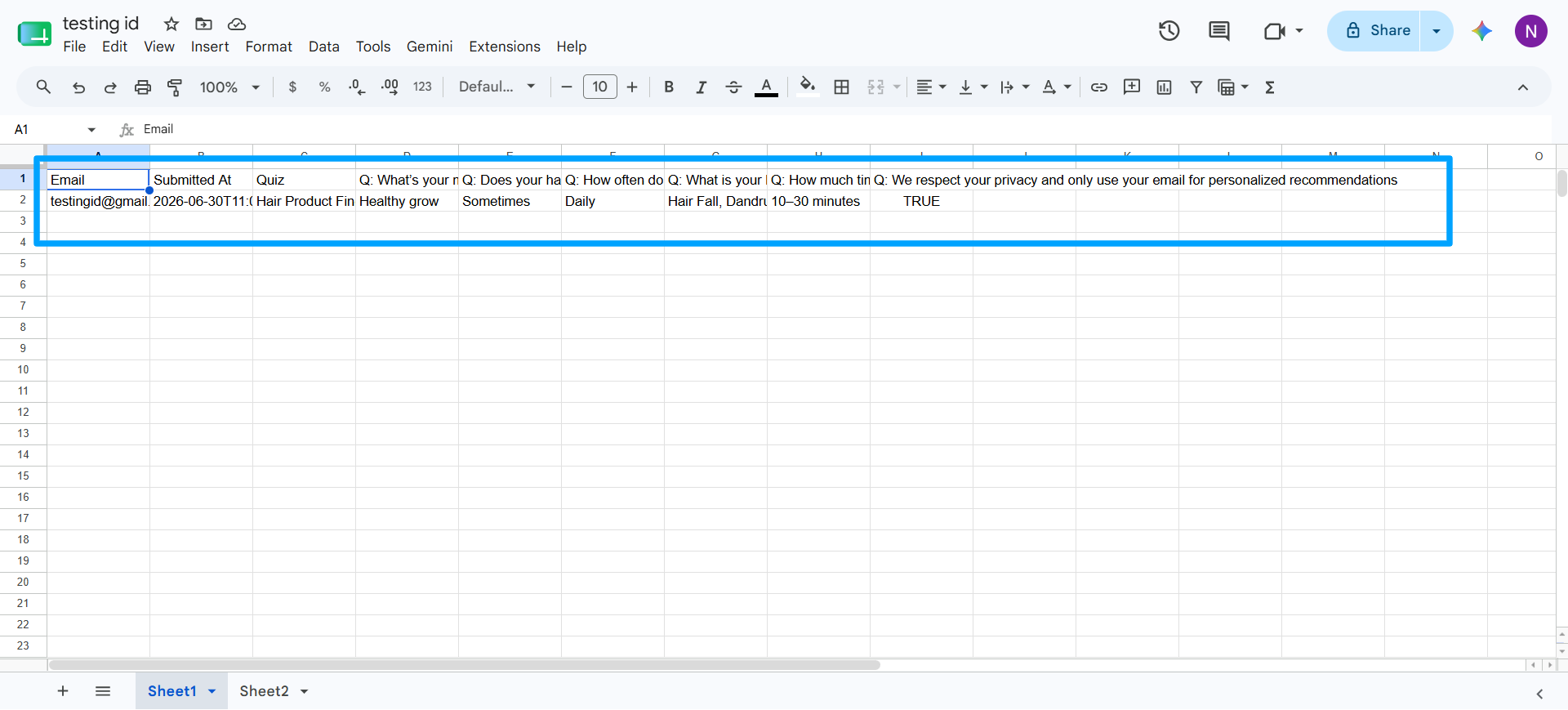
Open the spreadsheet to confirm that responses are syncing correctly.
Each completed quiz is added as a new row. If Send Full Quiz Data is enabled, every quiz question and answer will appear in its own column, making it easy to filter, analyze, and export your data.
You're All Set!
Your QuizyPilot quiz is now connected to Google Sheets.
Every new quiz submission will automatically appear in your selected spreadsheet, giving you an easy way to collect leads, review answers, and organize customer data without any manual work.