
How to Connect QuizyPilot to ChatGPT and Claude (AI Apps)
Connect your QuizyPilot account to ChatGPT or Claude and build product recommendation quizzes by chatting. Ask in plain words — "create a 4-question skincare quiz", "add a budget question", "show me my latest leads" — and the AI app does it in your QuizyPilot account. Every change is saved to your quiz, where you can keep editing it in the visual editor.
AI Apps are available on paid plans (Starter, Growth and Pro). On the Free plan you can see the AI Apps page, but connecting needs an upgrade.
What you can do
- Create a complete quiz — start page, questions, contact form and results page — from a short description
- Add, edit and remove questions: single choice, multiple choice, image choice, yes/no, tabs and dropdown
- Match each answer to the products it should recommend, from your connected store (Shopify, Wix, WooCommerce, BigCommerce) or your own product list
- Set up jump logic, quiz variables, and text that shows the shopper's answers
- Restyle the whole quiz with a theme: colours, fonts, buttons, answer cards and input fields
- See the leads your quizzes collected
- Undo a change you don't like
Step 1: Copy your connector address
In QuizyPilot, go to:
Dashboard → AI Apps
Copy the MCP endpoint URL:
https://mcp.quizypilot.com/mcp
Clicking Connect next to ChatGPT or Claude copies the address and opens that app's settings for you.
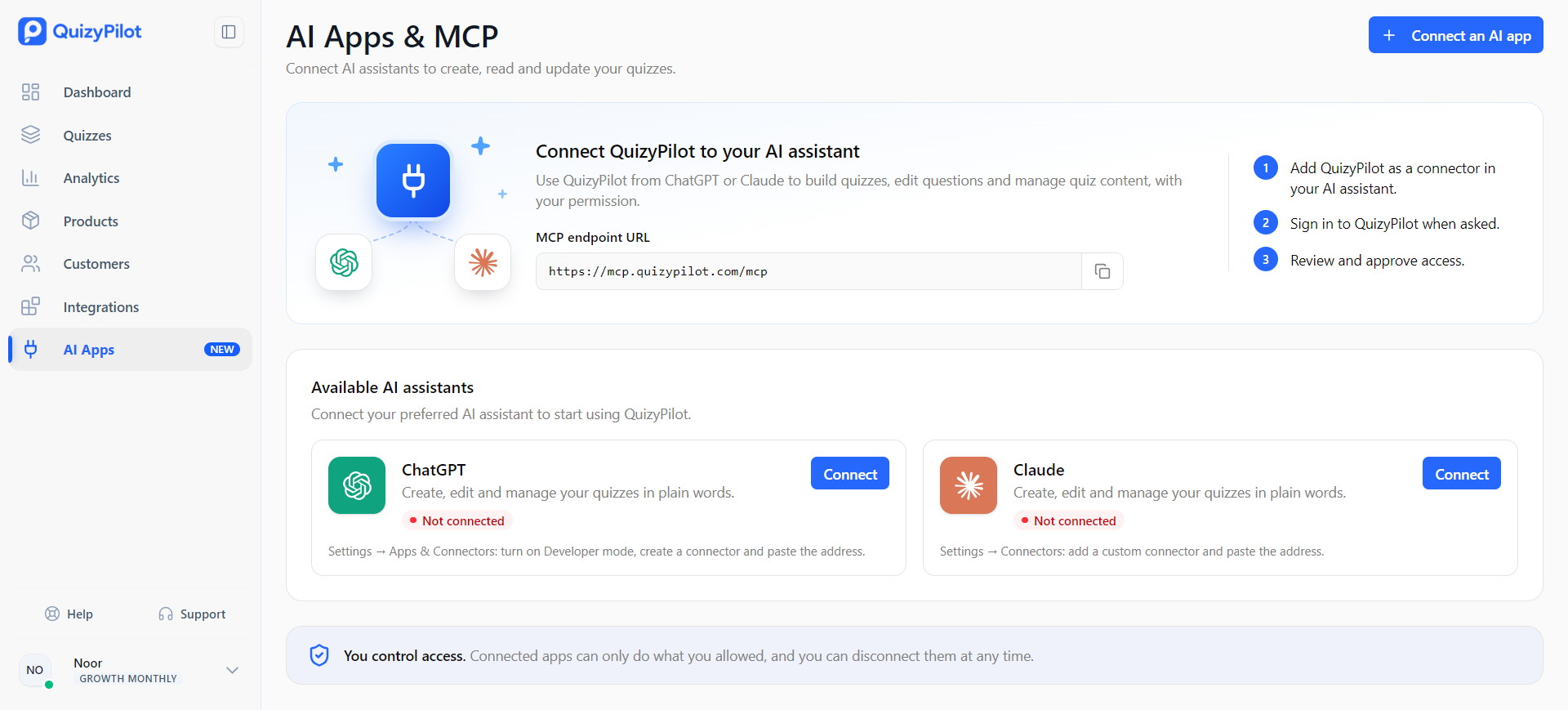
Step 2: Add QuizyPilot to your AI app
In ChatGPT
- Open Settings → Apps & Connectors.
- Turn on Developer mode.
- Click Add Custom MCP Server.paste the address
https://mcp.quizypilot.com/mcp. - click Connect
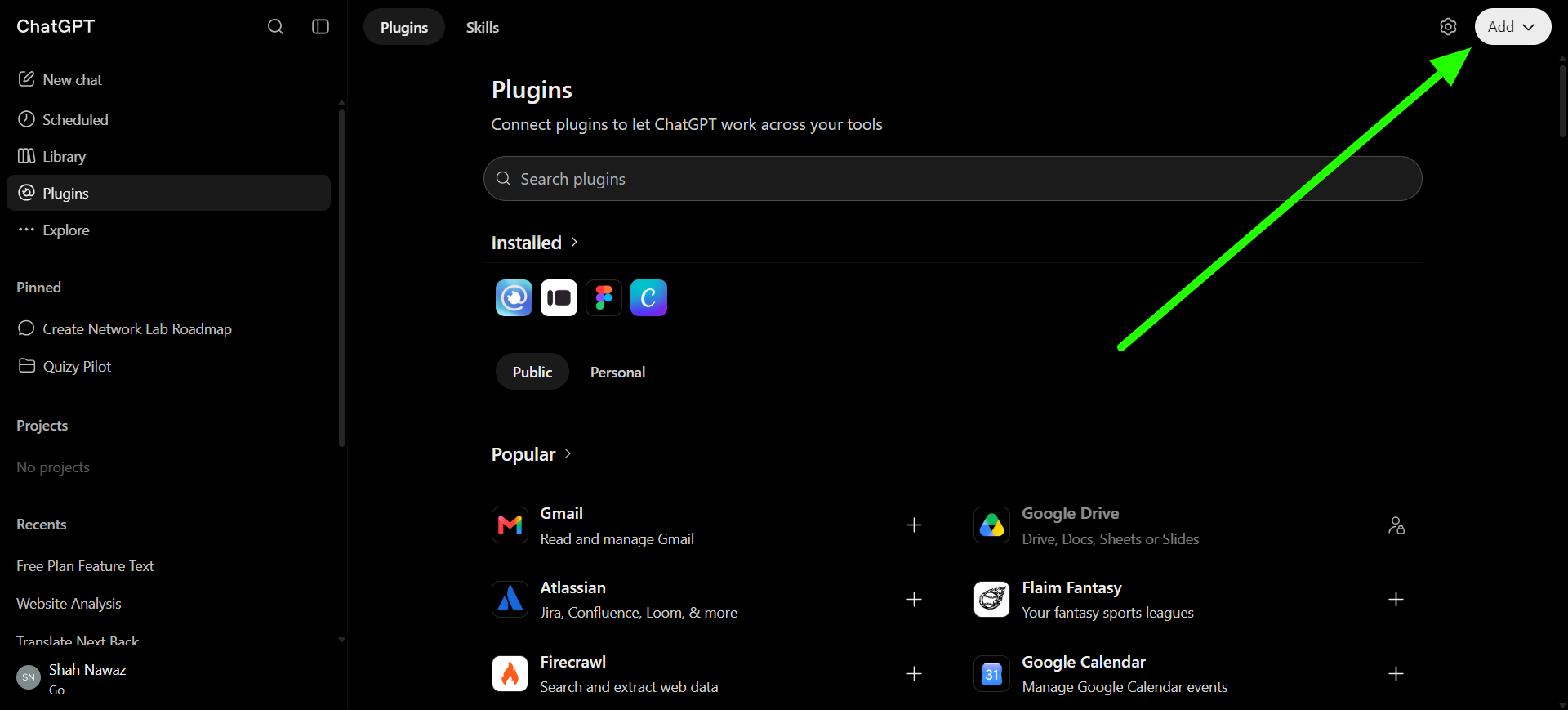
In Claude
- Open Settings → Customize.
- Click Add custom connector and paste the address
https://mcp.quizypilot.com/mcp. - Click Connect.
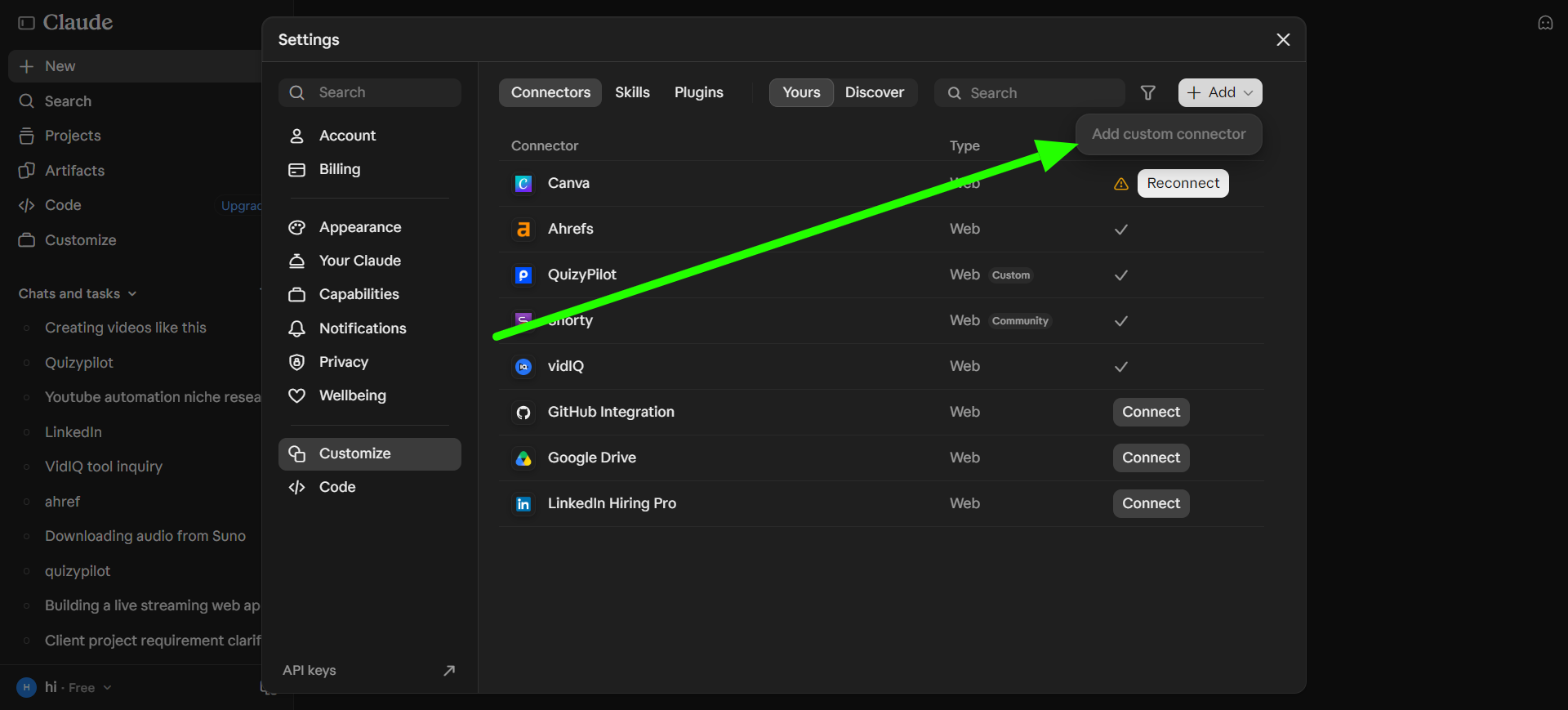
Step 3: Sign in and allow access
The AI app opens a QuizyPilot page:
- Log in to QuizyPilot, if you aren't already.
- Check which account you're signed in as — the page shows it.
- Review what the app will be able to do and click Allow.
You're sent back to the AI app, connected. The AI app never sees your password.
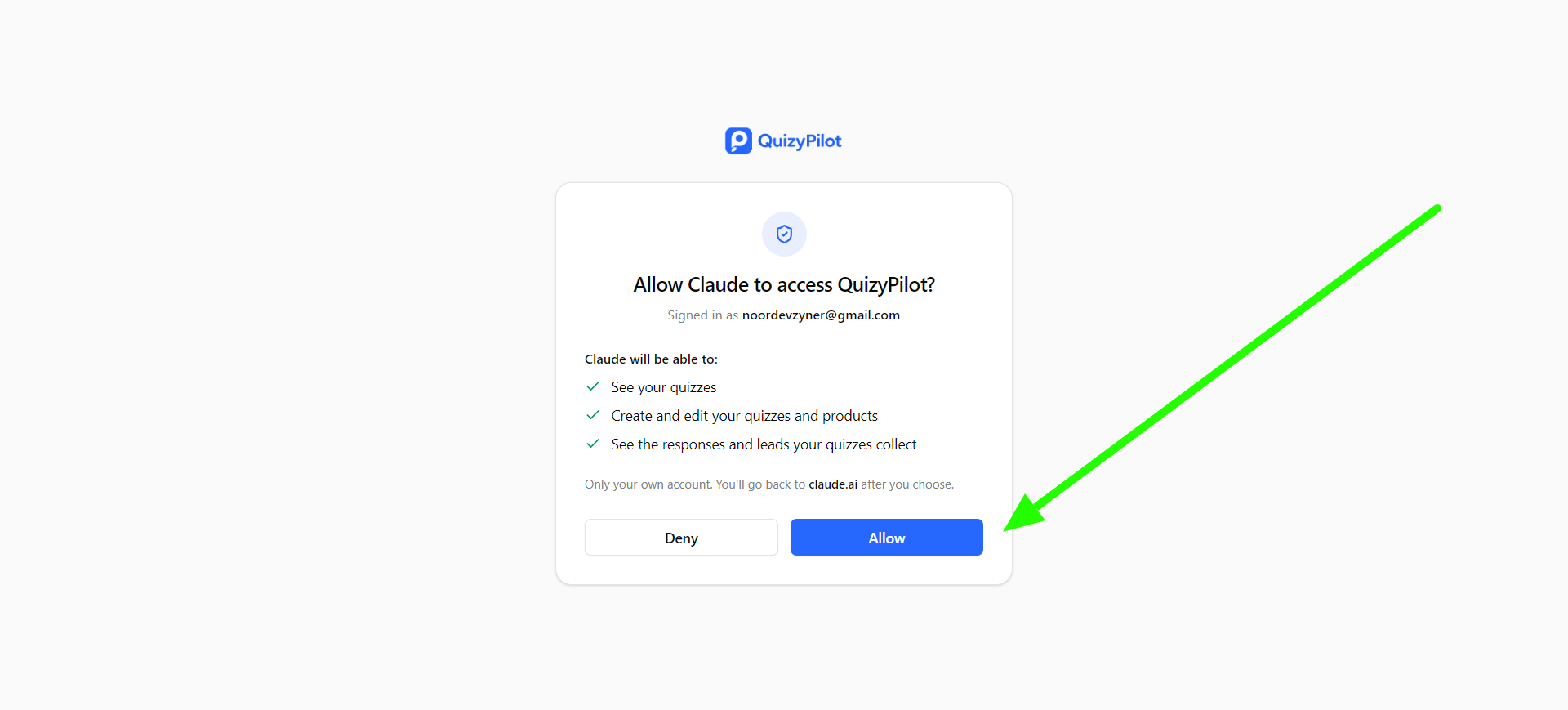 What you allow:
- See your quizzes — read quizzes, products, images and themes
- Create and edit your quizzes and products — make the changes you ask for in the chat
- See the responses and leads your quizzes collect — names, emails and answers
Step 4: Start chatting
In Claude, just ask. In ChatGPT, start your message with @QuizyPilot. Try:
- "Create a 4-question skincare quiz that recommends products from my store. Build it your way."
- "In my Skin Care Finder quiz, add a question 'What is your budget?' with Under $25, $25 to $50 and Over $50."
- "If someone picks Oily skin, skip the moisturiser question."
- "Make the main colour of my quiz dark green."
- "Show me the latest leads from my Skin Care Finder quiz."
- "Undo the last change to my quiz."
If you have more than one quiz, name the one you mean — or the app will ask.  apply just as in the dashboard.
- Editor open at the same time? When you switch back to the QuizyPilot editor, it reloads the quiz so you see the AI app's changes.
Images
The AI app can add images to your quiz from a public image link or from your QuizyPilot media library. Images you attach in the chat can't be passed to QuizyPilot — upload them to your media library first, then ask the app to use them.
Disconnect
Go to Dashboard → AI Apps and click Disconnect next to the app. Its access ends immediately.
You can also remove the connector inside ChatGPT or Claude.
Troubleshooting
"QuizyPilot's AI apps are part of its paid plans…" Your account is on the Free plan. Upgrade under Dashboard → Plans, then try again.
"This connection isn't allowed to do that" You didn't allow that permission when connecting. Disconnect, connect again and allow it.
The app is changing the wrong account Ask "Which QuizyPilot account is connected?" If it's the wrong one, disconnect it in the AI app and connect again, signing in with the right account.
Changes don't show in the editor Click back into the editor window — it reloads the quiz when you return to it.
Need more help? Contact our support team from the Help menu in your dashboard. ng)