
How to Connect Omnisend to Your QuizyPilot Account
How to Connect Omnisend to Your QuizyPilot Account
Integrating Omnisend with QuizyPilot allows you to automatically sync quiz leads as subscribed contacts, add quiz-related tags and custom properties, and trigger automated marketing workflows based on quiz completions.
Once connected, leads collected through your quizzes can be sent directly to your Omnisend account, making it easier to personalize customer communication and create automated email and SMS journeys.
Before You Begin
Before connecting Omnisend, make sure you have:
- An active QuizyPilot account
- An active Omnisend account
- At least one published quiz
- Access to the Omnisend store you want to connect
Step 1: Open the Integrations Page
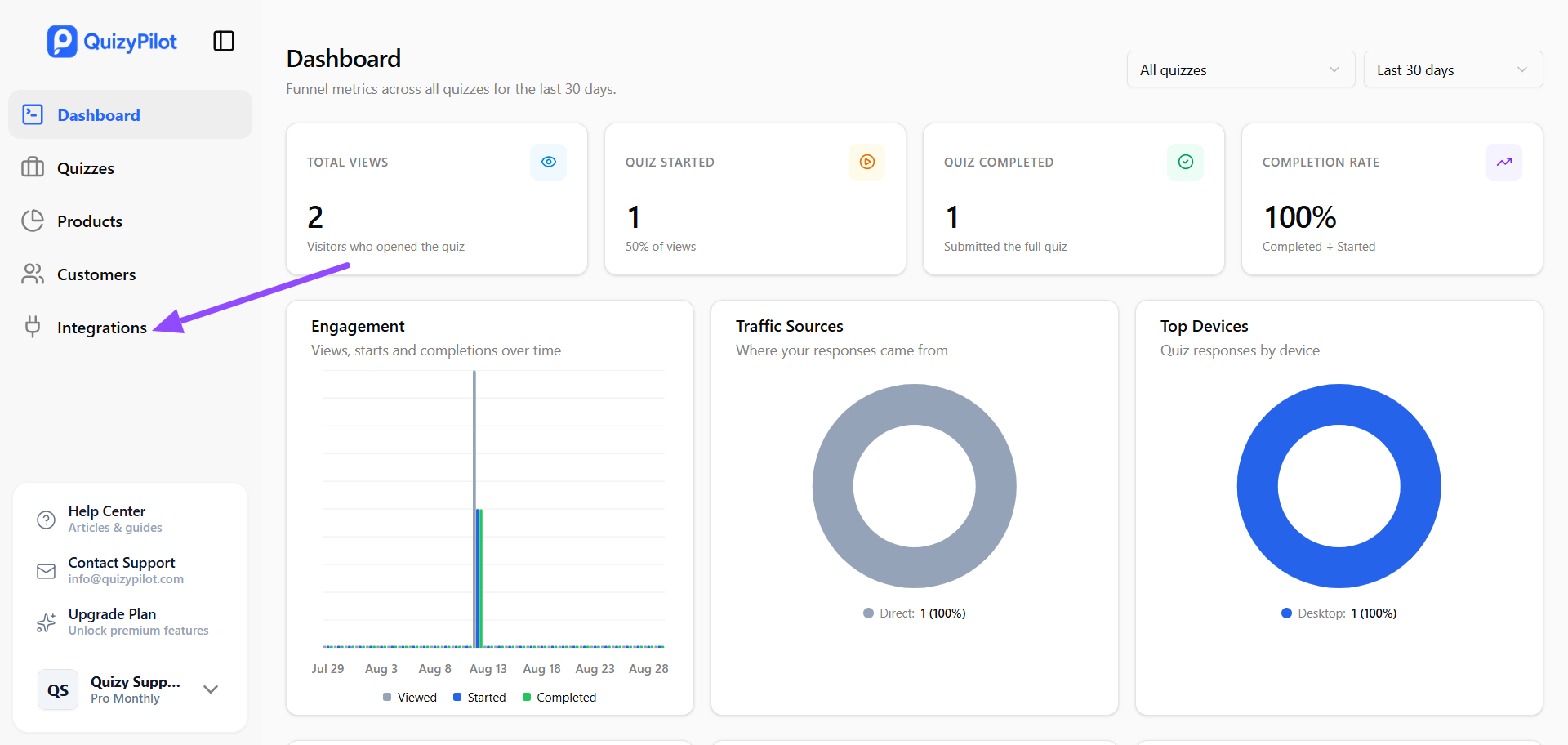
From your QuizyPilot dashboard, click Integrations from the left sidebar.
This page displays all available integrations supported by QuizyPilot.
Step 2: Connect Omnisend
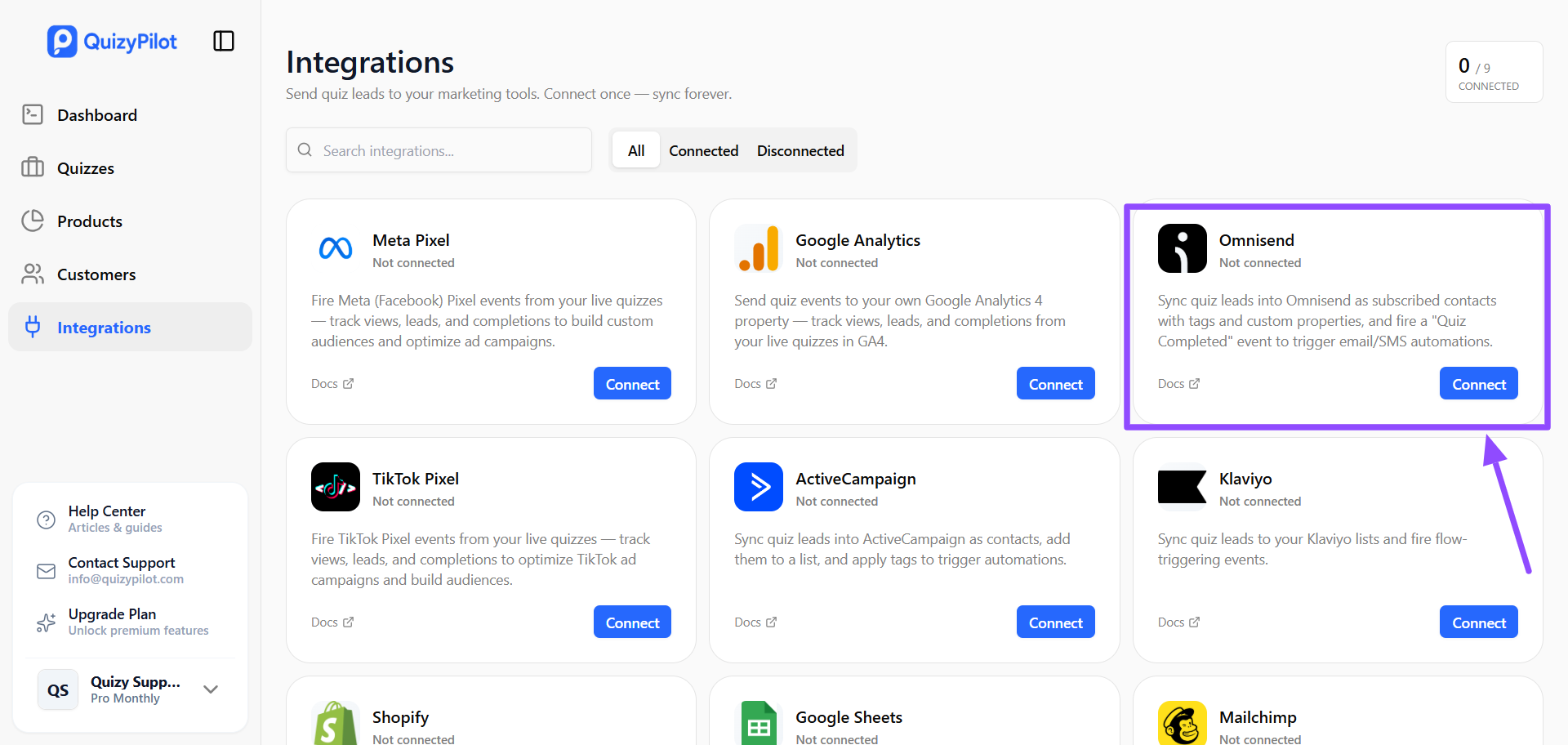
Locate the Omnisend integration card and click Connect.
QuizyPilot will securely redirect you to Omnisend's authorization page.
Step 3: Authorize QuizyPilot
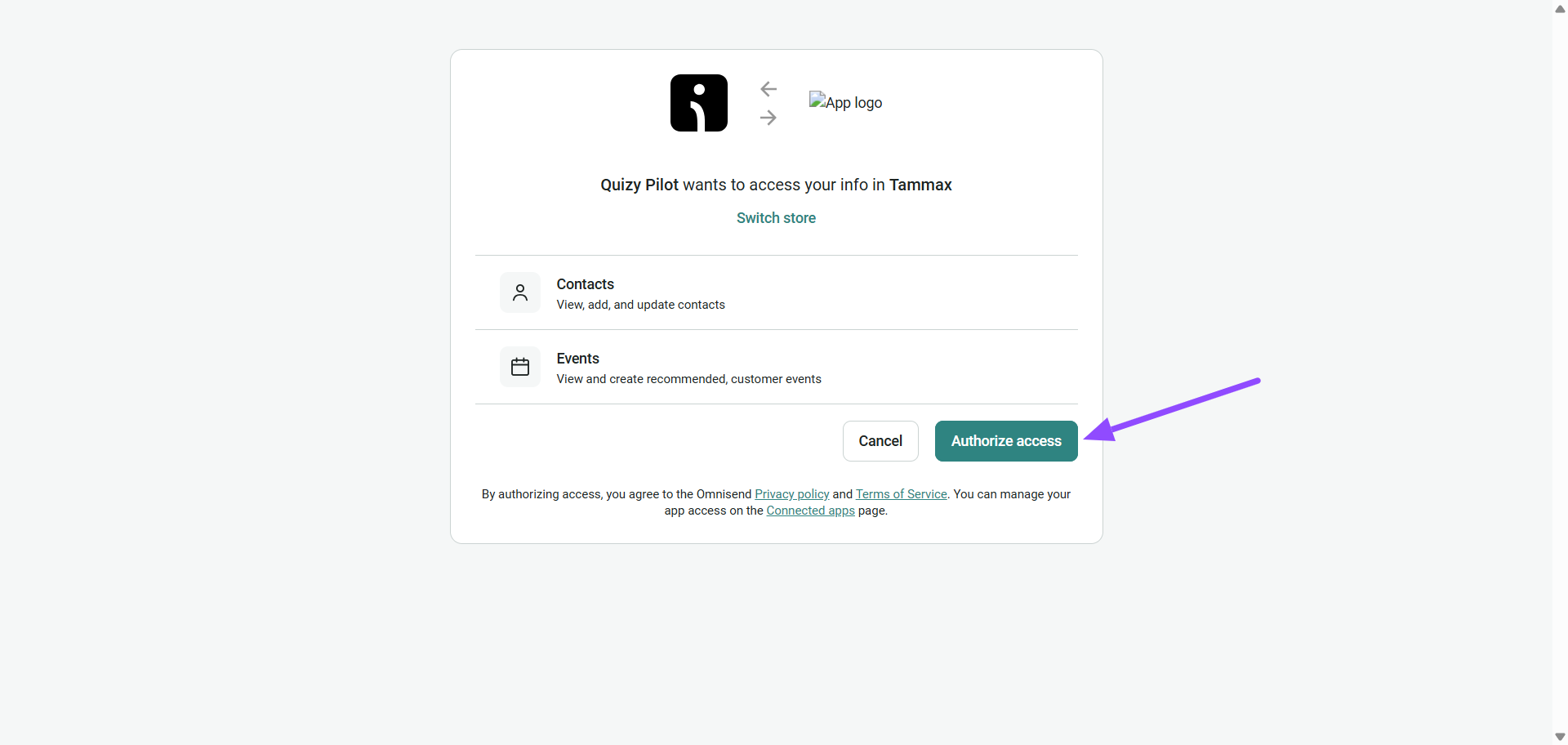
Omnisend will ask you to authorize QuizyPilot to access your store information.
The authorization page shows that QuizyPilot requests access to:
- Contacts — View, add, and update contacts
- Events — View and create recommended customer events
These permissions are required for QuizyPilot to sync quiz leads as contacts and send quiz-related events to Omnisend.
Make sure the correct Omnisend store is selected, then click Authorize access to continue.
Step 4: Wait for the Connection to Complete
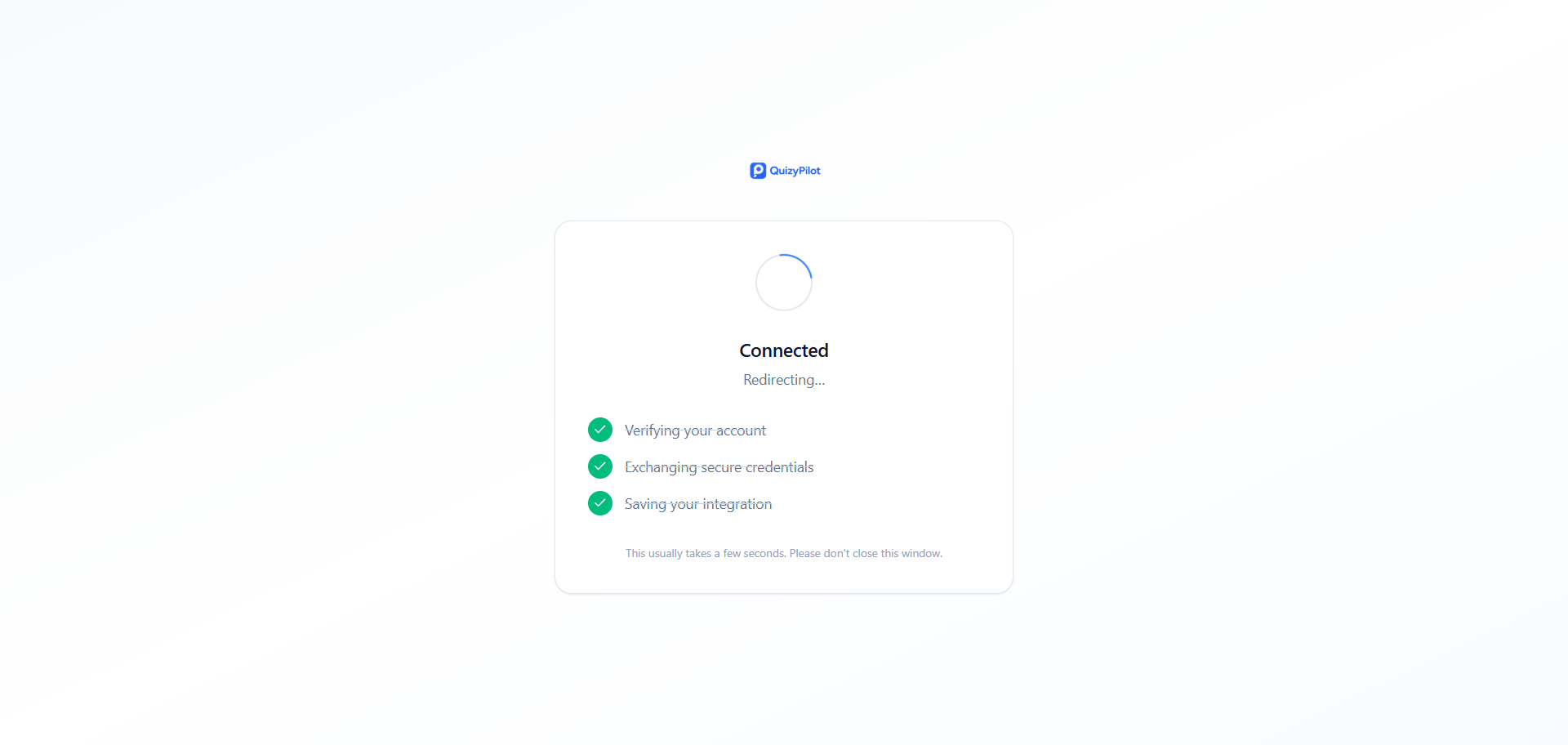
After authorizing QuizyPilot, you'll see a confirmation screen showing the connection process.
QuizyPilot will:
- Verify your Omnisend account
- Exchange secure credentials
- Save your Omnisend integration
The process usually takes a few seconds. Keep the window open until the connection is completed and you are redirected back to QuizyPilot.
Step 5: Verify the Connection
After successful authorization, you'll be redirected back to the Integrations page in QuizyPilot.
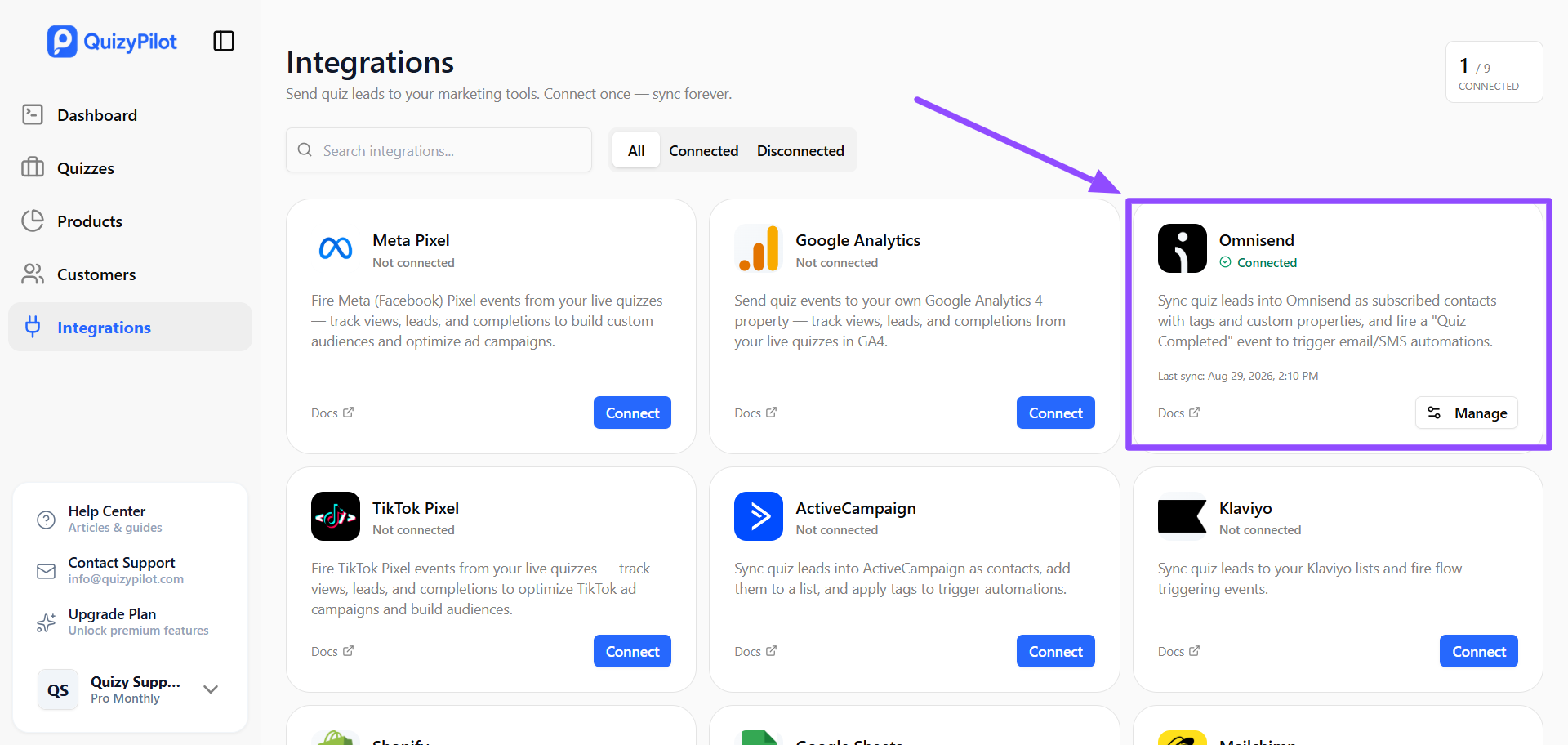
The Omnisend integration will now display:
- ✅ Connected
- Last synchronization time
- Manage button
Click Manage to configure which quizzes should sync with Omnisend.
Step 6: Configure Your Quizzes
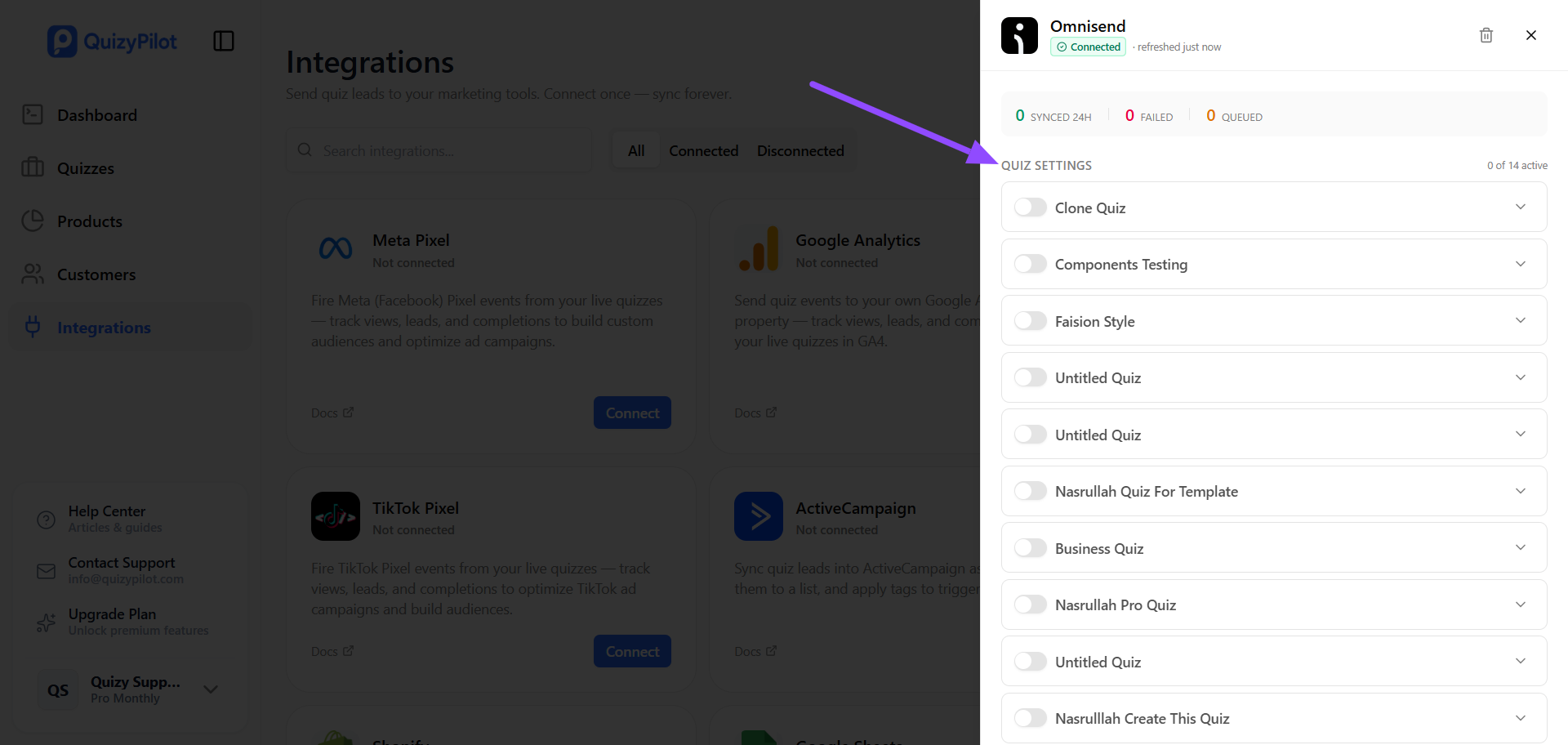
Inside the Omnisend integration settings, you'll see all quizzes available in your QuizyPilot workspace.
Each quiz has its own toggle, allowing you to choose which quizzes should send data to Omnisend.
To enable an integration for a quiz:
- Find the quiz you want to connect.
- Turn on the toggle next to the quiz.
- Expand the quiz settings if you need to configure additional options.
The integration panel also displays synchronization information, including:
- Synced 24h — Number of contacts synced during the last 24 hours
- Failed — Number of synchronization attempts that failed
- Queued — Number of items waiting to be synchronized
Sync Quiz Leads to Omnisend
Once a quiz is enabled, QuizyPilot can sync quiz leads to Omnisend as subscribed contacts.
This allows you to use quiz leads inside Omnisend for:
- Email marketing
- SMS marketing
- Customer segmentation
- Automated marketing workflows
- Personalized customer journeys
Add Quiz Tags and Custom Properties
QuizyPilot can also send quiz-related tags and custom properties to Omnisend.
This gives you additional information about how a customer interacted with your quiz and can help you organize and segment contacts based on their quiz activity.
For example, quiz-related information can be used to create more personalized marketing experiences and target customers with relevant content.
Send "Quiz Completed" Event
QuizyPilot can send a Quiz Completed event to Omnisend when a customer successfully completes a quiz.
This event can be used to trigger automated workflows such as:
- Welcome emails
- Product recommendation emails
- Post-quiz follow-ups
- Promotional campaigns
- Personalized customer journeys
- Email and SMS automations
Step 7: Use Quiz Data for Automation
Once your quiz is connected to Omnisend, your quiz leads can become part of your marketing workflow.
You can use the synced contact information, tags, custom properties, and Quiz Completed event to create targeted automations in Omnisend.
For example, you can create a workflow that sends a personalized message after a customer completes your quiz.
This helps turn quiz interactions into ongoing customer engagement.
You're All Set!
Your QuizyPilot account is now connected to Omnisend.
Once your quiz integration is enabled, QuizyPilot can automatically:
- Sync quiz leads to Omnisend as subscribed contacts
- Add quiz-related tags and custom properties
- Send Quiz Completed events
- Support email and SMS automation workflows
- Help you create more personalized customer journeys
You're now ready to use your QuizyPilot quiz data inside Omnisend to build personalized marketing automations.