
How to Connect Meta Pixel to Your QuizyPilot Account
How to Connect Meta Pixel to Your QuizyPilot Account
Connect your Meta Pixel to QuizyPilot to send quiz activity to Meta and track events such as quiz views, leads, and completions. This can help you build custom audiences and optimize your Meta advertising campaigns.
Before connecting Meta Pixel, open the Meta Events Manager:
Step 1: Open Integrations in QuizyPilot
Log in to your QuizyPilot account and go to:
Dashboard → Integrations
Find Meta Pixel in the integrations list and click Connect.
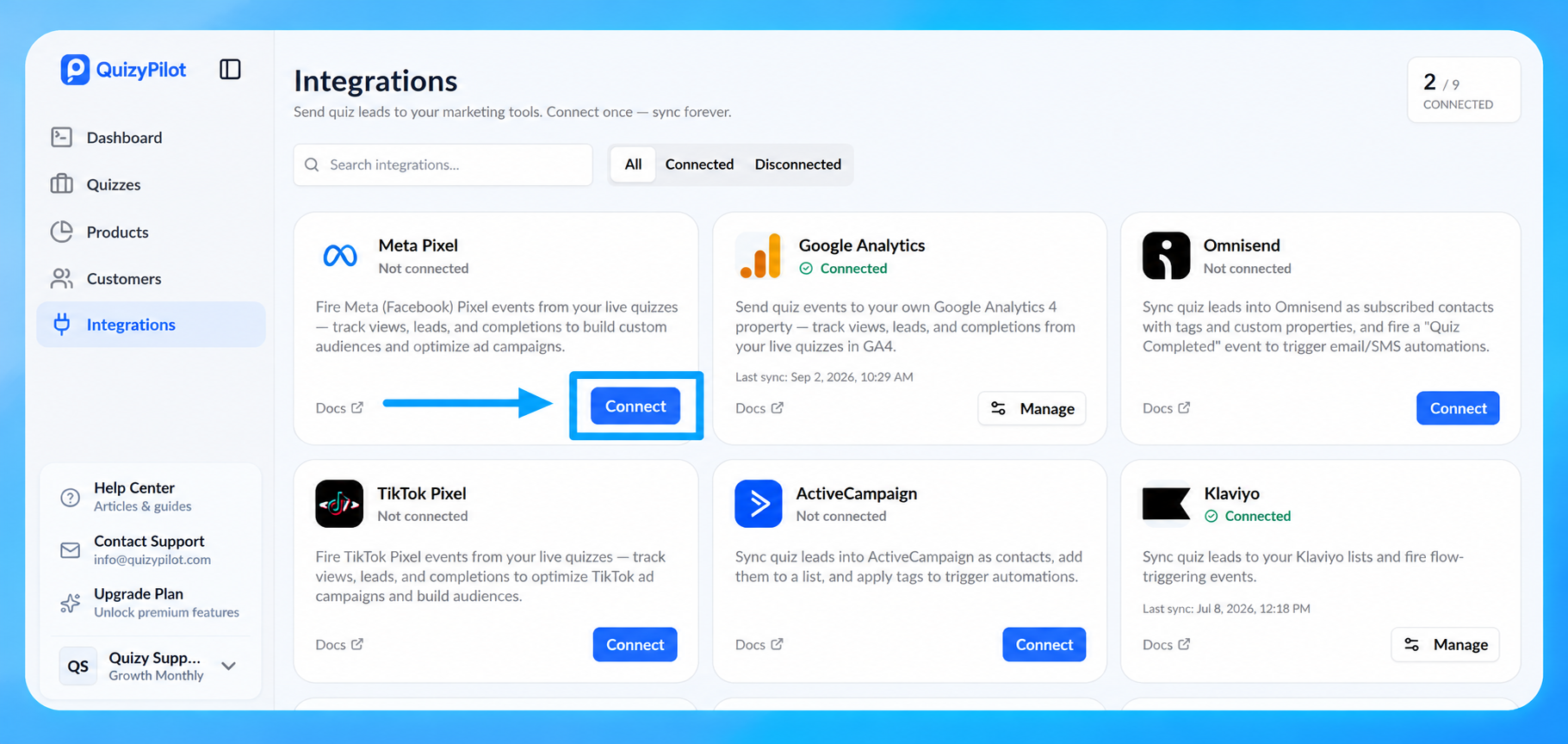 The Meta Pixel integration allows QuizyPilot to fire Meta Pixel events from your live quizzes, helping you track quiz views, leads, and completions.
Step 2: Open the Meta Pixel Connection Window
After clicking Connect, a Connect Meta Pixel window will appear.
You will see an API key field where you need to enter your Meta Pixel ID.
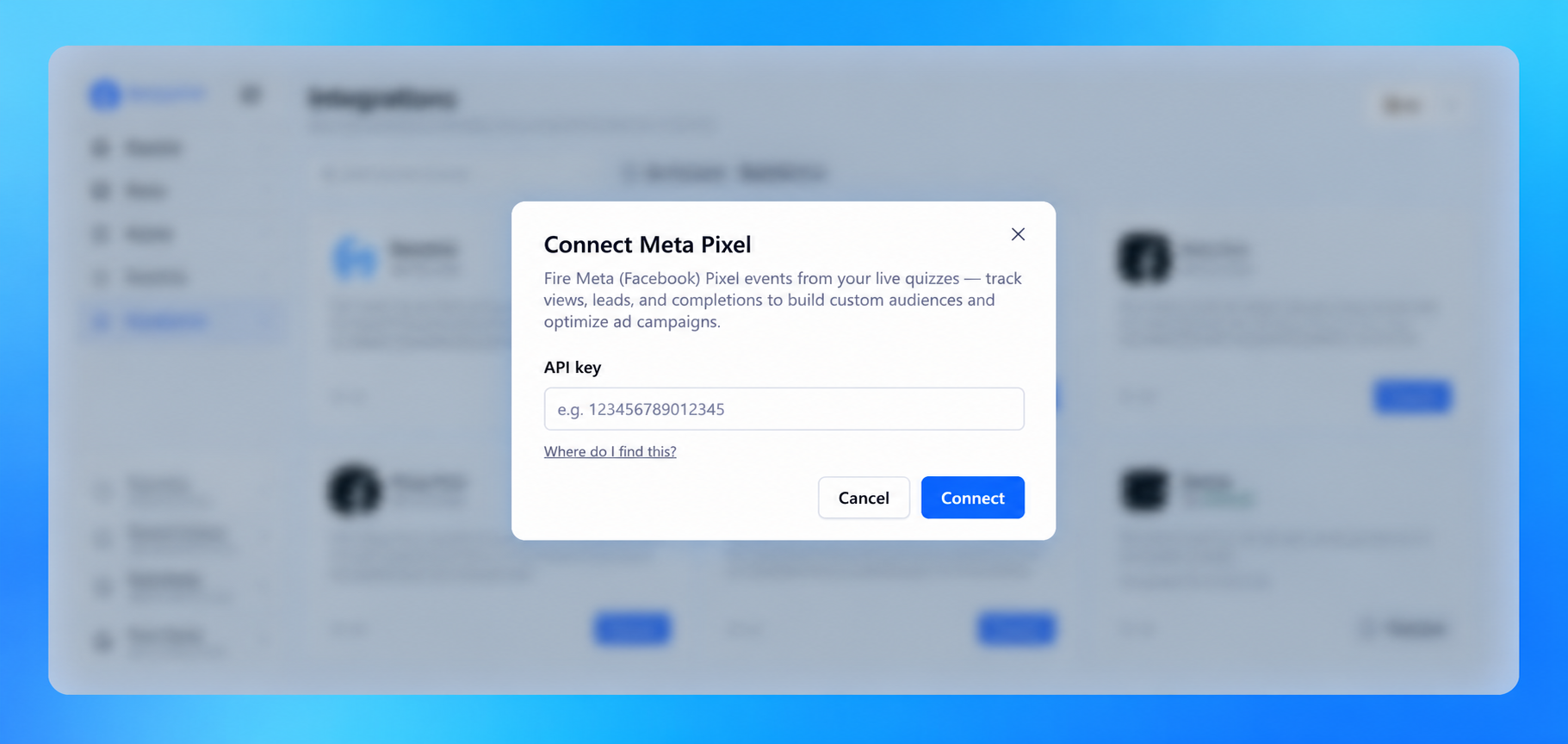 Keep this window open while you find your Pixel ID in Meta Events Manager.
Step 3: Open Datasets in Meta Events Manager
In Meta Events Manager, open the Datasets section from the left-hand menu.
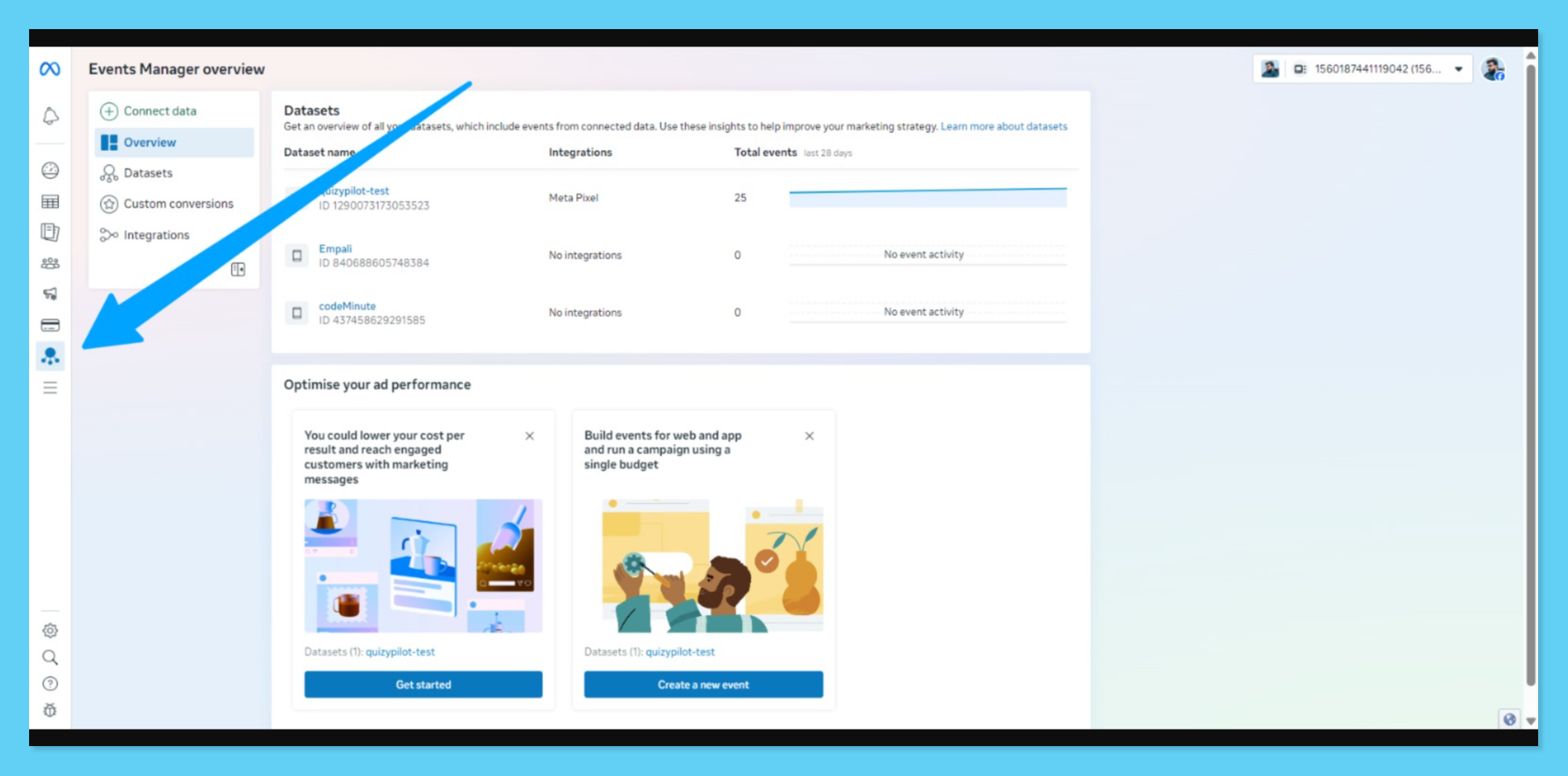 You will see a list of datasets associated with your Meta account. Find the dataset that is connected to the Meta Pixel you want to use with QuizyPilot.
Click the relevant dataset to open its details.
Step 4: Find Your Pixel ID
Inside your selected dataset, open the Settings tab.
Under the Details section, look for Pixel ID.
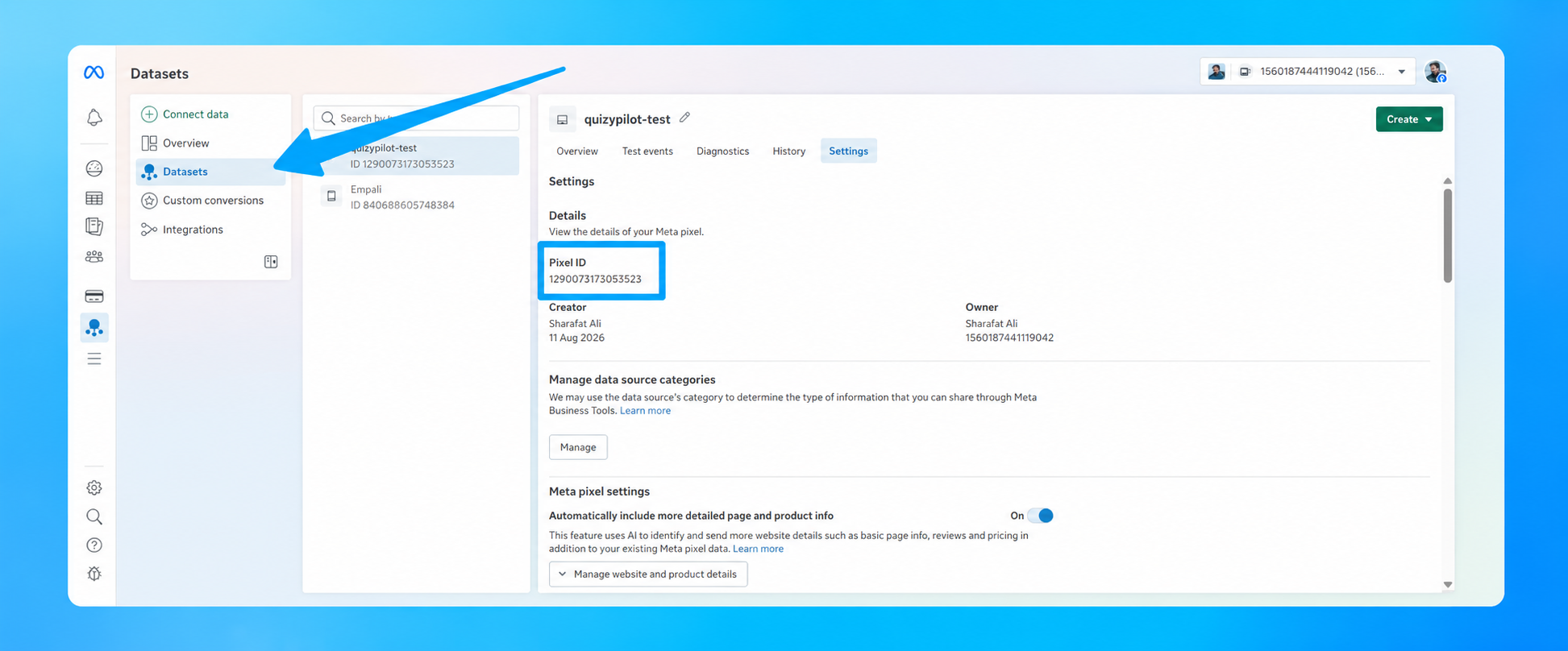 Copy the Pixel ID shown there.
For example, the screenshot shows a Pixel ID similar to:
1290073173053523
Note: Use the Pixel ID from your own Meta account. Do not use the example ID shown in the screenshot.
Step 5: Enter the Pixel ID in QuizyPilot
Return to the Connect Meta Pixel window in QuizyPilot.
Paste your copied Pixel ID into the API key field.
Then click Connect.
Once successfully connected, QuizyPilot can send supported quiz events to your Meta Pixel.
What You Can Track
After connecting Meta Pixel, QuizyPilot can send quiz-related activity to Meta, including:
- Quiz views
- Lead submissions
- Quiz completions
This data can be used in Meta to understand quiz engagement, create audiences, and improve advertising campaign optimization.
Troubleshooting
If your Meta Pixel is not connecting:
- Make sure you copied the correct Pixel ID from Meta Events Manager.
- Check that you selected the correct dataset.
- Make sure there are no extra spaces when pasting the Pixel ID.
- Return to QuizyPilot → Dashboard → Integrations and try connecting again.
- Verify that you have the necessary access to the Meta dataset/pixel.
Once connected, your QuizyPilot quizzes can start sending the supported events to your Meta Pixel for tracking and advertising optimization.
Note: Meta Pixel events may sometimes take some time to appear in Meta Events Manager after they are received. A short delay in event reporting is normal.