How to Connect MailerLite to Your QuizyPilot Account
How to Connect MailerLite to Your QuizyPilot Account
Connect MailerLite with QuizyPilot to automatically send quiz leads to your MailerLite account as subscribers. You can also assign leads to a specific MailerLite group and send full quiz data for better segmentation and personalization.
Before You Start
Make sure you have:
- A QuizyPilot account
- A MailerLite account
- A live quiz in QuizyPilot
- Access to your MailerLite account
Step 1: Open MailerLite Integrations
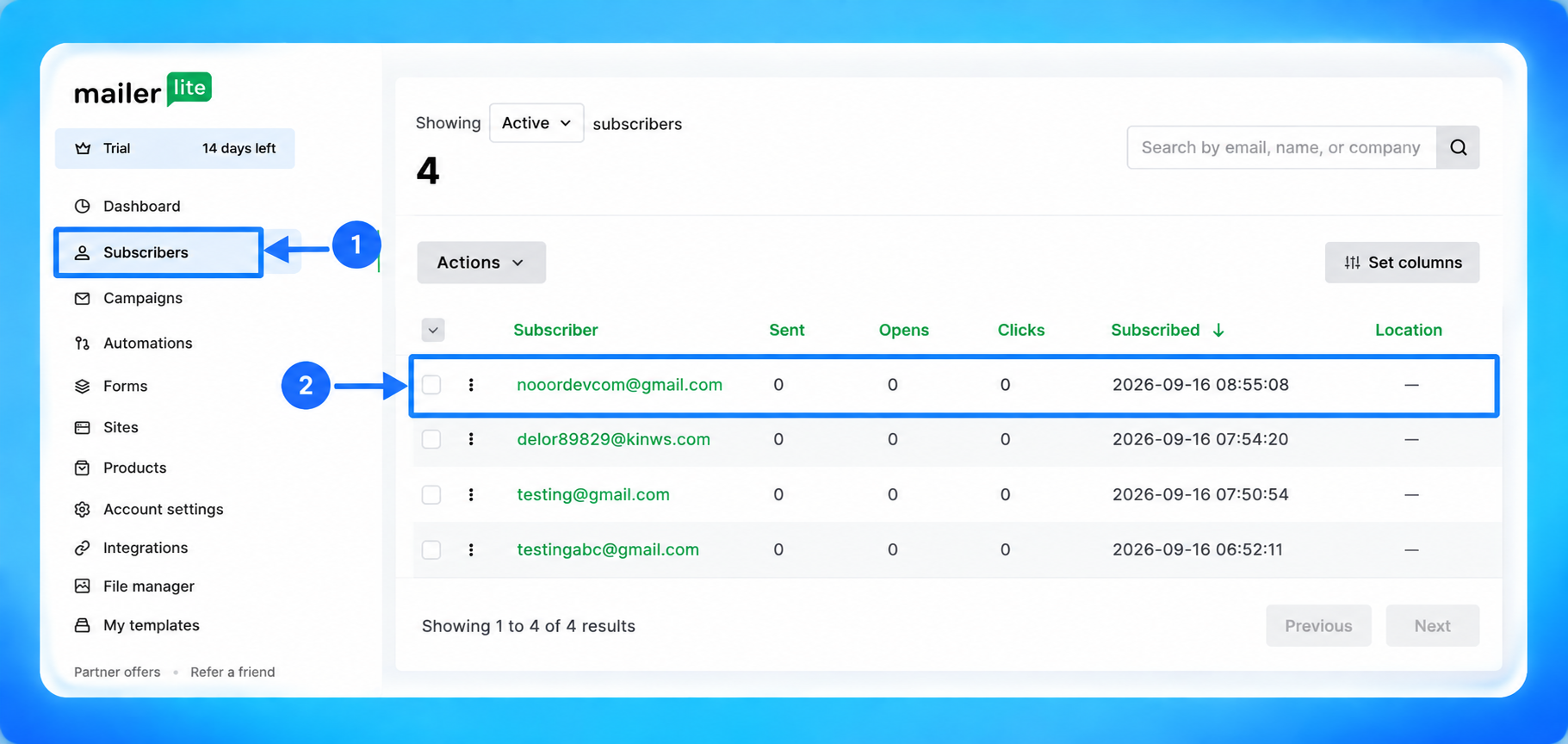
Log in to your MailerLite account.
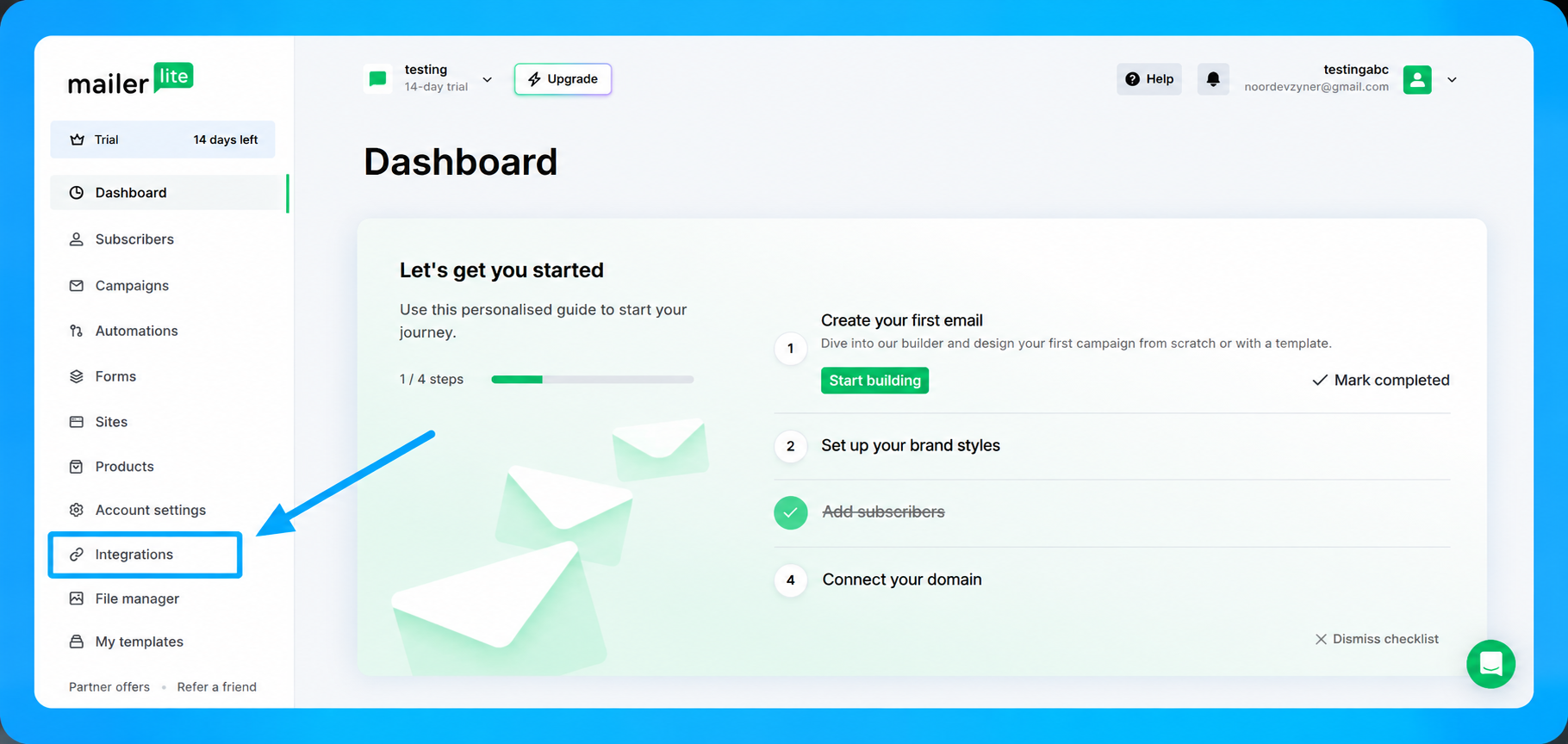
From the left-hand navigation menu, click Integrations.
Step 2: Open the MailerLite API
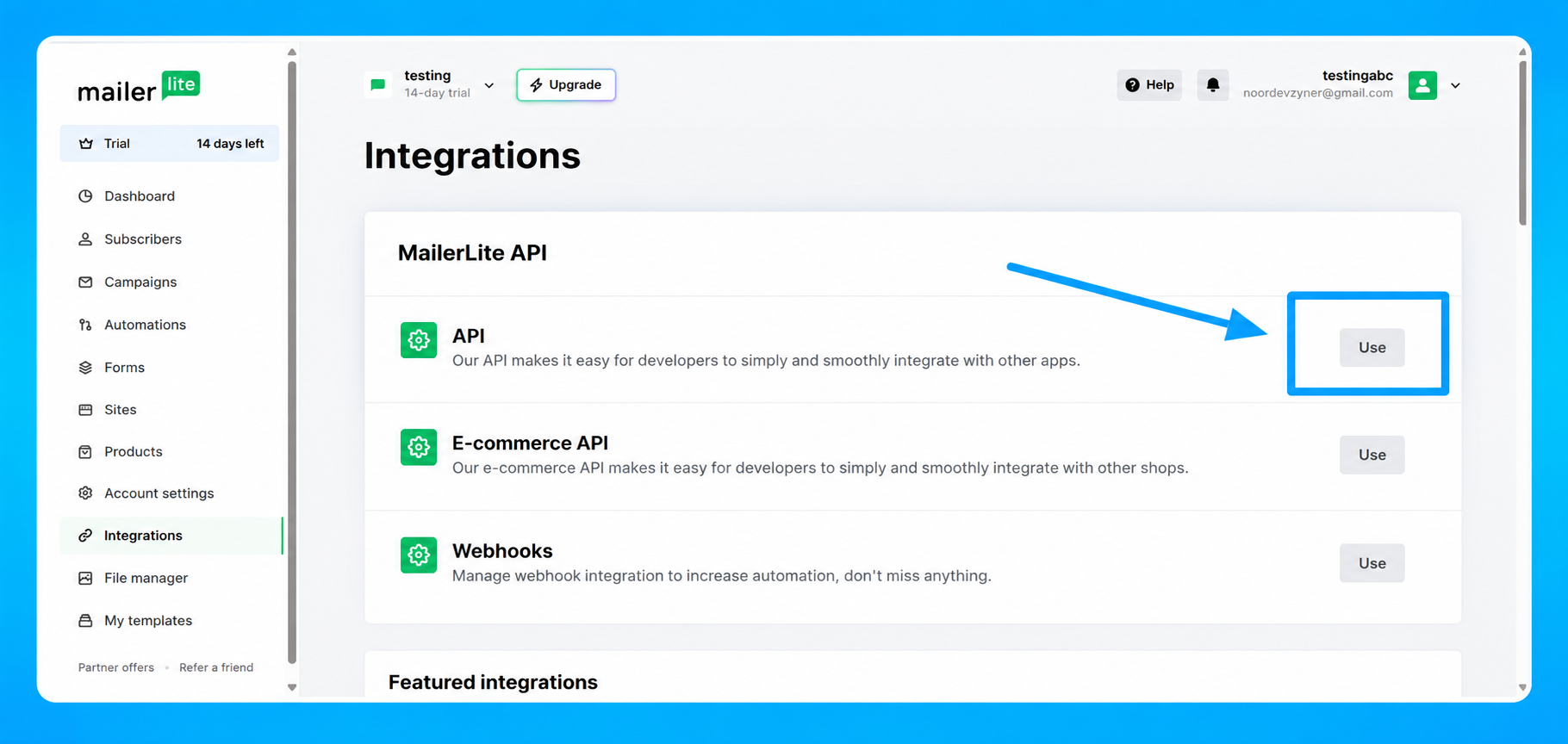
On the Integrations page, find the MailerLite API section.
Under API, click the Use button.
This will open the MailerLite Developer API page.
Step 3: Generate a New API Token
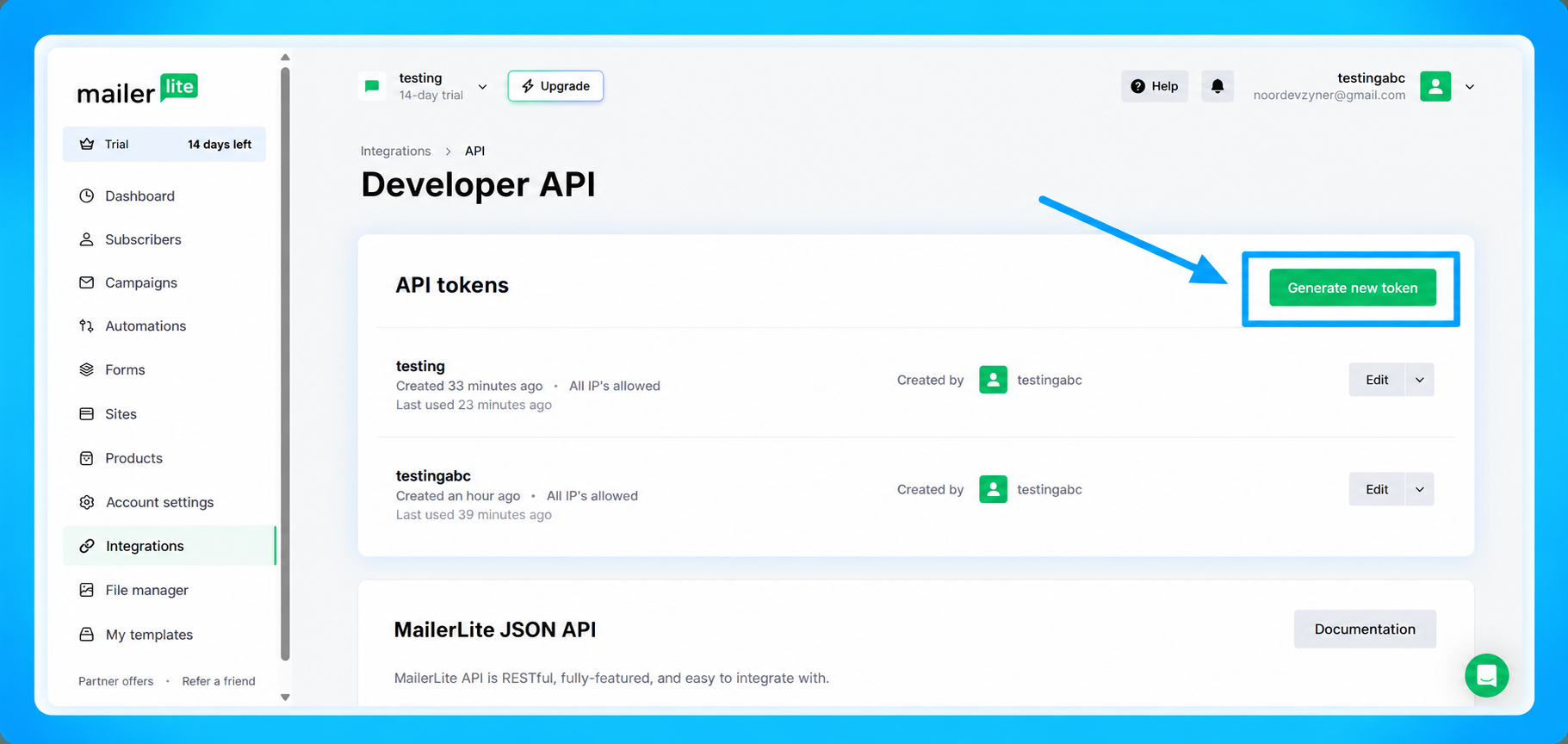
On the Developer API page, find the API tokens section.
Click Generate new token.
Step 4: Enter the Token Name
The Create new API token window will appear.
In the Enter token name field, enter a name that helps you identify the connection.
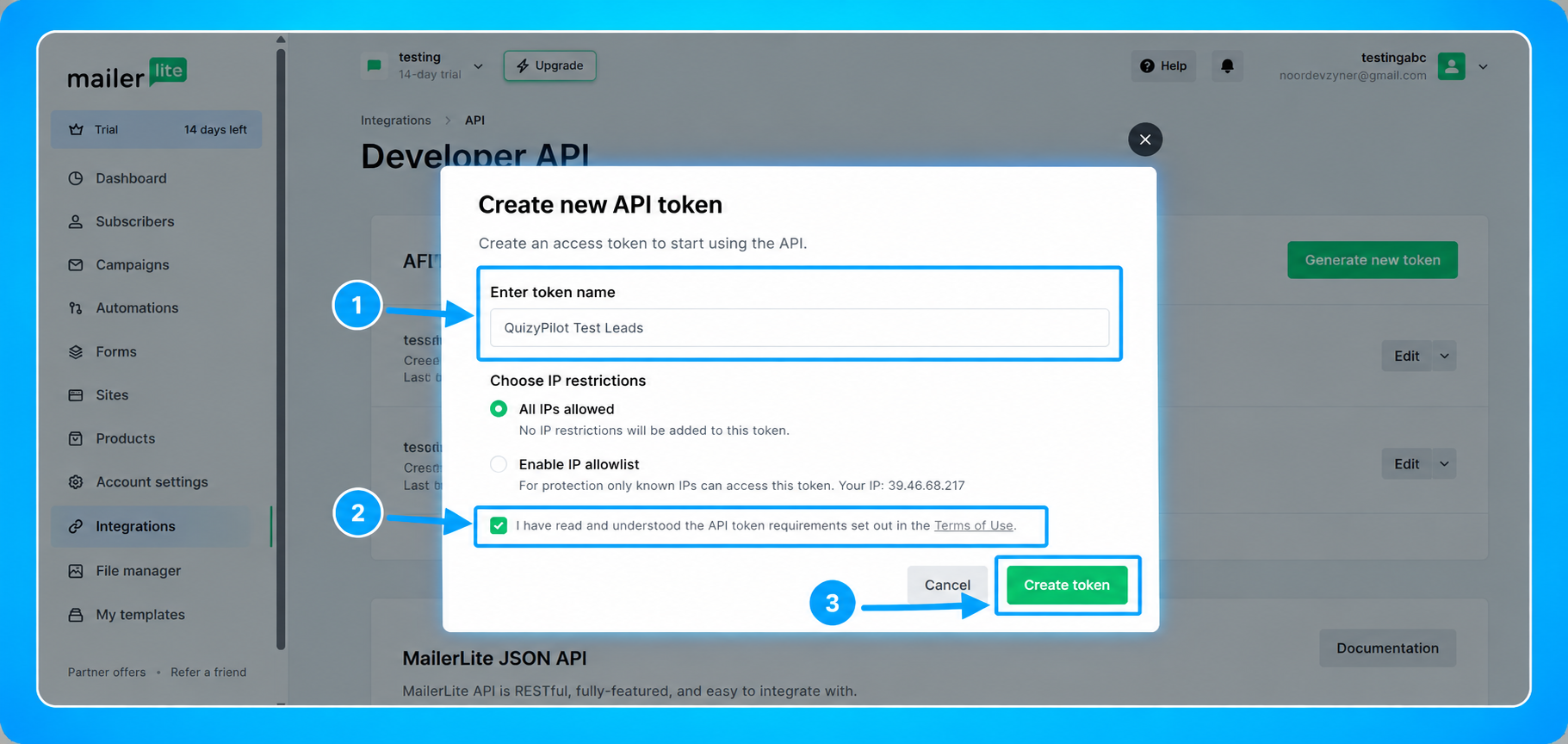 For example:
QuizyPilot Test Leads
Under Choose IP restrictions, you can keep All IPs allowed selected.
Then, check the confirmation box:
I have read and understood the API token requirements set out in the Terms of Use.
After completing the required information, click Create token.
Step 5: Copy the API Token
After creating the token, MailerLite will display your new API token.
Click Copy to copy the token.
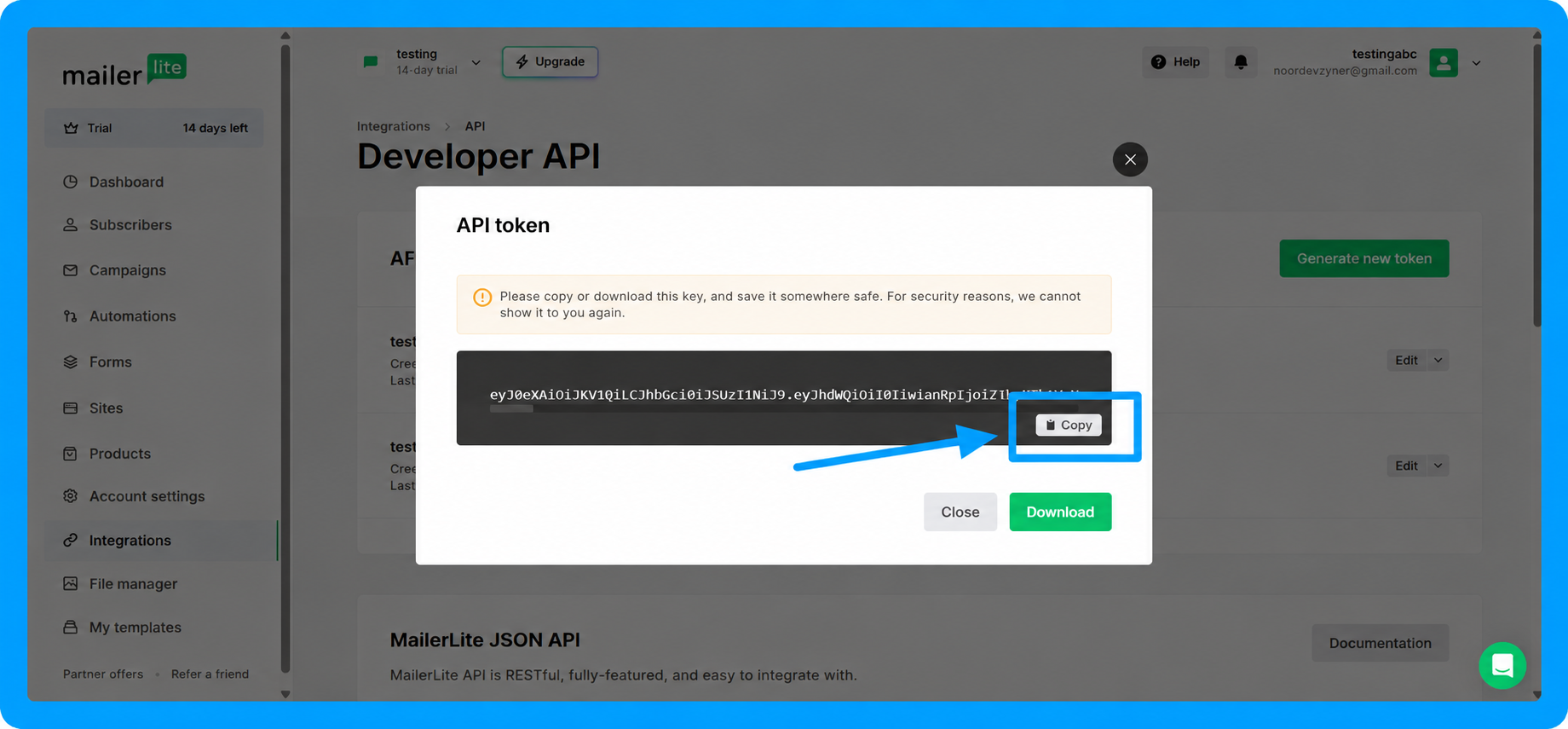
Important: MailerLite only displays the token when it is created. Make sure you copy and save it somewhere secure before closing the window.
Step 6: Open QuizyPilot Integrations
Now return to your QuizyPilot account.
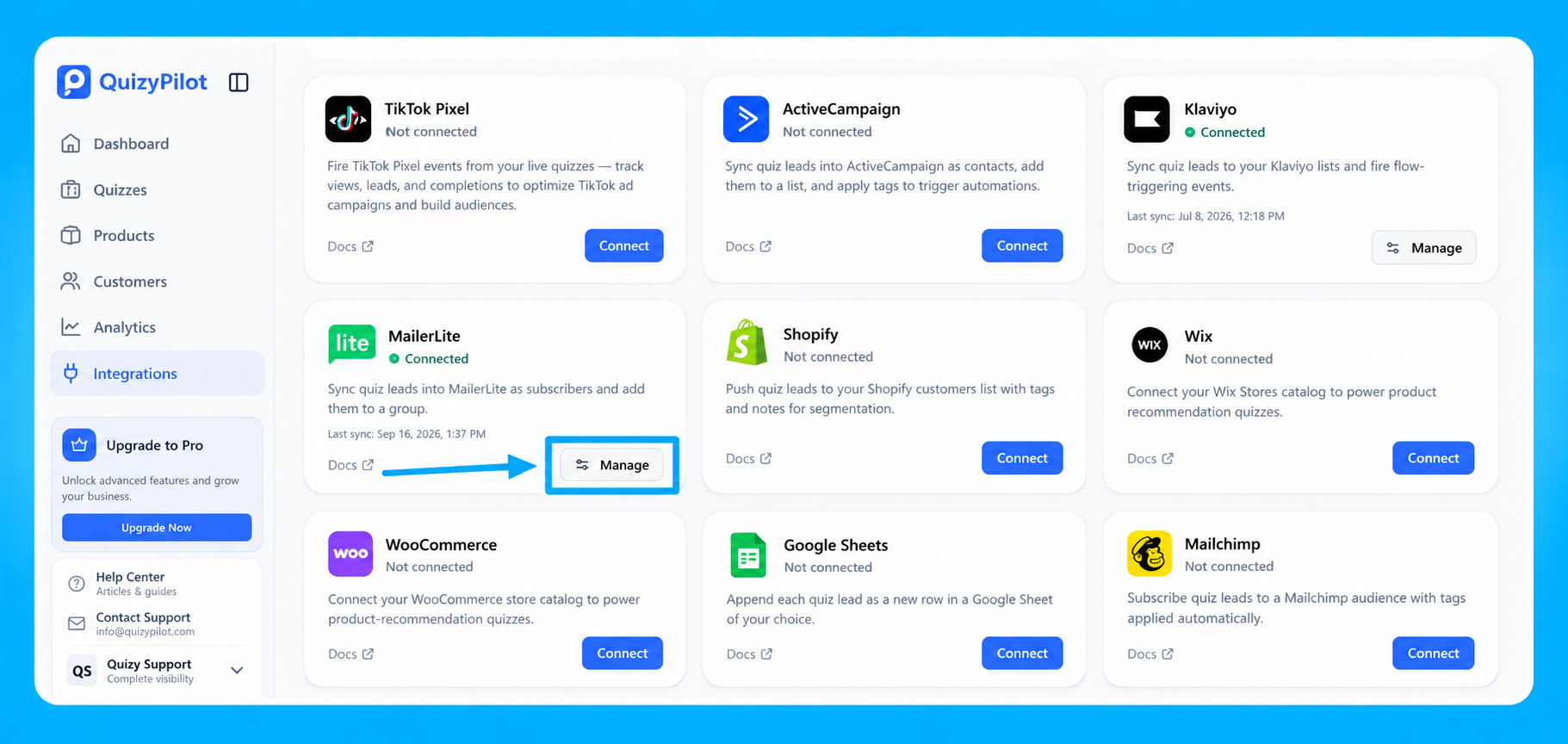
From the QuizyPilot dashboard, click Integrations in the left-hand navigation menu.
Find MailerLite in the integrations list and click Connect.
Step 7: Enter the MailerLite API Key
The Connect MailerLite window will appear.
Paste the API token you copied from MailerLite into the API Key field.
Then click Connect.
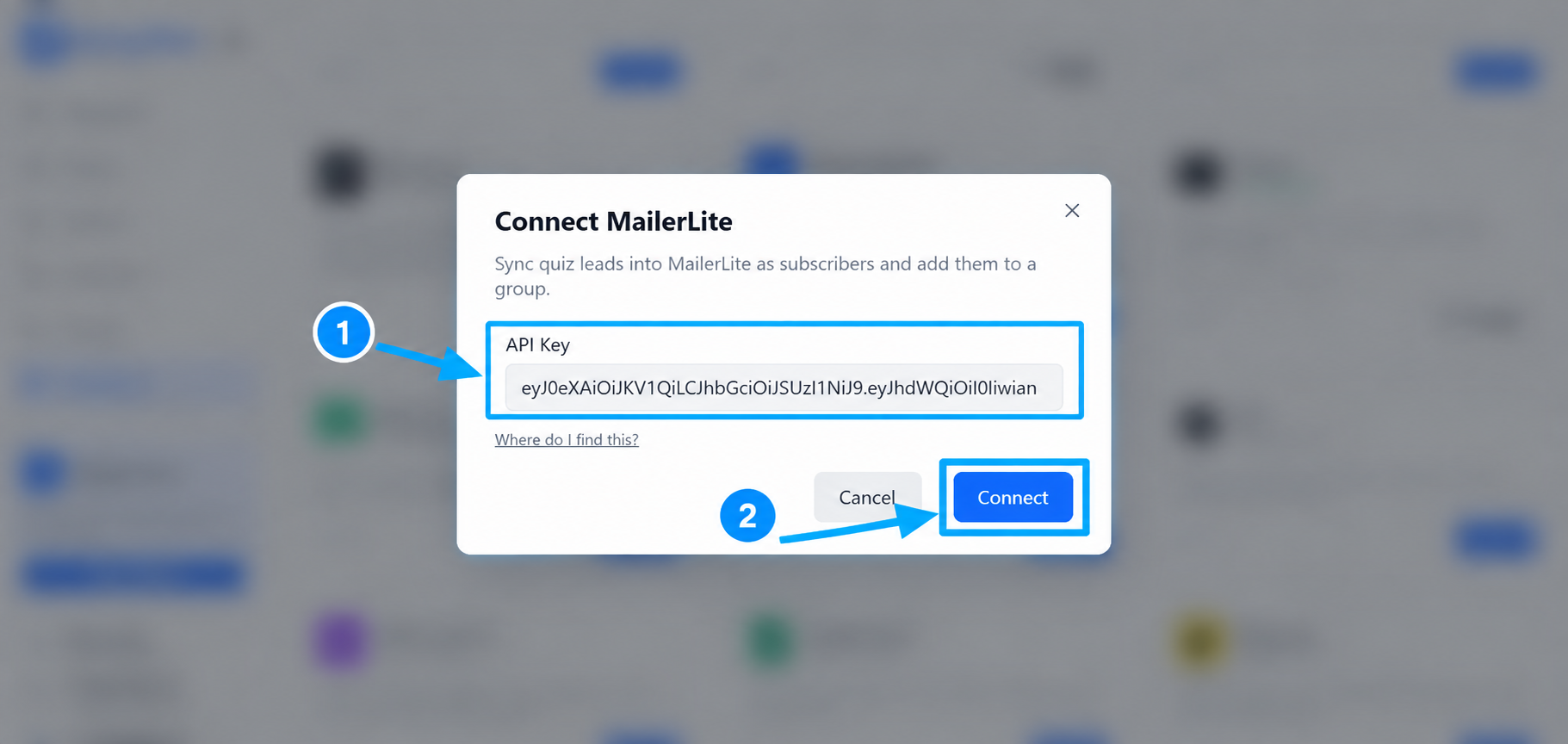 QuizyPilot will verify the API key and connect your MailerLite account.
Step 8: Manage the MailerLite Integration
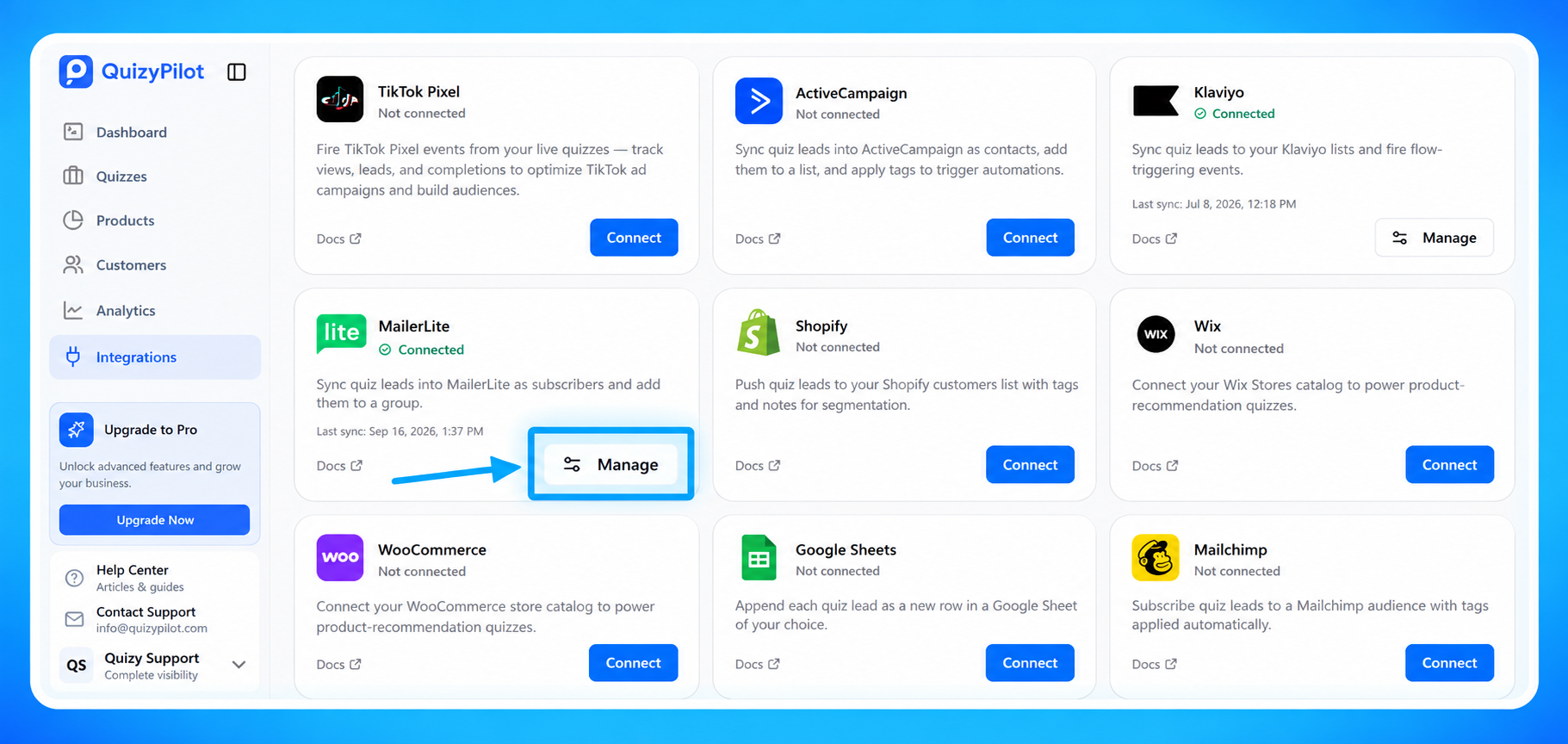
Once the connection is successful, MailerLite will show a Connected status in QuizyPilot.
Click Manage to configure which quizzes should send leads to MailerLite.
Step 9: Enable MailerLite for Your Quiz
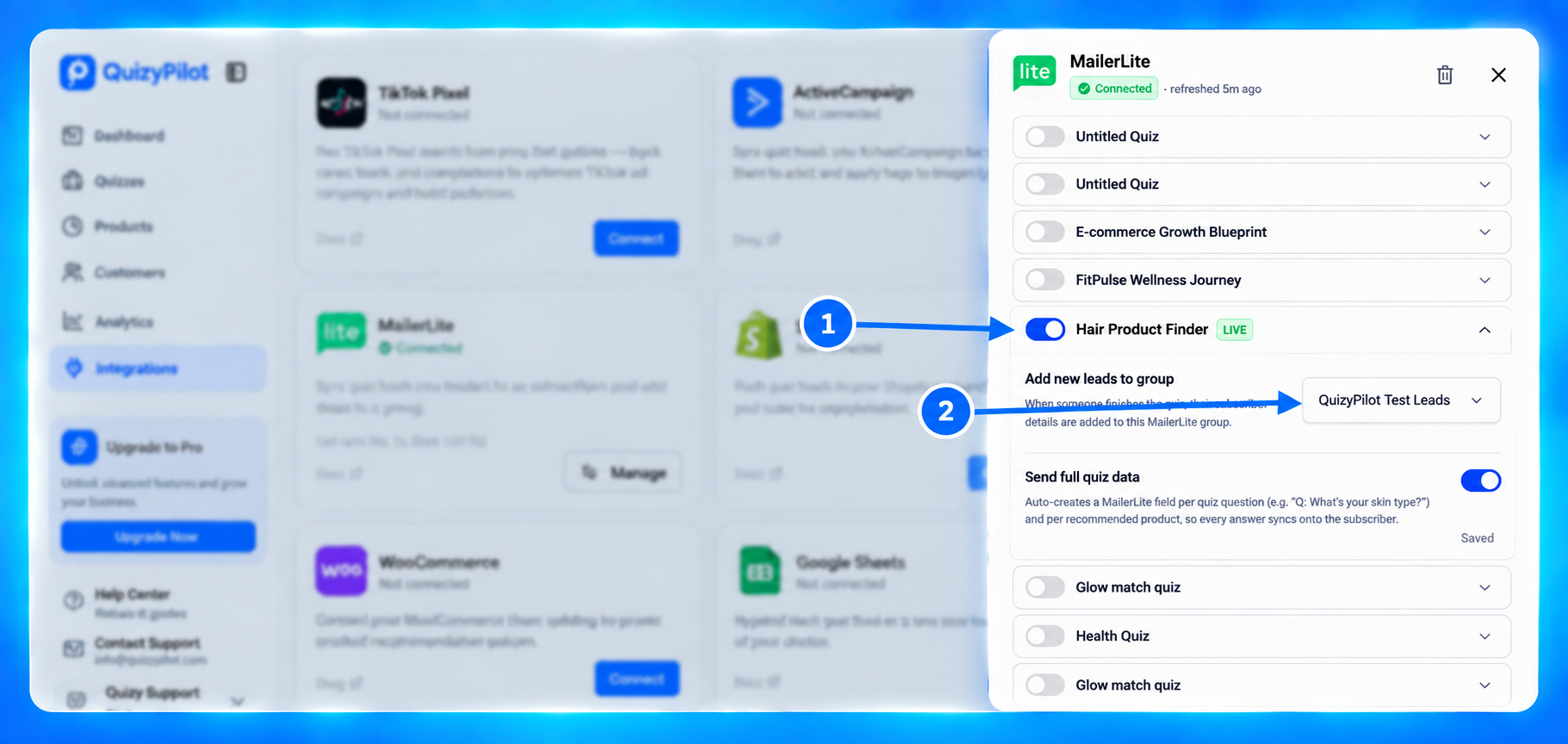
Inside the MailerLite management panel, you will see your available quizzes.
Find the quiz you want to connect and turn on its toggle.
 For example:
Hair Product Finder — LIVE
After enabling the quiz, you can configure where new leads should be added.