
How to Connect Google Analytics to Your QuizyPilot Account
How to Connect Google Analytics 4 to Your QuizyPilot Account
Connect your Google Analytics 4 (GA4) property to QuizyPilot to track quiz activity such as page views, quiz starts, leads, and quiz completions directly in Google Analytics.
Step 1: Open Integrations
Log in to your QuizyPilot account and go to:
Dashboard → Integrations
Find Google Analytics in the list of available integrations and click Connect.
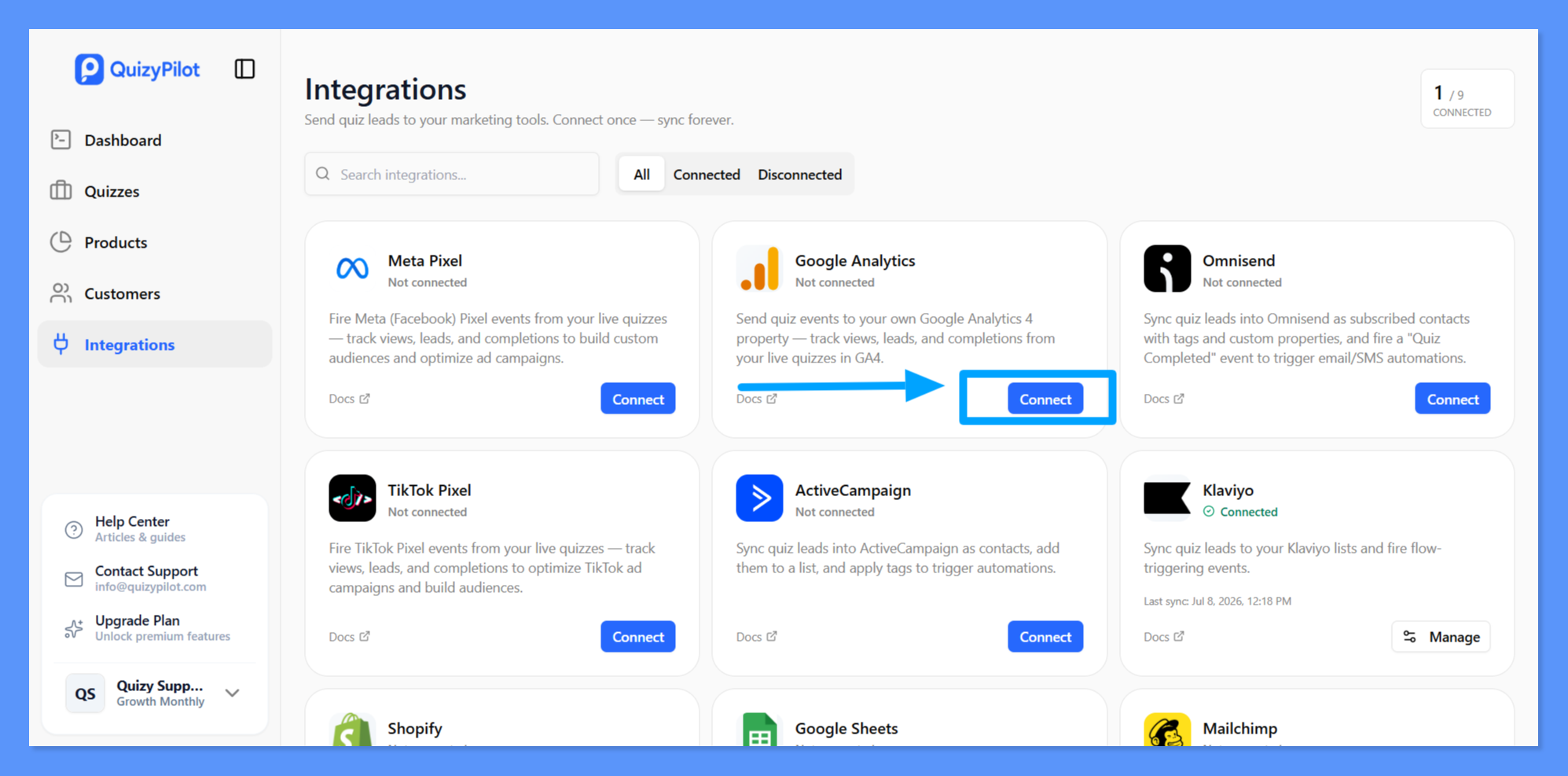 QuizyPilot Integrations page with Google Analytics highlighted.
Step 2: Find Your GA4 Measurement ID
Open your Google Analytics account and select the GA4 property you want to connect.
Go to:
Admin → Data collection and modification → Data streams
Select your Web data stream.
In the Web stream details section, find the Measurement ID. It starts with G-.
Click the copy icon next to the Measurement ID.
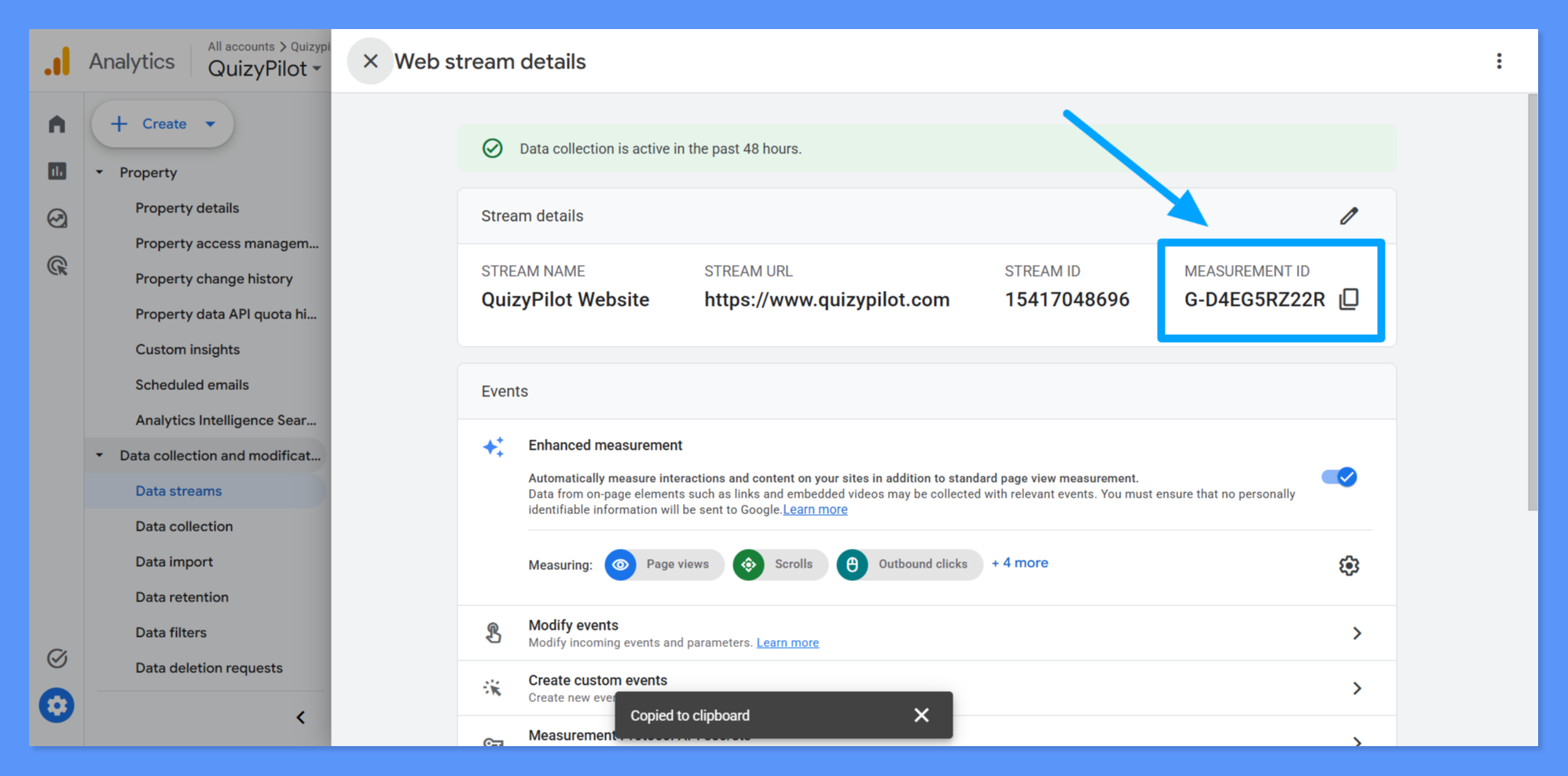 Google Analytics Web stream details showing the Measurement ID.
Example:
G-D4EG5RZ22R
Make sure you copy the complete Measurement ID before returning to QuizyPilot.
Step 3: Enter the Measurement ID in QuizyPilot
Return to:
QuizyPilot → Dashboard → Integrations
Click Connect on the Google Analytics integration.
A Connect Google Analytics window will appear.
Paste your GA4 Measurement ID into the GA4 Measurement ID field.
Then click Connect.
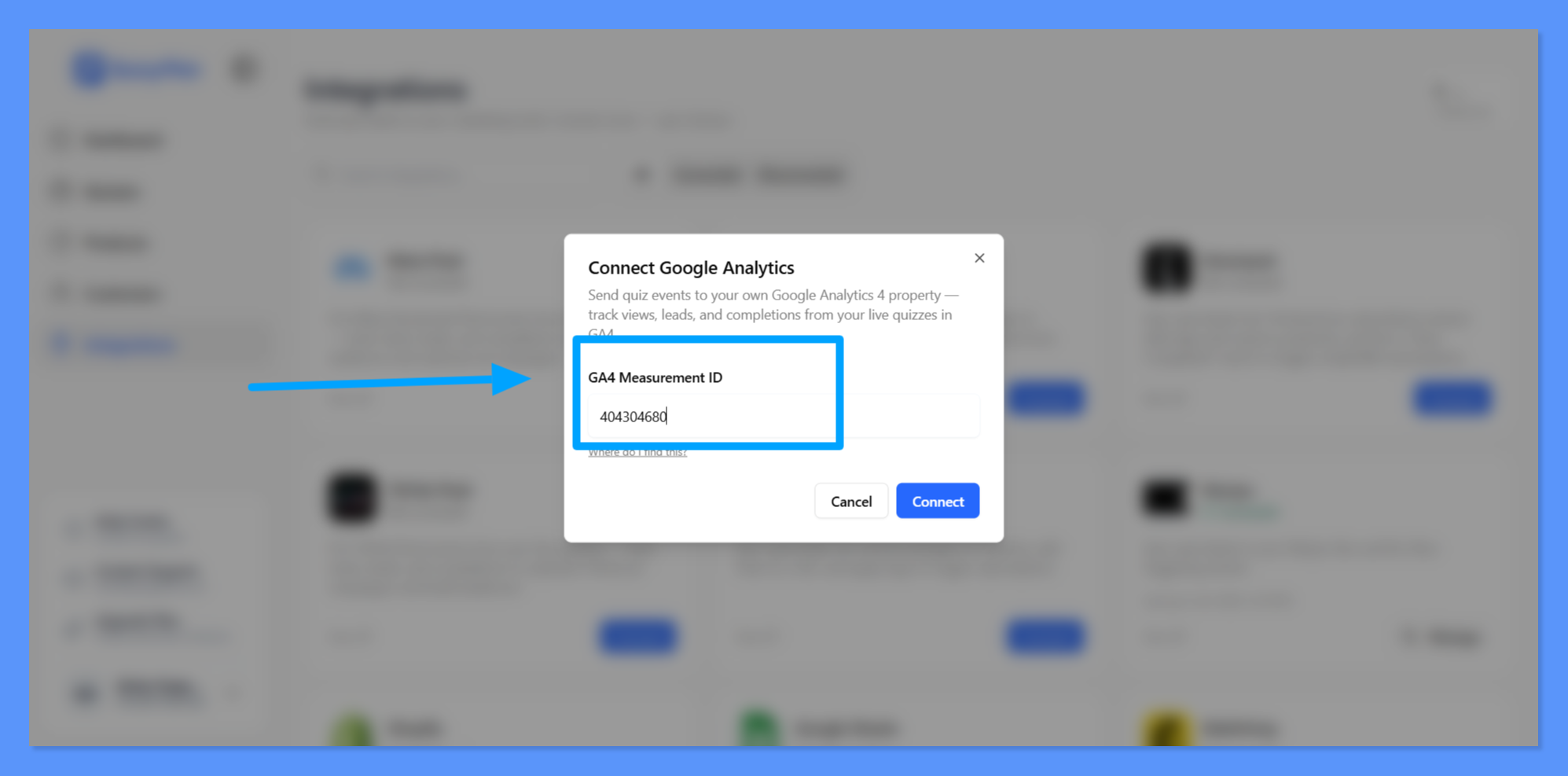 QuizyPilot's Connect Google Analytics window with the GA4 Measurement ID field.
Step 4: Verify the Connection
After connecting Google Analytics, QuizyPilot will start sending quiz events to your GA4 property.
You can verify the connection by opening Google Analytics and going to:
Reports → Realtime overview
When visitors interact with your quizzes, you should start seeing activity in your GA4 property.
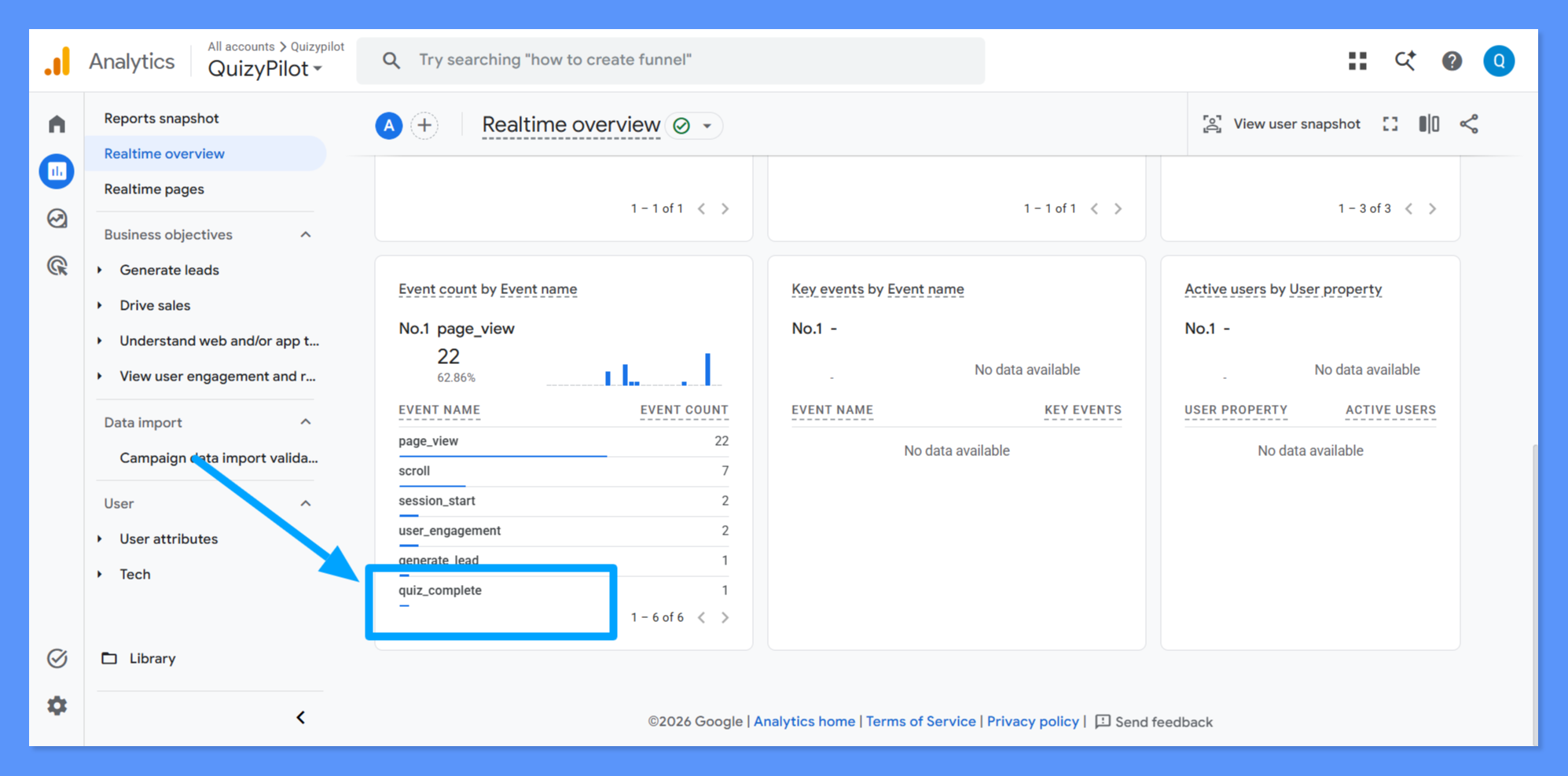 Google Analytics Realtime overview showing quiz-related events.
Events Tracked in Google Analytics
Once Google Analytics is connected, QuizyPilot can send quiz-related activity to your GA4 property, including events such as:
- Page views — When a visitor opens your quiz.
- Quiz starts — When a visitor begins answering a quiz.
- Lead generation — When a visitor submits their contact information.
- Quiz completions — When a visitor completes and submits the quiz.
These events allow you to understand how visitors interact with your quizzes and where users drop off.
How to Check Quiz Events in GA4
To view incoming events in Google Analytics:
- Open your GA4 property.
- Go to Reports.
- Open Realtime overview.
- Look for the Event count by Event name section.
- Check for quiz-related events such as
quiz_completeand other events generated by your QuizyPilot quizzes.
For example, a completed quiz may appear as:
quiz_complete