
How to Connect ActiveCampaign to Your QuizyPilot Account
How to Connect ActiveCampaign to Your QuizyPilot Account
Integrating ActiveCampaign with QuizyPilot allows you to automatically sync quiz leads as contacts, add them to your ActiveCampaign lists, apply tags, and use quiz activity to trigger automated marketing workflows.
Once connected, leads collected through your quizzes can be sent directly to your ActiveCampaign account, making it easier to build targeted campaigns and personalized customer journeys.
Before You Begin
Before connecting ActiveCampaign, make sure you have:
- An active QuizyPilot account
- An active ActiveCampaign account
- At least one published quiz
- Access to your ActiveCampaign account
- An ActiveCampaign list where you want to add quiz leads
Step 1: Open the Integrations Page
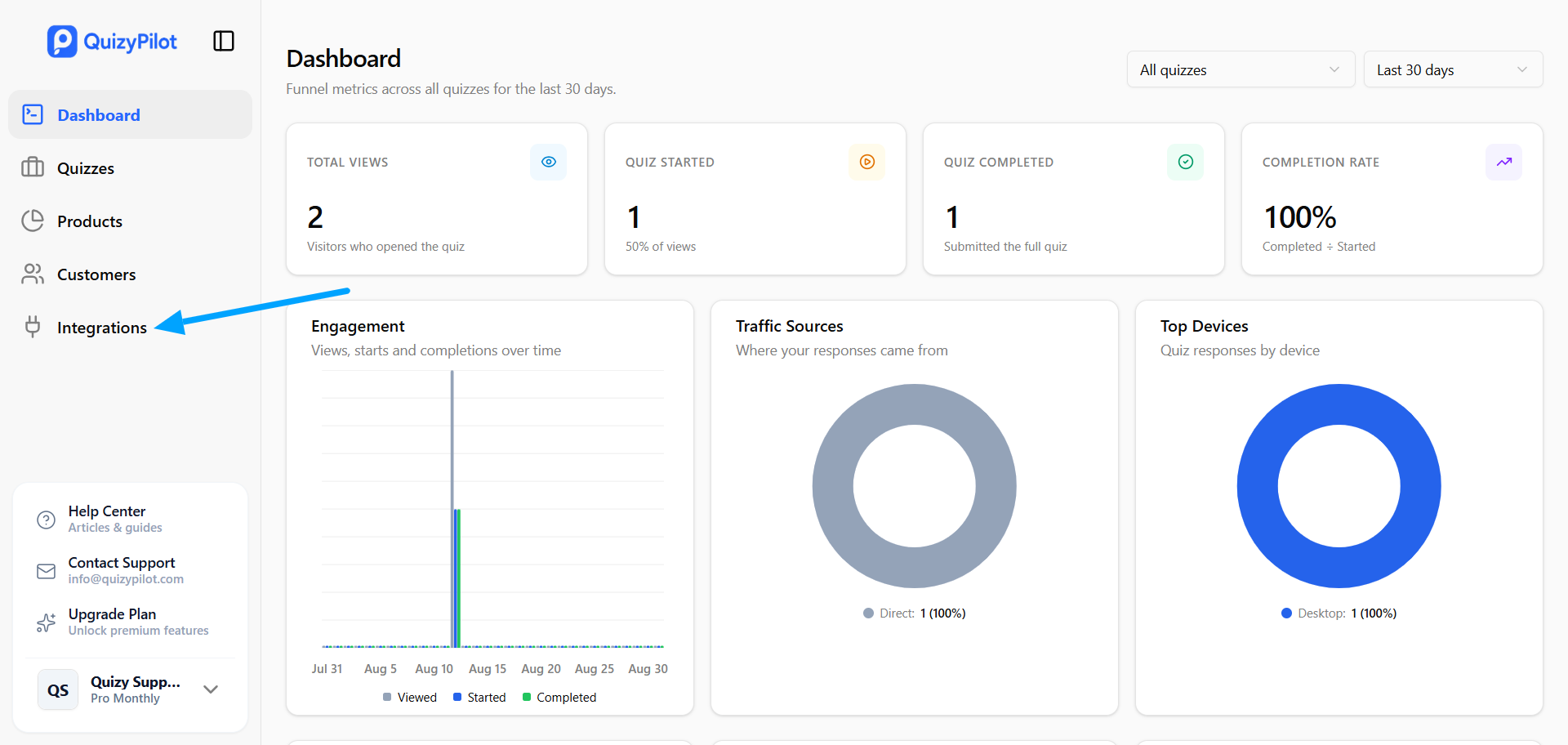
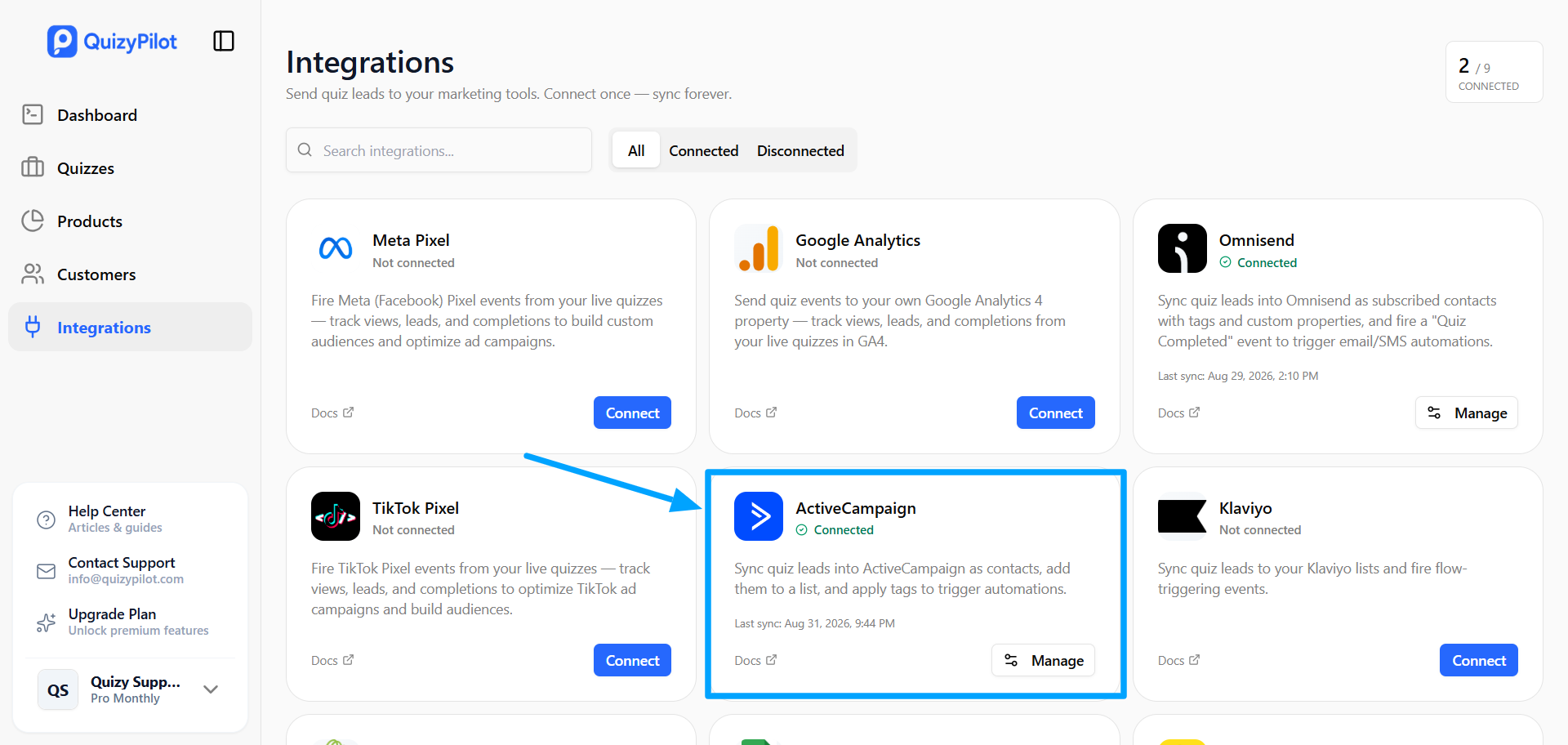
From your QuizyPilot dashboard, click Integrations from the left sidebar.
This page displays all available integrations supported by QuizyPilot.
Step 2: Connect ActiveCampaign
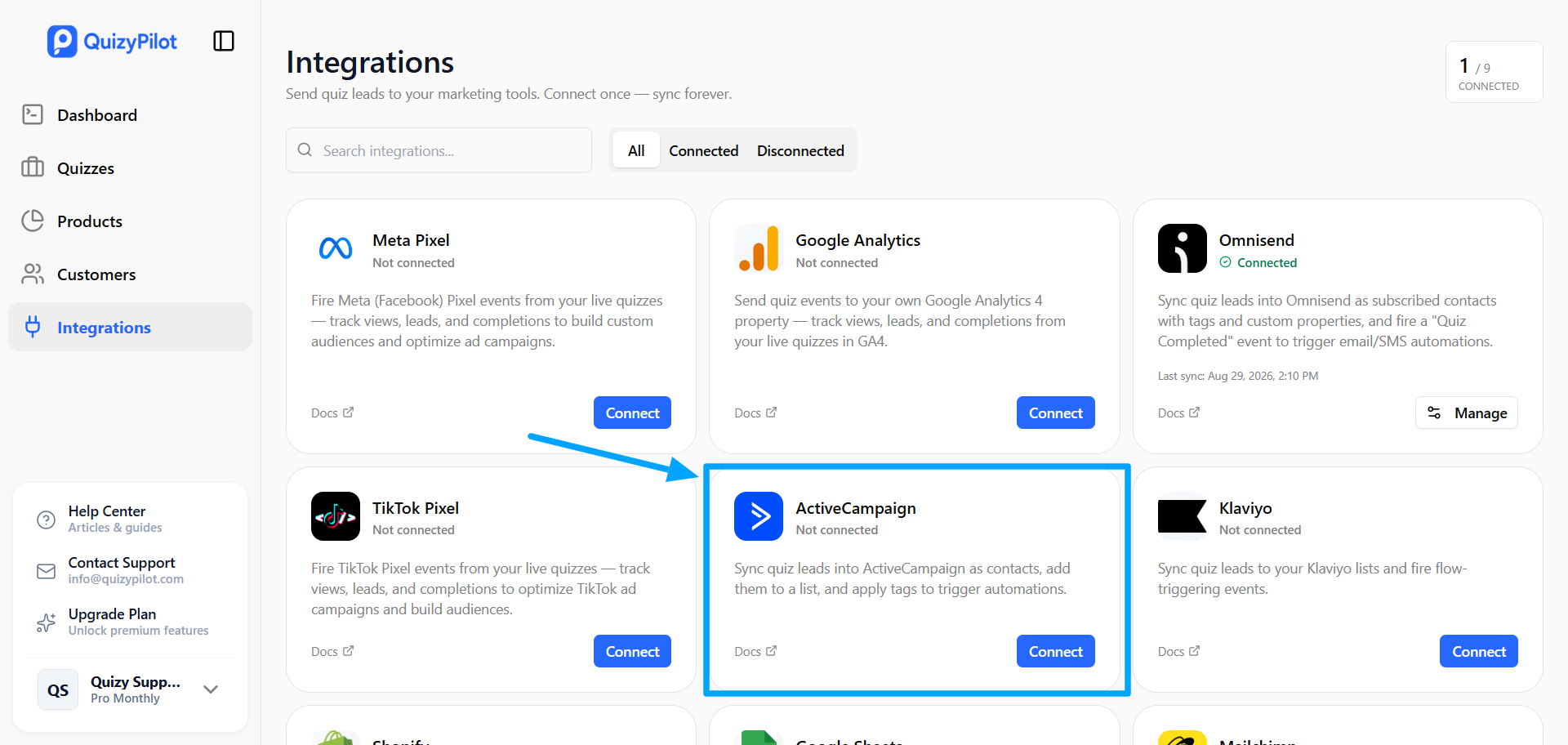
Locate the ActiveCampaign integration card and click Connect.
QuizyPilot will open the ActiveCampaign connection form where you can enter your ActiveCampaign API credentials.
Step 3: Find Your ActiveCampaign API Credentials
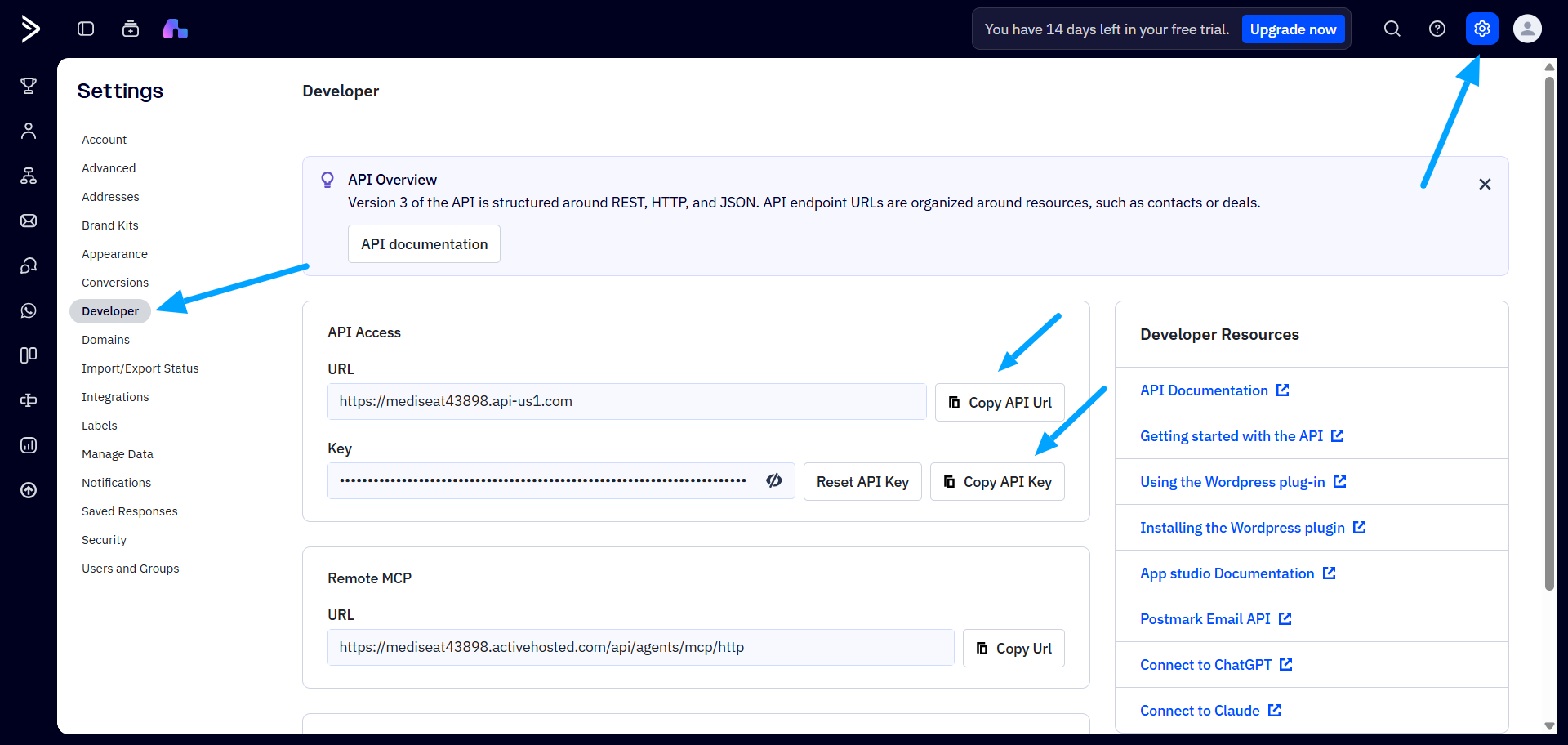
To connect ActiveCampaign, you need your API URL and API Key.
In your ActiveCampaign account:
- Open Settings.
- Select Developer from the settings menu.
- Locate the API Access section.
- Copy your API URL.
- Copy your API Key.
Keep these credentials secure and do not share your API key publicly.
Step 4: Enter Your ActiveCampaign API Credentials
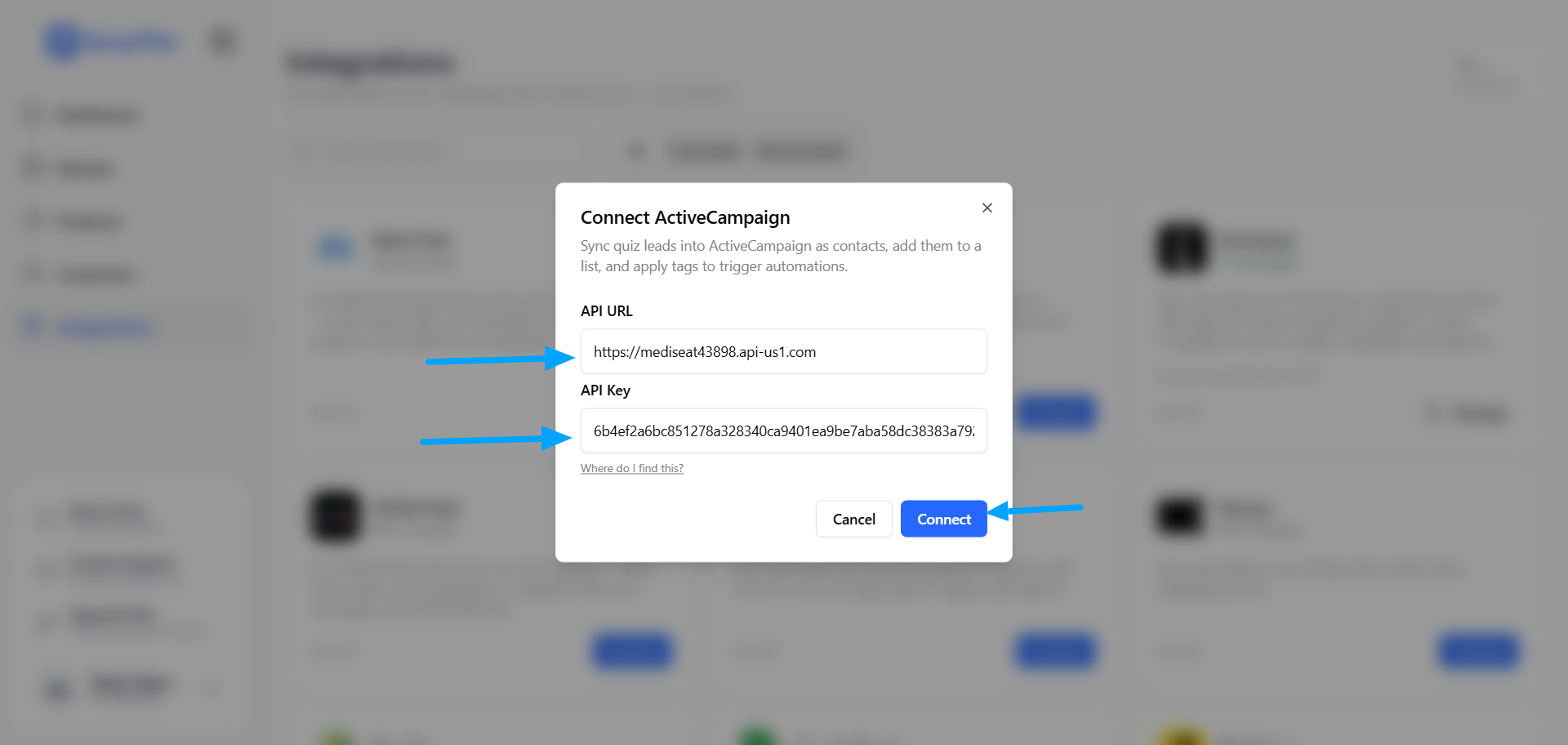
Return to the QuizyPilot ActiveCampaign connection window.
Enter the following information:
- API URL — Paste the API URL copied from ActiveCampaign.
- API Key — Paste the API key copied from ActiveCampaign.
After entering both values, click Connect.
QuizyPilot will verify your credentials and establish the connection with your ActiveCampaign account.
Step 5: Verify the Connection
After the connection is successful, you'll be redirected back to the Integrations page in QuizyPilot.
The ActiveCampaign integration will now display:
- ✅ Connected
- Last synchronization time
- Manage button
This confirms that QuizyPilot is successfully connected to your ActiveCampaign account.
Click Manage to configure which quizzes should sync with ActiveCampaign.
Step 6: Configure Your Quizzes
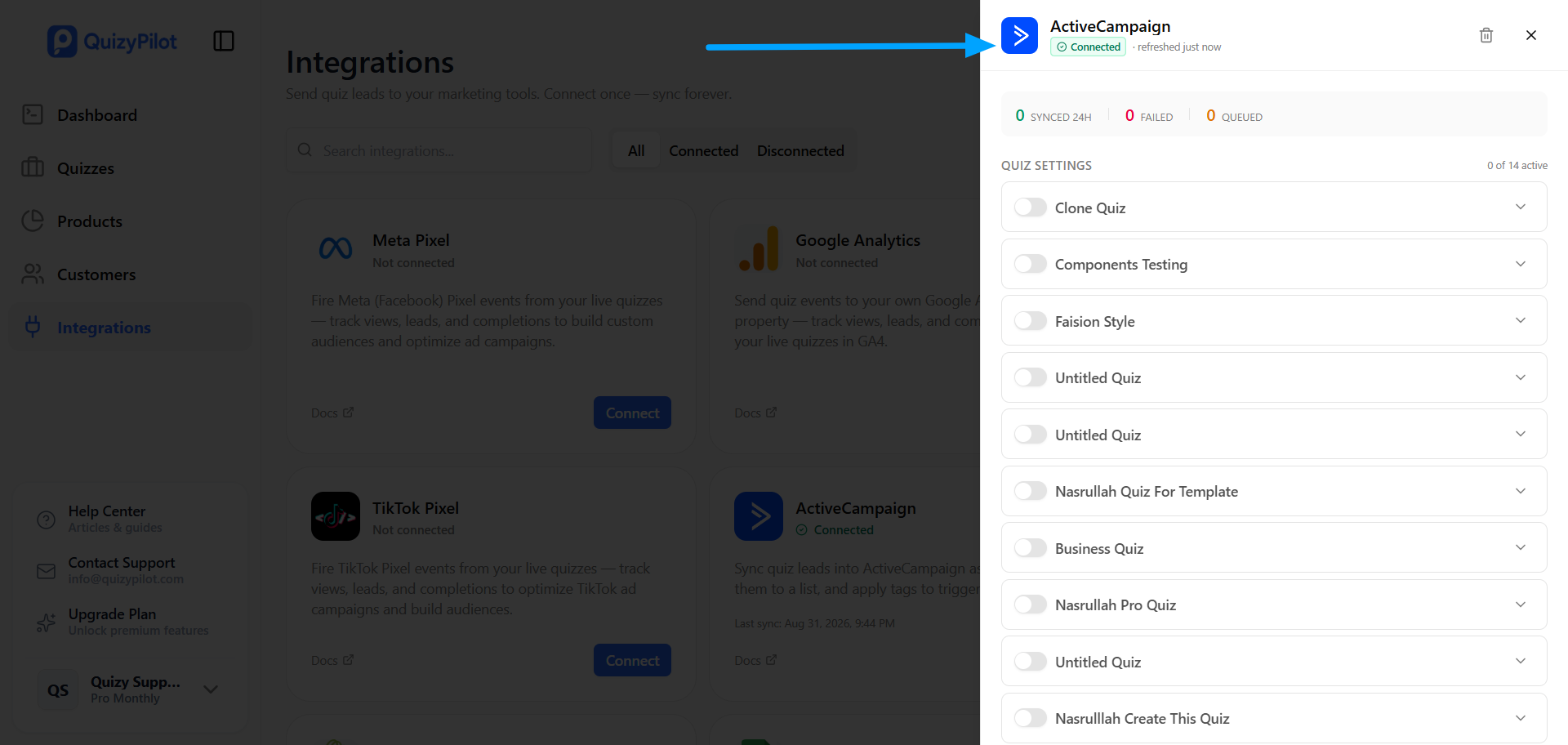
Inside the ActiveCampaign integration settings, you'll see all quizzes available in your QuizyPilot workspace.
Each quiz has its own toggle, allowing you to choose which quizzes should send data to ActiveCampaign.
To enable an integration for a quiz:
- Find the quiz you want to connect.
- Turn on the toggle next to the quiz.
- Expand the quiz settings using the arrow on the right.
- Configure the available ActiveCampaign options for that quiz.
The integration panel also displays synchronization information, including:
- Synced 24h — Number of contacts synced during the last 24 hours
- Failed — Number of synchronization attempts that failed
- Queued — Number of items waiting to be synchronized
Sync Quiz Leads to ActiveCampaign
Once a quiz is enabled, QuizyPilot can sync quiz leads to ActiveCampaign as contacts.
This allows you to use quiz leads inside ActiveCampaign for:
- Email marketing
- Customer segmentation
- Marketing automation
- Personalized campaigns
- Customer follow-ups
Add Quiz Leads to an ActiveCampaign List
QuizyPilot can add quiz leads to an ActiveCampaign list.
This makes it easy to organize contacts collected through a specific quiz and use that list as an audience for your ActiveCampaign campaigns and automations.
For example, you can create a dedicated list for customers who completed a product recommendation quiz and use it for targeted follow-up campaigns.
Apply Tags to Quiz Leads
QuizyPilot can apply tags to contacts synced to ActiveCampaign.
Tags can help you identify contacts based on their quiz activity and organize them for future marketing campaigns.
You can use quiz-related tags to:
- Segment contacts
- Identify quiz participants
- Create targeted campaigns
- Trigger marketing automations
- Personalize customer communication
Use Quiz Activity to Trigger Automations
Once quiz leads are synced to ActiveCampaign, you can use the contact information and quiz-related tags to trigger your ActiveCampaign automations.
For example, you can create an automation that starts when a customer is added to a specific list or receives a quiz-related tag.
This can be used for:
- Welcome email sequences
- Product recommendation follow-ups
- Promotional campaigns
- Lead nurturing
- Customer onboarding
- Personalized email journeys
Step 7: Verify Your Synced Contacts in ActiveCampaign
After a customer completes an enabled quiz, QuizyPilot will send the lead information to ActiveCampaign.
To verify the synchronization:
- Open your ActiveCampaign dashboard.
- Navigate to your Contacts section.
- Search for the email address used to complete the quiz.
- Open the contact profile.
- Verify that the contact has been added successfully.
You can also check the relevant list and tags to confirm that the QuizyPilot data was synchronized correctly.
You're All Set!
Your QuizyPilot account is now connected to ActiveCampaign.
Once your quiz integration is enabled, QuizyPilot can automatically:
- Sync quiz leads to ActiveCampaign as contacts
- Add leads to your selected ActiveCampaign list
- Apply quiz-related tags
- Help trigger ActiveCampaign automations
- Support personalized email marketing campaigns
- Build targeted customer journeys based on quiz activity
You're now ready to use your QuizyPilot quiz leads inside ActiveCampaign to create personalized marketing campaigns and automated customer journeys.