
Conditional Container
The Conditional Container lets you display different content based on conditions in your quiz.
Instead of creating separate pages or complicated quiz flows, you can place multiple blocks inside one container and control which block is displayed based on a visitor's answers, product results, or other available data.
This makes it easy to create personalized quiz experiences while keeping everything organized in a single container.
How the Conditional Container Works
A Conditional Container consists of three main parts:
- Active Block — The default block displayed when no conditional block matches.
- Conditional Blocks — Blocks displayed when their conditions are matched.
- Conditions — Rules that determine when a conditional block should be displayed.
For example, in a skincare quiz, you can show different content based on the customer's skin type:
- Dry → Show hydrating products
- Oily → Show oil-control products
- Sensitive → Show gentle skincare products
Only the block whose conditions match the visitor's data will be displayed.
[Screenshot:
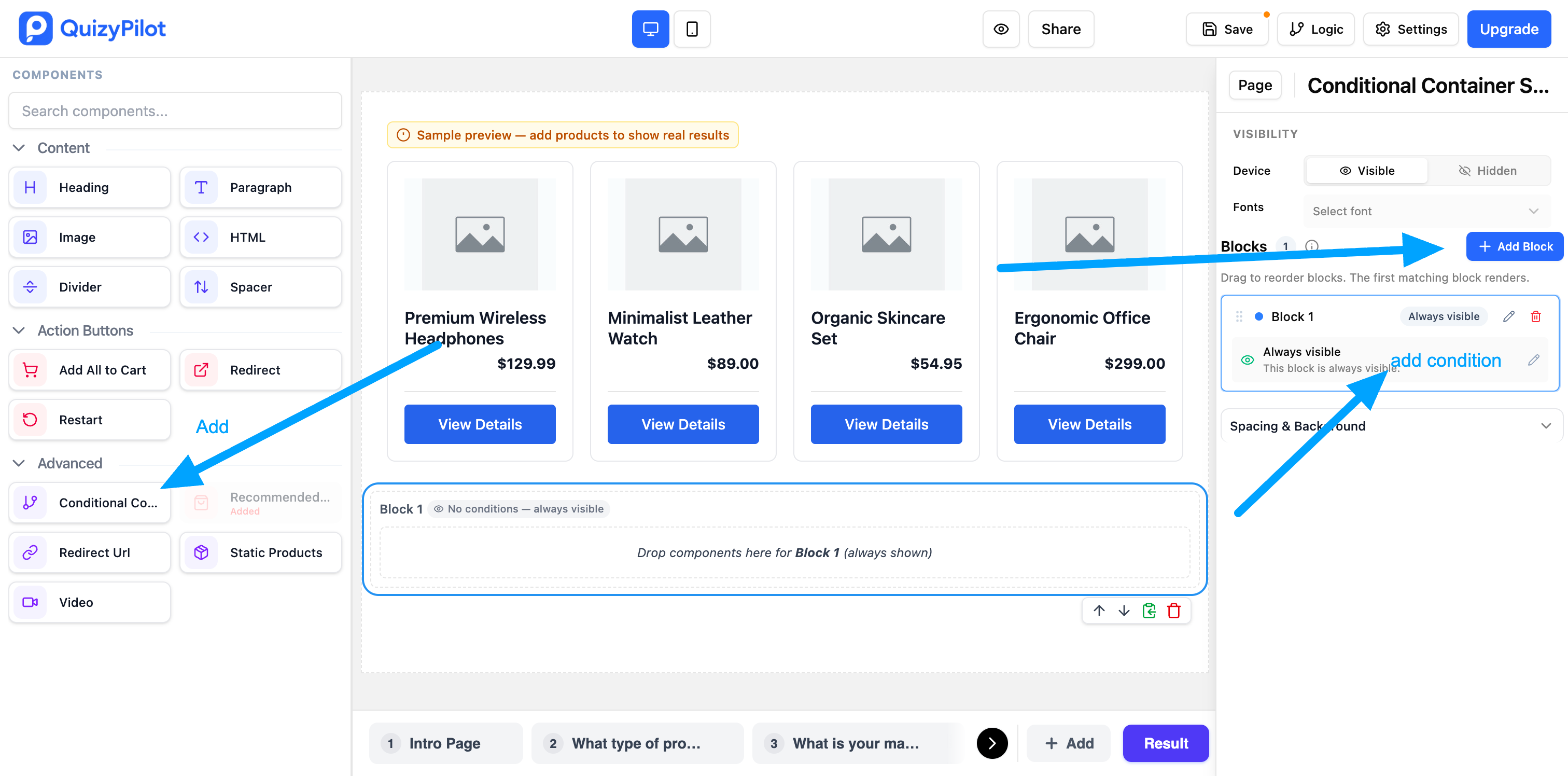 Conditional Container overview showing the container, Active Block, and Conditional Blocks]
Create a Conditional Container
1. Add a Conditional Container
Add the Conditional Container to your quiz page from the editor.
The container provides a place to organize your default content and conditional content in one location.
[Screenshot:
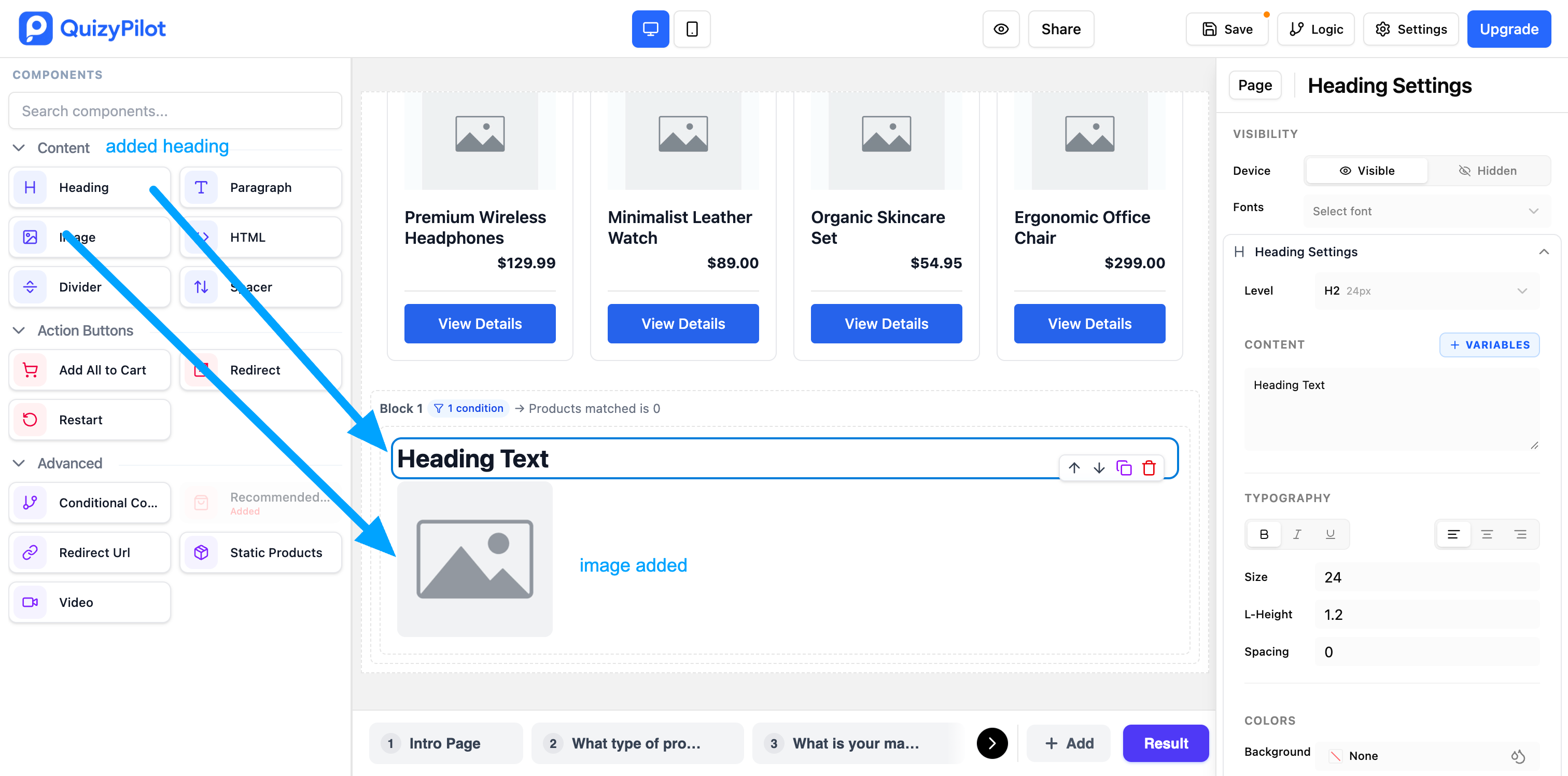 Editor showing where to find and add the Conditional Container]
Tip: Use a Conditional Container when you want different content to appear depending on a visitor's quiz answers or other available data.
2. Add Your Blocks
After adding the Conditional Container, add the content you want to display inside it.
You can use supported components such as:
- Text
- Images
- Static Products
- Dynamic Product Recommendations
- Buttons
- Videos
- Other editor components
Each block can contain different content and can have its own conditions.
[Screenshot:
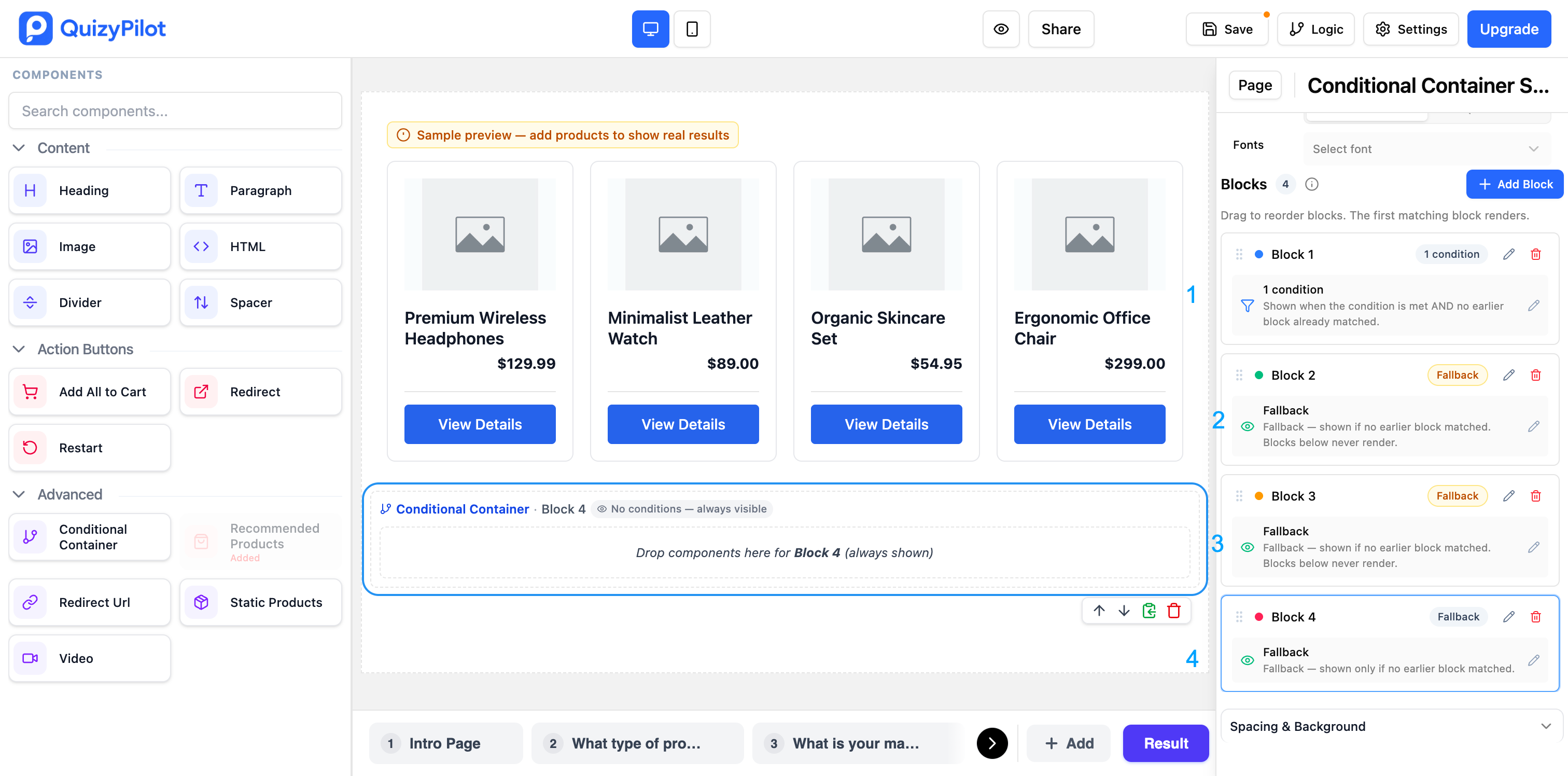 Conditional Container showing multiple blocks added inside it]
Static Products
You can add specific products directly to a conditional block and display them only when a condition is matched.
For example:
Condition:
Skin Type = Dry
Static Products:
- Hydrating Cleanser
- Moisturizing Cream
- Hyaluronic Acid Serum
When the visitor selects Dry Skin, these specific products will be displayed.
Static products are useful when you already know exactly which products you want to recommend for a specific condition.
[Screenshot:
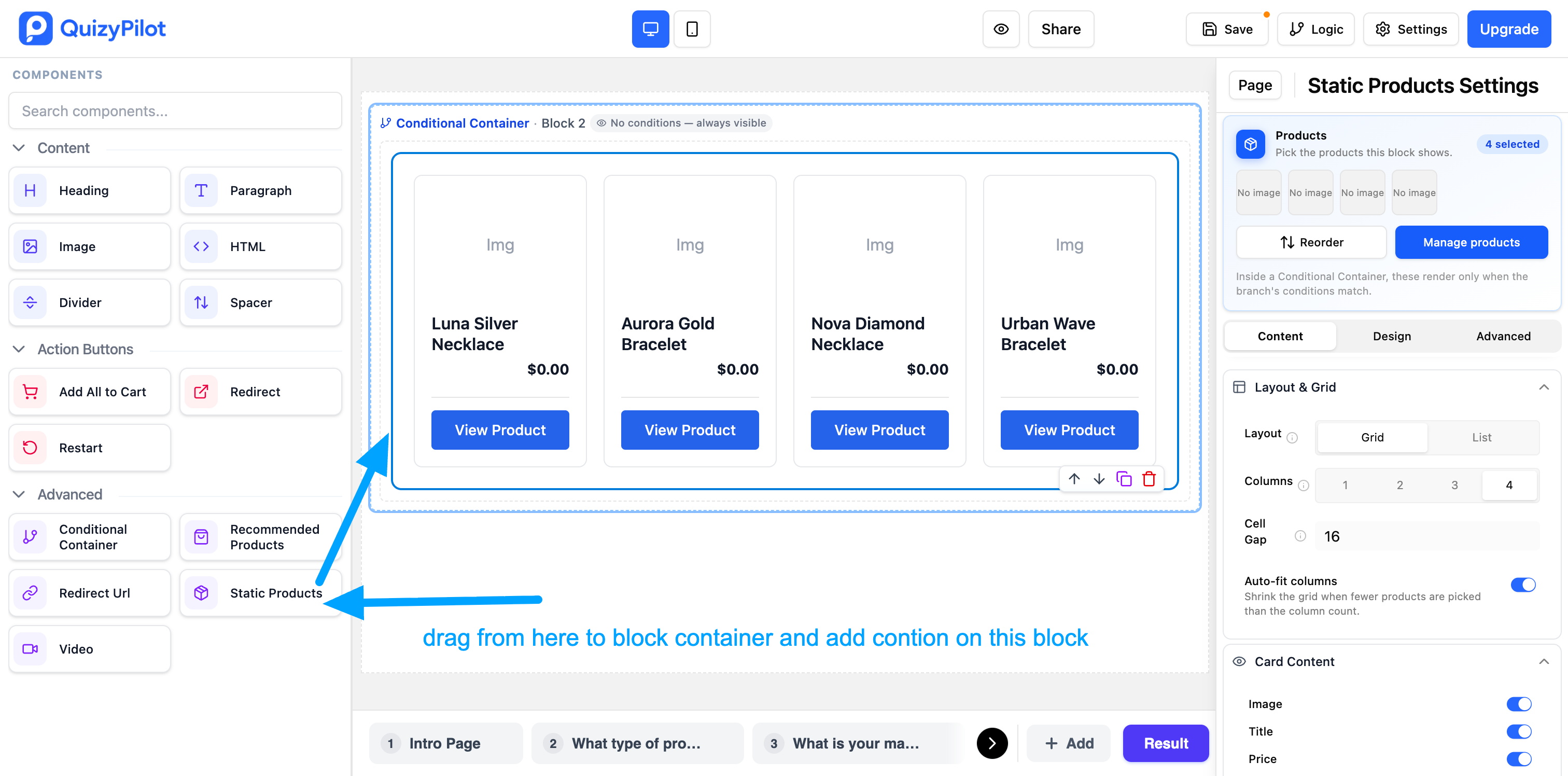 Conditional Block showing manually selected Static Products]
Dynamic Product Recommendations
You can also display products returned by your quiz's recommendation logic.
For example:
Condition:
Skin Type = Dry
Product Result:
Products matching the visitor's answers
QuizyPilot can automatically return products that match the configured recommendation rules, so you don't need to manually select every product.
You can use:
- Static Products — Products you manually select.
- Dynamic Products — Products returned based on quiz recommendation logic.
- A Combination of Both — Use selected products together with dynamically returned products.
[Screenshot: Product component showing dynamic products returned from quiz logic]
3. Set an Active Block
Choose one block as the Active Block.
The Active Block works as the default or fallback content for the Conditional Container.
For example:
We found some recommendations based on your answers.
If none of the conditional blocks match the visitor's data, the Active Block can be displayed.
Use the Active Block when you want to provide a general experience for visitors who don't match a specific condition.
[Screenshot:
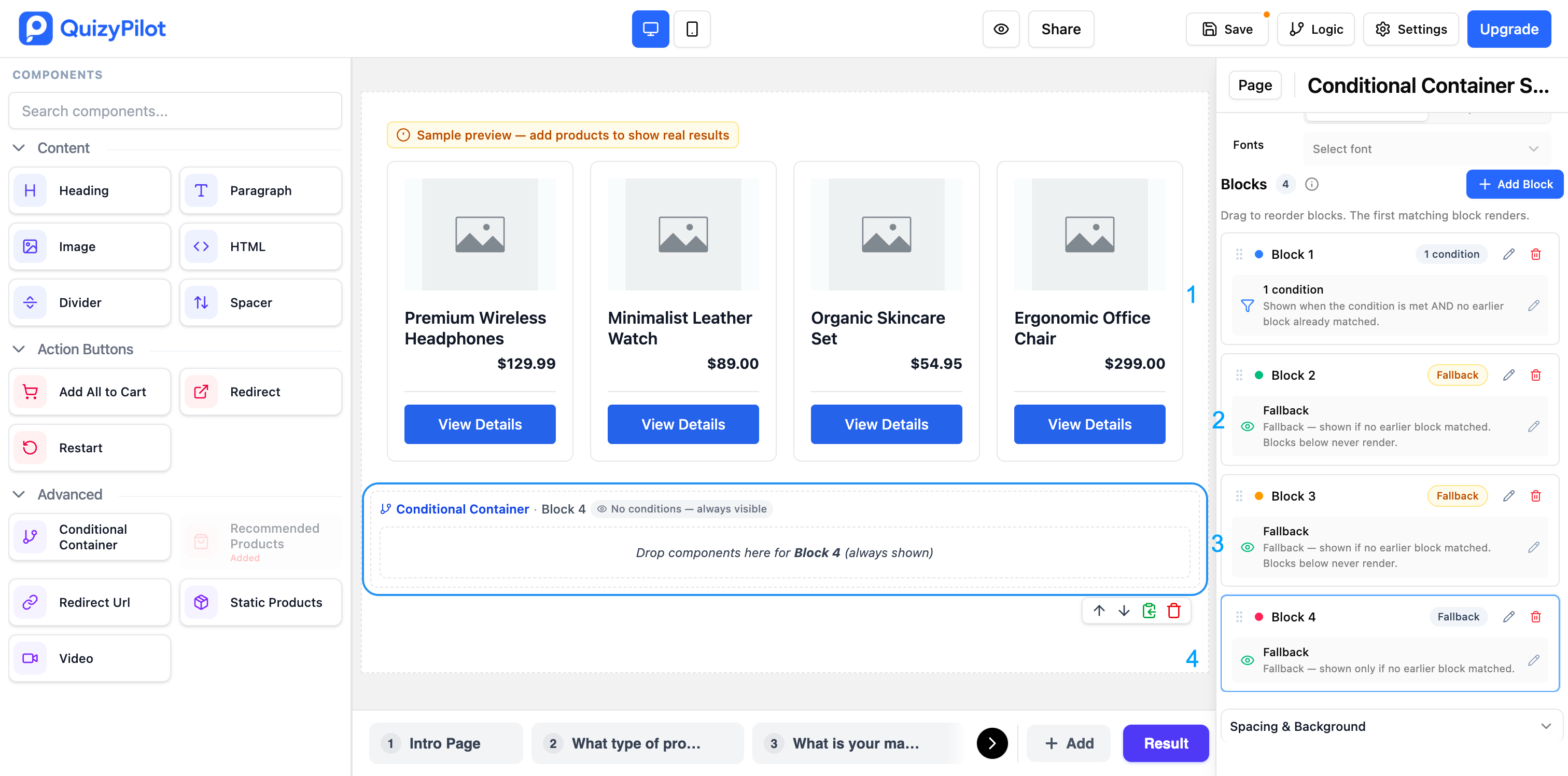 Block list showing one block marked as Active Block]
Example
Imagine you have three conditional blocks:
- Dry Skin
- Oily Skin
- Sensitive Skin
You can set a general recommendation block as the Active Block.
If a visitor does not match any of the specific conditions, the Active Block can provide the default content.
4. Add a Conditional Block
To create personalized content, add a new Conditional Block inside the Conditional Container.
Give the block a meaningful name based on what it is going to display.
For example:
- Dry Skin
- Oily Skin
- Products Found
- No Products Found
- Premium Products
Meaningful names make your conditional setup easier to understand and manage.
[Screenshot: Adding a new Conditional Block and naming the block]
5. Add a Condition
Select the Conditional Block and click Add Condition.
First, choose the Source that should control the block.
Then configure the condition using the available options.
For example:
Source: Quiz Answer
Question: What is your skin type?
Operator: Is
Value: Dry
The block will be displayed when the visitor's answer matches the configured condition.
[Screenshot: Condition settings showing Source, Operator, and Value]
Tip: Select the correct Source first. Once the source is selected, configure the condition based on the data available from that source.
6. Configure the Condition
A condition generally consists of:
Source → Operator → Value
For example:
Quiz Answer → Is → Dry
The Source determines where the data comes from.
The Operator determines how the data should be compared.
The Value determines what the visitor's data needs to match.
[Screenshot: Completed condition showing Source, Operator, and Value]
Using Multiple Conditions
You can add multiple conditions to create more specific experiences.
For example, you may want to show a recommendation only when:
Skin Type = Dry
AND
Skin Concern = Aging
The block will only be displayed when the required conditions are matched.
[Screenshot: Conditional Block showing multiple conditions]
AND Conditions
Use AND when all conditions must match.
Example:
Skin Type = Dry
AND
Skin Concern = Aging
The block is displayed only when both conditions are true.
[Screenshot: AND condition example]
OR Conditions
Use OR when any of the conditions can match.
Example:
Skin Type = Dry
OR
Skin Type = Sensitive
The block is displayed when either condition is true.
[Screenshot: OR condition example]
Using Product Count
Product Count can also be used as a condition.
Product Count represents the number of products returned by your configured product recommendation logic.
This is useful when you want to display different content depending on whether matching products were found.
For example:
Condition:
Product Count > 0
Display:
We found these products for you.
Or:
Condition:
Product Count = 0
Display:
We couldn't find an exact match. Try adjusting your answers.
[Screenshot: Product Count selected as the condition Source]
This allows you to create a better experience for both visitors who receive product recommendations and visitors who don't have any matching products.
Example: Personalized Skincare Quiz
Imagine your quiz asks:
What is your skin type?
- Dry
- Oily
- Combination
- Sensitive
You can create one Conditional Container with different blocks.
[Screenshot: Complete Conditional Container showing all skincare blocks]
Active Block
Display general content when no specific conditional block matches.
For example:
Here are some recommendations based on your answers.
Conditional Block — Dry Skin
Condition:
Skin Type = Dry
Content:
Display hydrating skincare products and recommendations.
Conditional Block — Oily Skin
Condition:
Skin Type = Oily
Content:
Display lightweight and oil-control products.
Conditional Block — Combination Skin
Condition:
Skin Type = Combination
Content:
Display products designed for combination skin.
Conditional Block — Sensitive Skin
Condition:
Skin Type = Sensitive
Content:
Display gentle and sensitive-skin products.
The visitor will only see the content that matches their quiz answers.
Example: Static Product Recommendations
You can use conditional blocks to show specific products for specific answers.
For example:
Condition:
Hair Type = Curly
Static Products:
- Curl Defining Cream
- Hydrating Shampoo
- Curl Repair Mask
When the visitor selects Curly Hair, the selected products will be displayed.
You can create another block for straight hair:
Condition:
Hair Type = Straight
Static Products:
- Smoothing Shampoo
- Lightweight Conditioner
- Shine Serum
[Screenshot: Static products displayed inside a conditional block]
This gives you complete control over which products are shown for each condition.
Example: Dynamic Product Results
You can also use the Conditional Container together with dynamic product recommendations.
For example:
Condition:
Skin Type = Dry
The product component can display products returned by your quiz recommendation rules.
If the quiz finds 5 matching products, those products can be displayed automatically.
[Screenshot: Conditional block showing dynamically returned product results]
You can also use Product Count to handle cases where no products are returned.
Products Found
Condition:
Product Count > 0
Display:
Here are your personalized recommendations.
No Products Found
Condition:
Product Count = 0
Display:
We couldn't find products that match your answers. Try changing your selections.
[Screenshot: Product Count = 0 condition and the No Products Found block]
Complete Conditional Container Example
A complete setup might look like this:
Conditional Container
→ Active Block
Default content
→ Conditional Block — Dry Skin
Condition: Skin Type = Dry
Content: Static or dynamic product recommendations
→ Conditional Block — Oily Skin
Condition: Skin Type = Oily
Content: Static or dynamic product recommendations
→ Conditional Block — Sensitive Skin
Condition: Skin Type = Sensitive
Content: Static or dynamic product recommendations
→ Conditional Block — Products Found
Condition: Product Count > 0
Content: Personalized product message
→ Conditional Block — No Products Found
Condition: Product Count = 0
Content: No products found message
[Screenshot: Full Conditional Container setup from the editor]
When the quiz runs, QuizyPilot evaluates the configured conditions and displays the appropriate content.
What Happens When the Quiz Runs?
When a visitor completes the quiz, QuizyPilot evaluates the conditions configured for the Conditional Container.
For example:
- The visitor answers Skin Type = Dry.
- QuizyPilot checks the Conditional Blocks.
- The Dry Skin condition matches.
- The Dry Skin block is displayed.
- Blocks whose conditions do not match remain hidden.
[Screenshot: Quiz preview showing the final conditional content displayed to the visitor]
This allows you to create personalized experiences without creating separate quiz pages for every possible result.
Common Use Cases
Conditional Containers are useful for:
- Personalized product recommendations
- Static product recommendations
- Dynamic product recommendations
- Different content based on quiz answers
- Targeted offers and promotions
- Personalized calls to action
- Customer segmentation
- Product availability messages
- Empty-result experiences
- Different messages based on Product Count
- Dynamic quiz result content
Best Practices
Use an Active Block
Consider adding an Active Block to provide useful fallback content when no conditional block matches.
Keep Conditions Simple
Only add the conditions you need.
Simple conditions are easier to understand, test, and maintain.
Give Blocks Meaningful Names
Use descriptive names such as:
- Dry Skin
- Oily Skin
- Sensitive Skin
- Products Found
- No Products Found
Instead of:
- Block 1
- Block 2
- Block 3
Meaningful names make larger conditional setups much easier to manage.
Test Every Condition
Preview your quiz and test different answers to make sure the correct block is displayed.
Also test scenarios where:
- A condition matches
- Multiple conditions match
- No condition matches
- Product Count is greater than 0
- Product Count is 0
This helps ensure your quiz behaves as expected.
[Screenshot: Quiz preview showing a tested conditional result]
Quick Example
A simple Conditional Container can look like this:
Conditional Container
→ Active Block
Default content
→ Conditional Block
Condition: Skin Type = Dry
→ Conditional Block
Condition: Skin Type = Oily
→ Conditional Block
Condition: Skin Type = Sensitive
→ Conditional Block
Condition: Product Count = 0
When the quiz runs, QuizyPilot evaluates the configured conditions and displays the appropriate content.
Summary
The Conditional Container makes it easy to create personalized quiz experiences without creating multiple pages.
Use an Active Block for your default content, add Conditional Blocks for specific scenarios, and define Conditions to control when each block appears.
You can use static products, dynamic product recommendations, and Product Count conditions to create powerful and personalized shopping experiences.